

Blog
How to Activate SQL Server 2016 Standard Retail Key – Step-by-Step Guide

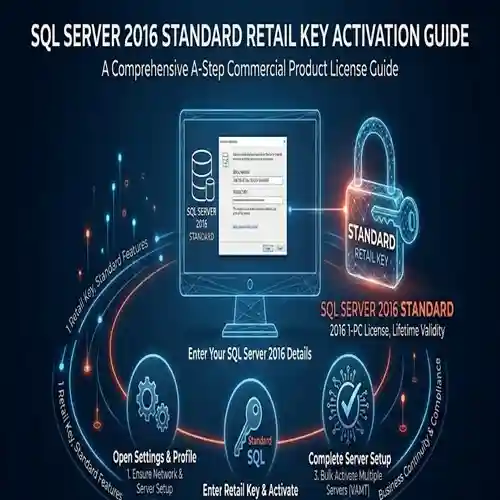
Introduction:
Activating SQL Server 2016 Standard Retail Key is essential to unlock the full potential of your SQL Server installation. With SQL Server 2016, you get a robust database management system with advanced features like data virtualization, in-memory processing, real-time analytics, and enhanced security. However, to use these features, proper activation is a must.
In this article, we’ll guide you through the activation process for SQL Server 2016 Standard, including common activation errors and their fixes. This ensures you get your system up and running without any setbacks.
Key Features of SQL Server 2016 Standard:
-
High Performance and Scalability:
-
SQL Server 2016 Standard offers high-speed processing with in-memory OLTP and real-time data analytics to help organizations handle large-scale data workloads with ease.
-
-
Advanced Security:
-
Features like Always Encrypted, dynamic data masking, and transparent data encryption ensure your sensitive data remains protected throughout its lifecycle.
-
-
Data Virtualization:
-
Integrate your SQL Server with other data sources through PolyBase and perform cross-platform queries without requiring complex configurations.
-
-
High Availability:
-
Use AlwaysOn Availability Groups for improved disaster recovery and minimal downtime.
-
-
Integration with Big Data:
-
SQL Server 2016 integrates with Hadoop and other big data technologies, allowing for large-scale data storage and analysis.
-
Common sql
-
Error: “The Product Key You Entered Is Invalid”
-
Cause: Incorrect or expired product key.
-
Fix: Double-check the product key for accuracy. Ensure you are using the correct version of SQL Server 2016 Standard. If the key is expired, contact the vendor for a valid key.
-
-
Error: “SQL Server Can’t Connect to Activation Servers”
-
Cause: Network connectivity issues.
-
Fix: Ensure that your computer is connected to the internet. If the issue persists, check your firewall settings or DNS configuration. If you’re behind a proxy, ensure proxy settings are properly configured.
-
-
Error: “Activation Failed – Key Limit Reached”
-
Cause: The product key has been used too many times or on multiple devices.
-
Fix: Contact Microsoft support to reset or reassign your key or request a new key if necessary.
-
-
Error: “You Do Not Have Permission to Activate This Key”
-
Cause: The user does not have the correct administrative privileges.
-
Fix: Ensure you are logged in as an administrator on the system. Right-click the SQL Server setup and select Run as Administrator.
-
Methods to Activate SQL Server 2016 Standard:
-
Activate via Command Prompt:
If the SQL Server 2016 setup fails to activate automatically, you can activate it using the Command Prompt:
-
Open the Command Prompt as an administrator.
-
Type the following command:
cd C:\Program Files\Microsoft SQL Server\130\Setup Bootstrap\SQLServer2016
Setup.exe /quiet /ACTION=Install /IACCEPTSQLSERVERLICENSETERMS -
Replace the
Setup.exepath according to your installation directory. -
Enter the product key when prompted.
-
-
Activate via SQL Server Management Studio (SSMS):
-
Open SQL Server Management Studio.
-
Connect to your instance of SQL Server.
-
Under Object Explorer, right-click the server and select Properties.
-
In the License section, ensure your key is entered under Edition and Product Key.
-
If activation fails, attempt a manual activation using the Product Key in the SQL Server Configuration Manager.
-
-
Activate Using Phone Activation (for Offline Systems):
If you’re unable to activate online:
-
Launch the SQL Server Setup Wizard and choose the Activate by Phone option.
-
Follow the instructions to receive an Installation ID and call Microsoft for activation.
-
Conclusion:
Activating SQL Server 2016 Standard Retail Key is an essential step to unlocking the full capabilities of the software. With advanced features like real-time analytics, in-memory processing, and enhanced security, SQL Server 2016 is a powerful tool for managing large datasets and complex workloads. Following the steps outlined in this guide, you should be able to activate your SQL Server successfully without encountering common issues. If you face any activation problems, be sure to troubleshoot or contact Microsoft support for assistance.
SQL Server 2016 Standard is a reliable solution for businesses looking to scale their database operations with enhanced performance and security. By selecting the correct activation method and following the proper steps, you can ensure that your SQL Server setup is ready for production.
FAQ:
-
How do I activate SQL Server 2016 Standard?
-
You can activate SQL Server 2016 Standard via the SQL Server Setup Wizard, command prompt, or phone activation if you’re offline.
-
-
What should I do if my SQL Server 2016 product key is invalid?
-
Double-check the key for accuracy, ensure it’s the correct version, and make sure it hasn’t been used on another device. If the issue persists, contact Microsoft support.
-
-
Can I activate SQL Server 2016 without an internet connection?
-
Yes, you can use phone activation to activate SQL Server 2016 without an internet connection.
-
-
What if I get a “key limit reached” error?
-
This typically means the product key has been activated on too many devices. Contact Microsoft support for assistance.
-
-
Can I use the same SQL Server 2016 retail key on multiple computers?
-
No, each product key is usually restricted to a specific number of activations. For multiple installations, you may need to purchase additional keys or consider Volume Licensing.
-