

Blog
How to Activate Office 2021 Home & Business – 1MAC, Account-Bound Key, Lifetime Access

Introduction
Microsoft Office 2021 Home & Business is one of the most popular productivity suites, trusted by students, professionals, and home users alike. Designed for Mac users, this version delivers the essential tools you need — like Word, Excel, PowerPoint, and Outlook — without paying monthly subscription fees. Instead, you get lifetime access with a secure account‑bound key that connects your Office license directly to your Microsoft account. With this guide, you’ll learn how to activate Office 2021 Home & Business on your Mac, troubleshoot common problems, understand licensing details, and optimize your setup for the best performance.
If you haven’t purchased your Office key yet, you can get a verified one from a trusted source like esoftwarestore Microsoft Office 2021 Home & Business to ensure safe activation and delivery.
Why Office 2021 Home & Business Is Worth It
Office 2021 Home & Business is ideal for anyone who wants powerful software without subscriptions. Unlike Microsoft 365, which works on a subscription model, Office 2021 is a one‑time purchase with lifetime access — perfect for long‑term use without recurring charges.
This version of Office includes:
- Microsoft Word – Create and edit professional documents
- Microsoft Excel – Advanced spreadsheet and data analysis tools
- Microsoft PowerPoint – Stunning presentations
- Microsoft Outlook – Email and calendar management
All of these apps work seamlessly on Mac devices, and binding the license to your Microsoft account makes future reinstallation simple.
If you already have your key but need to download the installer, visit esoftwarestore Office 2021 download page.
Key Features & Benefits
Here’s why Office 2021 Home & Business is a strong choice:
1. Lifetime Access
No subscriptions, no renewals. Once activated with your account, you keep access forever.
2. Secure Account Binding
Your Office key is tied to your Microsoft account, so it’s easy to manage, reinstall, and recover if needed.
3. Essential Productivity Tools
Access core applications like Word, Excel, PowerPoint, and Outlook for everyday work and school.
4. Compatible with Mac Devices
Official Microsoft support ensures smooth operation on macOS without compromises.
5. Official Microsoft Updates
Get important security and stability updates directly from Microsoft.
6. Easy Reinstallation
Since your license is connected to a Microsoft account, you can reinstall Office anytime.
7. Professional and Personal Use
Perfect for small business owners, students, remote workers, and home setups.
For activation guidance and official keys, see esoftwarestore activation guide.
Office 2021 vs Other Microsoft Office Options
| Feature | Office 2021 Home & Business | Office 2019 | Microsoft 365 |
|---|---|---|---|
| License | One‑time purchase | One‑time purchase | Subscription |
| Lifetime Use | ✔️ | ✔️ | ❌ |
| Included Apps | Word, Excel, PowerPoint, Outlook | Same | All Office apps + extras |
| Cloud Files | Limited | Limited | Advanced cloud features |
| Update Frequency | Security updates | Security updates | Feature + security updates |
| Subscription Required | ❌ | ❌ | ✔️ |
| Activation | Account‑bound | Device key | Microsoft account |
| Best For | Long‑term Mac use | Older systems | Frequent collaboration |
When compared to the older Office 2019, the Home & Business 2021 edition brings improvements like better performance, interface enhancements, and smoother workflows across Mac devices.
Methods to Activate Office 2021 Home & Business (1MAC, Account‑Bound)
There are several reliable ways to activate your Office 2021 Home & Business key on Mac. Below are step‑by‑step instructions for each method.
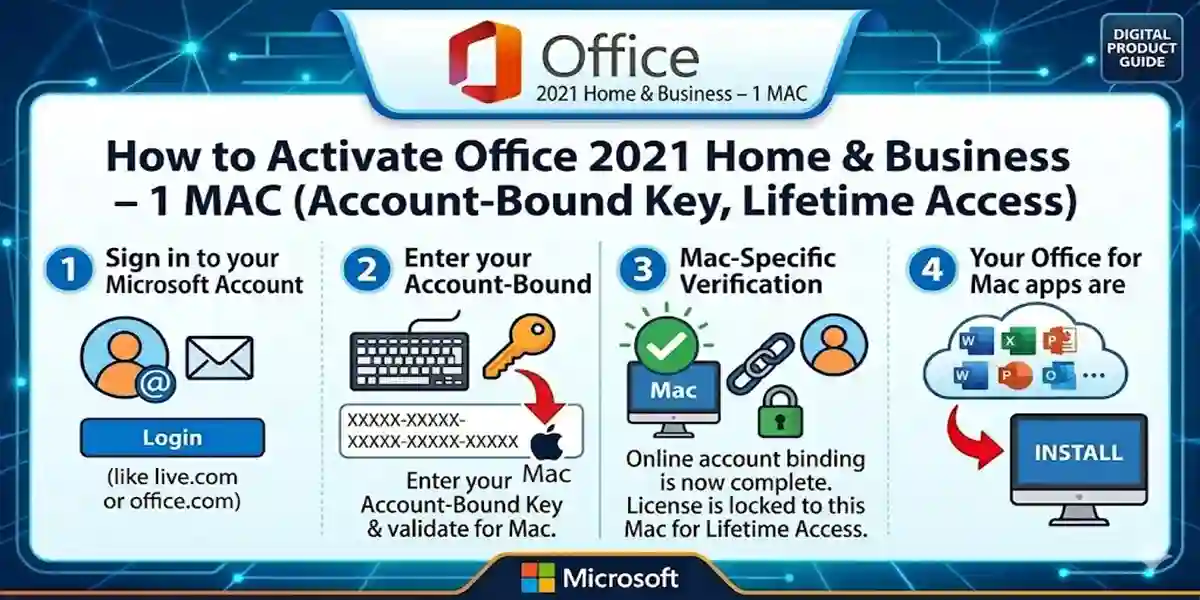
Method 1: Microsoft Account Activation (Recommended)
This is the simplest method — bind the Office key directly to your Microsoft account.
- Go to the Office Setup Page
- Sign In: Use your existing Microsoft account or create a new one.
- Enter Product Key: Input your 25‑character Office 2021 Home & Business key.
- Download Installer: Select your Mac, pick language, and download.
- Install Office: Open the downloaded file and follow installation steps.
- Activation: After installation, open any Office app like Word and sign in with the same Microsoft account.
- License Binding: Once signed in, Office will automatically recognize and bind the key to your account.
This attaches your Office copy to your Microsoft profile, making future reinstallation seamless.
Method 2: Activation Within Office App
If you’ve already installed Office but haven’t activated it yet:
- Open any Office App (e.g., Word or Excel)
- Navigate to Help → Activate Product
- Sign in with your Microsoft account
- Enter the 25‑character key when prompted
- Office will verify and activate automatically
This is a great “in‑app” shortcut if the installer didn’t prompt you earlier.
Method 3: Manual or Offline Activation (Advanced)
Rarely needed, but useful if internet access is limited:
- Install Office as usual
- When activation is requested, choose Telephone Activation if available
- Microsoft support will assist you through the phone process
- Input the installation ID and receive a confirmation code
- Input the confirmation code in the activation screen.
Common Activation Errors & How to Fix Them
Occasionally activation may fail. Below are common errors and how to resolve them:
Error 1: 0xC004F074 – Activation Server Not Available
Cause: Your Mac can’t reach Microsoft’s activation servers.
Fix:
✔ Check internet connection
✔ Turn off VPN or firewall temporarily
✔ Make sure date and time settings are correct
✔ Retry activation
Error 2: 0x80070005 – Permission Issue
Cause: Mac or Office doesn’t have sufficient access permissions.
Fix:
✔ Restart your Mac
✔ Ensure all macOS updates are installed
✔ Try signing out and signing back into your Microsoft account
Error 3: Key Already Used
Error Code: 0xC004C003
Cause: The key has been used with another Microsoft account.
Fix:
✔ Validate your key source
✔ If purchased from esoftwarestore, contact their support
✔ Ask Microsoft Support for key guidance.
Error 4: Wrong Product Version Installed
Cause: You installed a different Office edition (e.g., Home instead of Home & Business).
Fix:
✔ Uninstall the current Office version
✔ Download the correct professional version.
✔ Retry activation
Error 5: “Activation Required” Pops Up After Install
Cause: License not bound properly to your account.
Fix:
✔ Open any Office app
✔ Go to Account → Sign in
✔ Re‑enter your Microsoft account credentials
✔ Restart the app
Most activation issues are related to account sign‑in, connectivity, or incorrect installation files.
Licenses: What Does “Account‑Bound” Really Mean?
Understanding the Office licensing model helps you avoid confusion down the line.
Traditional Device‑Bound Keys
Older Office versions often granted keys tied exclusively to a device. Lose the device, lose access.
Account‑Bound Keys
With Office 2021 Home & Business, the license links to your Microsoft account instead of the machine itself. This means:
✔ You can reinstall Office on the same Mac after formatting
✔ License stays attached to your Microsoft account
✔ Easier management.
✔ No complicated key re‑entry required after reinstall
Just sign in with the same account you used when activating the product.
Conclusion
Activating Office 2021 Home & Business (1MAC, Account‑Bound Key, Lifetime Access) ensures you get professional‑grade productivity tools without subscription fees. Binding your license to your Microsoft account gives lifetime access and simplifies reinstallation. Using official activation methods — such as account activation — makes the process reliable and secure. If you run into errors, the fixes outlined above will help you resolve them quick.
Frequently Asked Questions (FAQs)
Q1: Can I use the key on multiple devices?
A1: No. This key is meant for one Mac device, bound to one Microsoft account.
Q2: Do I need internet for activation?
A2: Yes. Internet access is required to verify the key and bind it.
Q3: Can I reinstall Office after a macOS update or reinstall?
A3: Yes. Just sign in with your Microsoft account.
Q4: Will I get updates?
A4: Yes. You’ll receive security and stability updates from Microsoft.
Q5: What happens if I lose my key?
A5: Since it’s account‑bound, you can check it through your Microsoft account portal.