

Blog
How to Activate Microsoft Office 2021 Home & Business – 1PC/Mac, Lifetime Activation, Account-Bound

Introduction
Microsoft Office 2021 Home & Business is a powerful productivity suite trusted by millions of users around the world. Designed for individuals, small businesses, students, and professionals, it combines essential applications like Word, Excel, PowerPoint, and Outlook into one lifetime package. Unlike subscription‑based services such as Microsoft 365, Office 2021 offers a one‑time purchase model, giving you complete access to your tools without recurring fees. In this guide, you’ll learn how to activate Microsoft Office 2021 Home & Business on a single PC or Mac, bind the activation to your Microsoft account, and resolve common issues that may occur during the process.
This version is account‑bound, meaning the license attaches directly to your Microsoft account for easier activation, secure reinstallation, and lifetime access. Please note that this activation guide is intended for regions excluding Japan, China, and Brazil due to licensing restrictions.
Before continuing with the guide, be sure to get your official Office 2021 Home & Business key from a trusted source like esoftwarestore Office 2021 Home & Business.
What Comes in Microsoft Office 2021 Home & Business
Microsoft Office 2021 Home & Business includes the following core productivity applications:
- Microsoft Word – Word processing and document creation.
- Microsoft Excel – Spreadsheets, formulas, and data analysis.
- Microsoft PowerPoint – Professional presentations.
- Microsoft Outlook – Email and calendar management.
Each of these apps is designed to work seamlessly with the others, offering features like cloud integration, collaborative editing, and high performance across PCs and Macs.
Why Office 2021 Home & Business Is Better Than Alternatives
Office 2021 stands out from older versions and subscription products for several reasons:
| Feature | Office 2021 Home & Business | Office 2019 | Microsoft 365 Subscription |
|---|---|---|---|
| License Type | One‑time, account‑bound | One‑time, device‑bound | Subscription |
| Included Apps | Word, Excel, PowerPoint, Outlook | Same apps | All apps + Cloud extras |
| Lifetime Use | ✔️ | ✔️ | ❌ |
| Major Feature Updates | Limited | Limited | Continuous |
| Cloud Collaboration | Basic | Minimal | Advanced |
| Activation Method | Account Binding | Device Key | Account/Login |
| Price Model | One‑time | One‑time | Recurring |
This table clarifies why many users prefer Office 2021 — especially those wanting a simple, lifetime license without subscription renewals.
Features & Benefits of Office 2021 Home & Business
1. Lifetime Activation
Once you activate Office 2021 Home & Business on your Microsoft account, you retain it permanently. This differs from subscription models that require annual renewals.
2. Account‑Bound Activation
Activation is tied to your Microsoft account, making it easier to reinstall on the same device anytime without losing your license.
3. Professional Productivity Tools
Office 2021 includes the most popular productivity applications used globally for business, school, and home tasks.
4. Improved Performance
Compared to older versions, Office 2021 apps launch faster, respond quicker, and support more efficient multitasking.
5. Compatibility With PC & Mac
Whether you use Windows or macOS, Office 2021 Home & Business supports both platforms without compromise.
6. Security Updates
Although Office 2021 doesn’t get feature additions like a subscription would, it still receives important security and stability updates.
7. Enhanced Collaboration
With OneDrive integration and sharing tools built into Word, Excel, and PowerPoint, you can review and edit documents with others in near real time.
Methods to Activate Microsoft Office 2021 Home & Business
There are multiple ways to activate your Office 2021 Home & Business key depending on your preference and operating system. All methods require that you have a valid product key — ideally purchased from a trusted provider like esoftwarestore Office 2021 Home & Business Key.
Method 1: Microsoft Account Activation (Recommended)
This is the simplest and most common method.
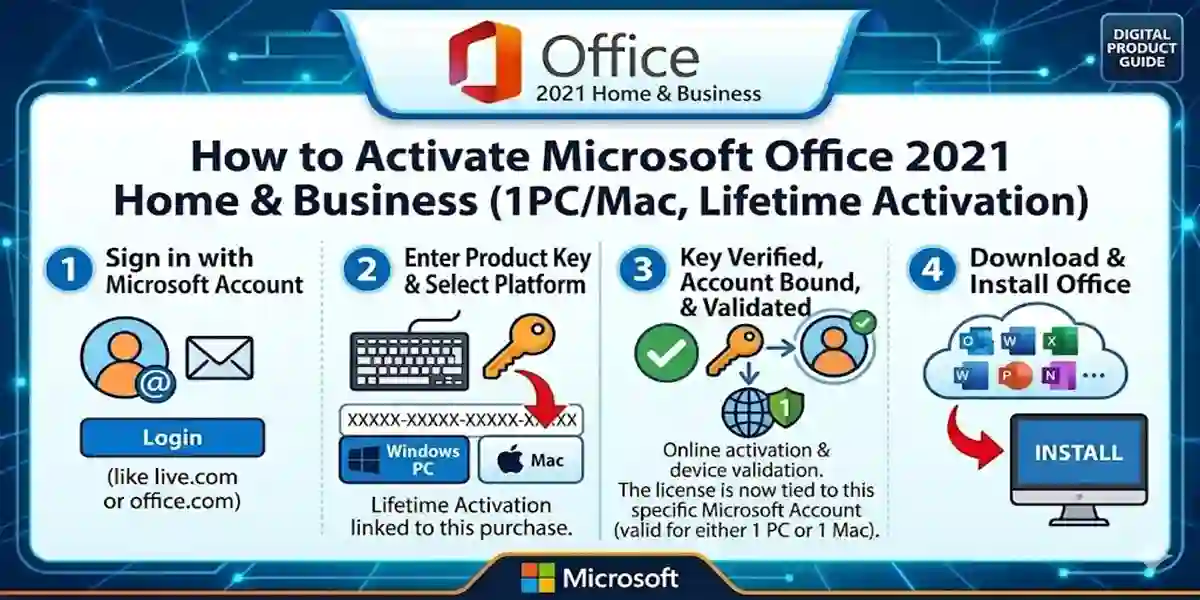
- Go to the Office installer page.
- Sign in with your Microsoft account (or create one if you don’t have one).
- Enter your 25‑character Office 2021 Home & Business key.
- Select your region and language.
- Follow the prompts to download and install Office.
- Once installation is complete, open any Office app and sign in with your associated Microsoft account.
- Office will activate automatically once your subscription key is validated.
Method 2: Activate Within an Office App
- Install Microsoft Office 2021 Home & Business on your PC or Mac.
- Open Word, Excel, or PowerPoint.
- Go to File → Account → Activate Product.
- Enter your product key when prompted.
- Sign in with your Microsoft account if required.
- Your Office suite should activate instantly.
Method 3: Manual Activation (Offline Workaround)
This method is rarely needed but helpful if your PC has limited internet connectivity.
- Install Office 2021 as usual.
- When prompted for activation, choose Use telephone activation (if available).
- Follow the on‑screen steps to generate an installation ID.
- Use the phone number listed to call Microsoft’s activation center.
- Provide the installation ID when prompted.
- Enter the confirmation ID received to activate Office.
Troubleshooting & Common Errors
Even with correct steps, activation can sometimes fail due to internet problems, server issues, or incorrect keys. Below are common errors and fixes:
Error 1: 0xC004F074 – Activation Server Not Available
Cause: Your PC cannot reach Microsoft activation servers.
Fix:
- Check your internet connection.
- Ensure date and time are correct.
- Temporarily disable firewall/antivirus and retry.
Error 2: 0x80070005 – Permission Denied
Cause: Office didn’t have sufficient permissions for activation.
Fix:
- Run the Office app as Administrator.
- Ensure Windows/macOS updates are installed.
- Retry activation after reboot.
Error 3: 0xC004C003 – Product Key Already Used
Cause: The key has been previously activated on another account.
Fix:
- Use a fresh unused key.
- Contact Microsoft Support
- Verify the key’s source and legitimacy with your provider.
Error 4: 0xC004F210 – Wrong Product Version
Cause: The key does not match the Office edition installed.
Fix:
- Confirm you installed Office 2021 Home & Business (not another edition).
- Reinstall the correct version from https://www.esoftwarestore.com/download-office-2021‑home‑and‑business
Error 5: “Activation Required” Message Keeps Appearing
Cause: License wasn’t bound properly to your Microsoft account.
Fix:
- Sign in to your Microsoft account on Office app.
- Go to Account → Manage Account and check if the product shows up.
- Re‑enter your product key under File → Account → Change License.
Activation Details & Commands (Windows Advanced)
If you’re technically inclined, here’s how to activate Office via Command Prompt:
- Open Command Prompt as Administrator.
-
Navigate to the Office install directory. For 64‑bit Windows:
cd “C:\Program Files\Microsoft Office\Office16” -
Enter the product key:
cscript ospp.vbs /inpkey:XXXXX-XXXXX-XXXXX-XXXXX-XXXXX(Replace Xs with your actual key)
-
Then activate:
cscript ospp.vbs /act
If activation succeeds, you’ll see a message like “Product activated successfully.”
Licensing Explained: Why Account‑Bound Matters
An account‑bound license differs from traditional device keys in key ways:
- Tied to Your Microsoft Account – The license stays connected to your account, not just your device.
- Reinstallation Friendly – You can reinstall Office on the same device any time by signing in.
- Better Tracking – Microsoft’s My Account portal shows your licenses clearly.
- Reduced Key Loss Risk – No need to store fragile product key codes separately.
This method ensures that even if you upgrade or reinstall your operating system, you don’t lose your Office activation — as long as you sign in with the same Microsoft account.
Conclusion
Activating Microsoft Office 2021 Home & Business – 1PC/Mac using an account‑bound key is straightforward and secure. Unlike subscription products, this version offers lifetime access to essential productivity tools without recurring costs. With proper activation steps, you’ll have secure, uninterrupted access to your Office apps on your device. If you encounter errors, the troubleshooting section above offers reliable fixes. By binding your license to a Microsoft account, you unlock hassle‑free future reinstallation and clear license management.
For a verified purchase and official keys, check esoftwarestore Office 2021 Home & Business key.
Frequently Asked Questions (FAQs)
Q1: Can I use the Office 2021 Home & Business key on multiple PCs?
A1: No. This license is bound to a single device and account. For multiple devices, consider volume licensing or Microsoft 365.
Q2: Do I need the internet to activate Office 2021?
A2: Yes. Internet is required for verification and binding to your Microsoft account.
Q3: Can I reinstall Office on the same device later?
A3: Yes. Sign in with the same Microsoft account to reinstall.
Q4: What if my activation key shows an error?
A4: Check the troubleshooting section above or contact Microsoft Support.
Q5: How is Office 2021 different from Microsoft 365?
A5: Office 2021 is a lifetime, one‑time purchase; Microsoft 365 is subscription‑based with cloud services.