

Blog
How to Activate Microsoft Office 2021 for Mac | Home & Business Edition Easily

Introduction
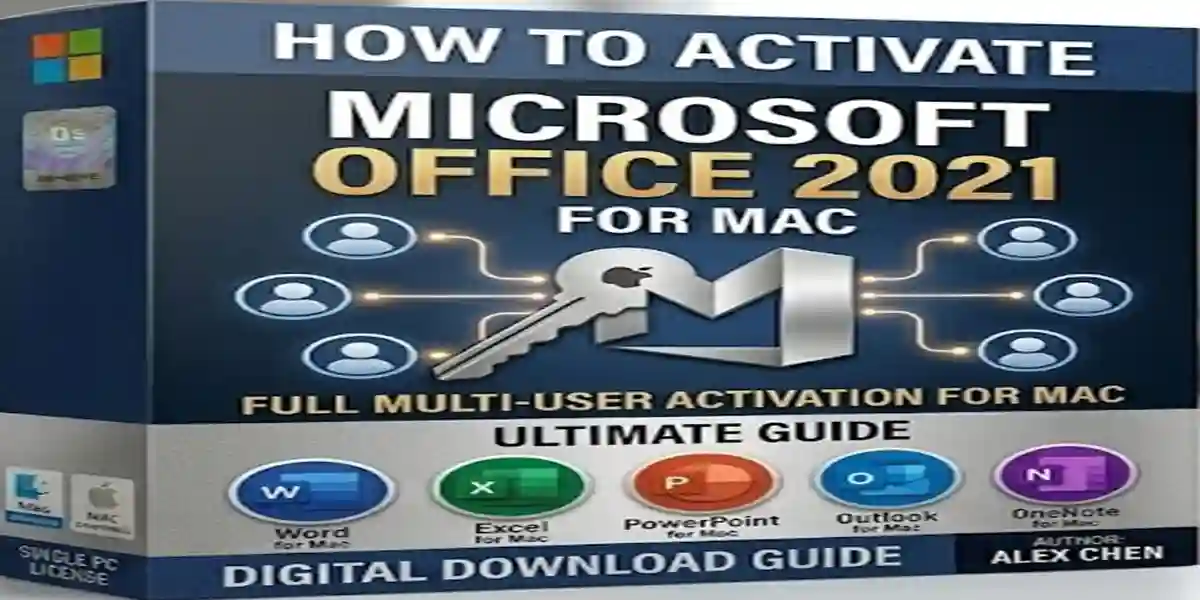
Microsoft Office has been a staple productivity suite for both home users and business professionals worldwide. With the release of Microsoft Office 2021 for Mac – Home & Business Edition, Mac users can now enjoy advanced tools like Word, Excel, PowerPoint, Outlook, and OneNote, all designed to boost productivity and efficiency. However, many users often face challenges when it comes to activating Office 2021 on Mac, especially if they are switching from older versions or using a new Mac device.
Activating Office ensures you get full access to all features, including premium templates, collaboration tools, and cloud integration. Without activation, users may encounter restricted functionality, limited editing, or annoying notifications. This guide will walk you through every step to activate Microsoft Office 2021 for Mac safely and efficiently.
Features of Microsoft Office 2021 for Mac – Home & Business Edition
Microsoft Office 2021 comes packed with powerful features designed for both personal and professional use. Understanding these features can help you maximize your productivity once your Office suite is activated.
1. Word 2021
- Enhanced editing and formatting options.
- Real-time collaboration with colleagues.
- Smart templates to create professional documents quickly.
2. Excel 2021
- Advanced data analysis tools including new functions and charts.
- Dynamic arrays and XLOOKUP for faster computations.
- Visual updates for easier navigation and data presentation.
3. PowerPoint 2021
- Stunning animations, transitions, and graphic enhancements.
- Presenter view for smooth presentations.
- Collaborative editing for team projects.
4. Outlook 2021
- Integrated email, calendar, and contact management.
- Enhanced Focused Inbox and customizable rules.
- Seamless integration with Teams and OneDrive.
5. OneNote 2021
- Centralized note-taking across devices.
- Ability to organize notes into notebooks and sections.
- Integration with other Office apps for productivity.
Activating Office unlocks all these features, ensuring a smooth workflow without interruptions.
Common Errors During Activation and Their Fixes
Even experienced users may encounter errors when activating Office 2021 on Mac. Here are the most common issues and how to fix them.
1. Error: “Product Key Not Valid”
Cause: Incorrect or already used product key.
Fix:
- Ensure you entered the key correctly without extra spaces.
- Use a key purchased from an authorized Microsoft retailer.
- If the key was shared online, consider buying a genuine copy.
2. Error: “Activation Limit Reached”
Cause: Microsoft limits activations to a certain number of devices.
Fix:
- Deactivate Office on old or unused devices.
- Sign in with your Microsoft account to manage activations.
3. Error: “Office Cannot Connect to Server”
Cause: Network issues or firewall restrictions.
Fix:
- Check your internet connection.
- Disable VPNs temporarily.
- Ensure firewall settings allow Microsoft servers.
4. Error: “Microsoft Office Has Expired”
Cause: Office trial version or subscription expired.
Fix:
- Enter a valid product key.
- Ensure you are using Office 2021 Home & Business Edition, not a trial version.
5. Error: “Sign-In Required”
Cause: Office needs activation via Microsoft account.
Fix:
- Log in with the Microsoft account linked to your Office purchase.
- Clear cached credentials if issues persist.
Methods to Activate Microsoft Office 2021 for Mac
There are multiple ways to activate Office 2021 for Mac, depending on your situation. The methods below cover both online and offline activation.
Method 1: Activation via Product Key
- Open any Office app (Word, Excel, PowerPoint).
- Click Activate when prompted.
- Enter your 25-character product key.
- Sign in with your Microsoft account.
- Click Activate Office.
This method is the most reliable if you purchased a legitimate copy.
Method 2: Activation via Microsoft Account
- Open an Office app.
- Go to Sign In.
- Use the Microsoft account linked to your Office purchase.
- Office will automatically detect your license and activate.
This method is useful if you purchased Office digitally from the Microsoft Store.
Method 3: Activation via Volume License (For Businesses)
For organizations using volume licensing, Office can be activated across multiple devices using a MAK key or KMS server.
- Open Terminal on your Mac.
- Enter the command to connect to the KMS server.
- Input the volume license key.
- Office will validate and activate automatically.
Method 4: Troubleshooting Activation Issues
If the standard methods fail:
- Repair Office Installation: Open Microsoft AutoUpdate → Check for Updates → Reinstall Office.
- Clear Credentials: Go to Keychain Access → Delete old Microsoft credentials → Restart Office.
- Contact Microsoft Support: For unresolved activation errors.
Conclusion
Activating Microsoft Office 2021 for Mac – Home & Business Edition is essential for unlocking all features and enhancing productivity. By following the above methods, users can quickly activate their Office suite without hassle. Always ensure you use genuine product keys or authorized Microsoft accounts to avoid activation errors. Proper activation not only ensures smooth functionality but also provides access to updates, collaboration tools, and premium features. Whether for home use or business, an activated Office suite empowers Mac users to create, collaborate, and work efficiently.
Frequently Asked Questions (FAQ)
1. Can I activate Office 2021 for Mac without a product key?
Yes, if you purchased a digital copy linked to your Microsoft account. Otherwise, a valid product key is required.
2. How many devices can I activate Office 2021 for?
Home & Business Edition allows activation on one Mac per license.
3. What if I change my Mac?
Deactivate Office on the old Mac first, then activate on the new device using your product key or Microsoft account.
4. Is Office 2021 for Mac compatible with macOS Ventura and Monterey?
Yes, Microsoft Office 2021 is fully compatible with macOS Ventura, Monterey, and other recent versions.
5. Why am I seeing “Product Not Activated” error?
This usually happens if the product key is incorrect, used on another device, or your license has expired.