

Blog
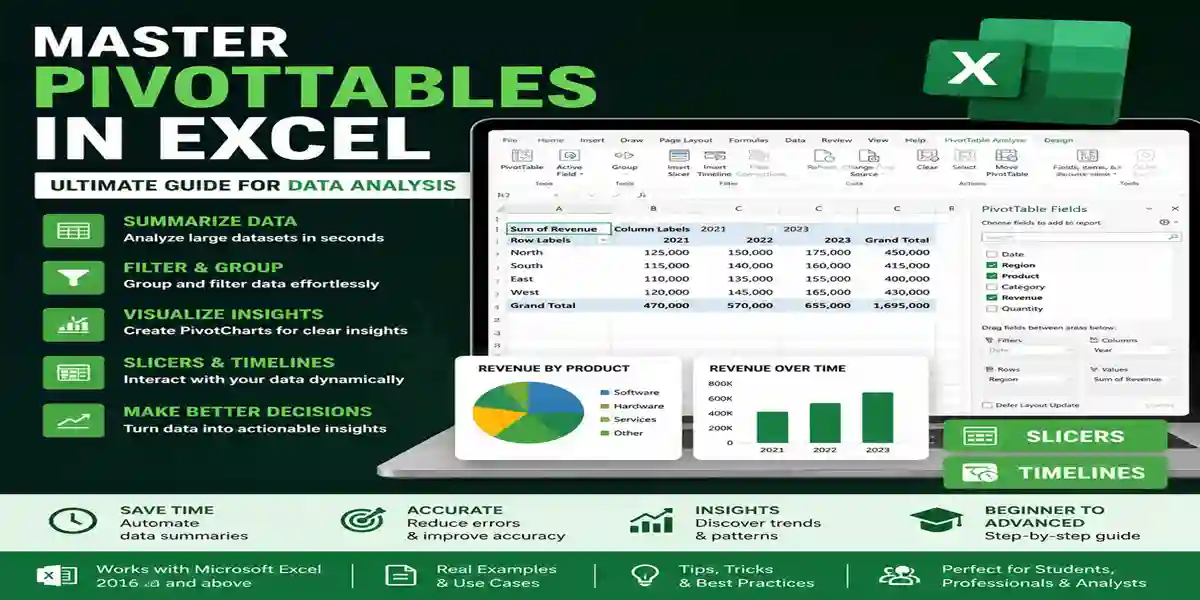
Master PivotTables in Excel | Ultimate Guide for Data Analysis

Introduction
PivotTables are widely recognized as one of Excel’s most powerful features because they simplify complex data analysis, turning hours of manual calculations into a few clicks. If you have spent countless hours writing formulas like SUMIFS, COUNTIFS, or VLOOKUP to summarize data, PivotTables can completely transform your workflow.
With PivotTables, you can summarize thousands of rows, compare categories, track trends, and generate decision-ready reports—all without writing a single formula. They are invaluable tools in finance, marketing, operations, and business intelligence.
What Is a PivotTable in Excel?
A PivotTable is a built-in Excel tool designed to summarize, analyze, and explore large datasets efficiently. Rather than manually calculating totals, averages, or comparisons, you can simply drag and drop fields to create reports.
What Can You Do With PivotTables?
- Summarize thousands of rows in seconds
- Compare categories such as region, product, or department
- Analyze trends over time
- Build dynamic reports for business decisions
PivotTables are widely used by organizations managing datasets with tens of thousands of rows.
When Should You Use a PivotTable?
PivotTables are most effective when:
- Your dataset has more than 1,000 rows
- You need quick summaries like totals, averages, or counts
- You’re generating recurring reports
- You want to compare categories, regions, or time periods
If your workflow currently relies heavily on formulas such as SUMIFS or COUNTIFS, PivotTables are typically faster, easier, and less prone to errors.
Preparing Your Data (The Most Important Step)
The effectiveness of a PivotTable depends on clean, well-structured data. Before creating a PivotTable, make sure your dataset follows these best practices:
- Convert your data into a Table
Press Ctrl + T to convert your range into a Table. This ensures your PivotTable updates automatically when new data is added. - Use clear column headers
Each column must have a unique name. - Remove blank rows and columns
Empty gaps can disrupt PivotTable functionality. - Keep data types consistent
Avoid mixing numbers and text within a single column. For example, do not mix “100” and “N/A” in one column.
By preparing your data properly, you’ll save time and reduce errors.
How to Create a PivotTable in Excel (Step-by-Step)
Creating a PivotTable in Excel is fast and straightforward:
- Click anywhere inside your dataset
- Go to Insert → PivotTable
- Select New Worksheet
- Click OK
- Drag fields into Rows, Columns, and Values
Your PivotTable is now ready to summarize your data instantly.
Understanding the PivotTable Layout
PivotTables consist of four main areas:
- Rows — Defines the main categories (e.g., Region, Salesperson)
- Columns — Adds comparison layers (e.g., Year, Product Category)
- Values — Contains the numbers being calculated (e.g., Revenue, Quantity)
- Filters — Allows you to filter the entire report (e.g., by Year or Location)
Example: Analyze Sales Data in 30 Seconds
Suppose you have 50,000 rows of sales data. Your manager asks:
“Show total revenue by region, broken down by product category.”
Without PivotTables, you’d need multiple formulas, which could take hours. With a PivotTable:
- Rows → Region
- Columns → Product Category
- Values → Revenue
You get the answer immediately.
Grouping Data to Find Trends
Group Dates by Month or Year
- Right-click a date in the PivotTable
- Select Group
- Choose Months, Quarters, or Years
Your data becomes easier to interpret instantly.
Group Numbers into Ranges
Example: Customer ages
- Right-click a number column
- Select Group
- Set intervals (e.g., 10)
Excel will create ranges like:
- 20–30
- 30–40
PivotCharts: Turn Data into Visual Insights
While PivotTables display numerical data, PivotCharts highlight patterns visually.
- Click your PivotTable
- Go to PivotTable Analyze → PivotChart
The chart updates automatically when filters are applied, making it ideal for dashboards and presentations.
Advanced Techniques (Most Users Miss)
Show Values As Percentages
- Right-click a value
- Select Show Values As → % of Grand Total
This allows you to see each category’s contribution, not just totals.
Use Slicers for Interactive Filtering
Slicers are clickable filters for:
- Region
- Product
- Category
Slicers make reports more user-friendly and visually appealing.
Use Timelines for Date Filtering
Timelines allow you to filter by:
- Month
- Quarter
- Year
You can select time ranges by dragging rather than using dropdowns.
PivotTables vs Formulas: Which Should You Use?
| Feature | PivotTables | Formulas |
|---|---|---|
| Speed | Fast and visual | Slower |
| Complexity | Drag-and-drop, no formulas | Manual setup |
| Updates | Easy to refresh | Needs manual adjustment |
| Best For | Summaries and reporting | Custom calculations |
For most reporting tasks, PivotTables are faster, more reliable, and less error-prone.
Common PivotTable Mistakes to Avoid
- Forgetting to refresh data
- Using messy or unstructured datasets
- Leaving blank rows in your data
- Not formatting values (e.g., currency)
- Mixing text and numbers
Real Use Case: Revenue by Region and Product
Dataset:
- Date
- Region
- Product Category
- Revenue
Goal: Find the most profitable region for “Software”
Setup:
- Rows → Region
- Columns → Product Category
- Values → Revenue
- Add a Slicer → Product Category
Click Software to view the top-performing regions instantly.
Why PivotTables Matter
- Reduce reporting time from hours to minutes
- Avoid formula errors
- Create decision-ready reports
If you learn only one Excel skill for data analysis, make it PivotTables.
Excel Compatibility
Performance improves in newer versions, especially with large datasets.
Final Thoughts
Beginners often avoid PivotTables because they appear complex. In reality, PivotTables are simple to use, powerful, and save hours of manual work. Mastering them allows you to turn raw data into actionable insights quickly.
Purchase Excel to follow along with this guide at eSoftwareStore.
Verified, Trusted, and Supported
- Verified Partners – Official licenses at affordable prices
- Instant Delivery – Get your keys in seconds
- Live Support – 24/7 assistance for activation and queries
- Trusted Users – 100k+ users worldwide
FAQ
Q1: What is a PivotTable in Excel used for?
A: To summarize and analyze large datasets without formulas.
Q2: How do I create a PivotTable in Excel?
A: Select your data → Insert → PivotTable → Drag fields into Rows, Columns, and Values.
Q3: Why is my PivotTable not updating?
A: Right-click the PivotTable → Refresh.
Q4: Can PivotTables handle large datasets?
A: Yes, from thousands to millions of rows depending on Excel version and system.
Q5: What’s the difference between a PivotTable and a PivotChart?
A: PivotTables show summarized data; PivotCharts visualize it.