

Blog
How to Activate Windows 11 Enterprise Easily in 2026

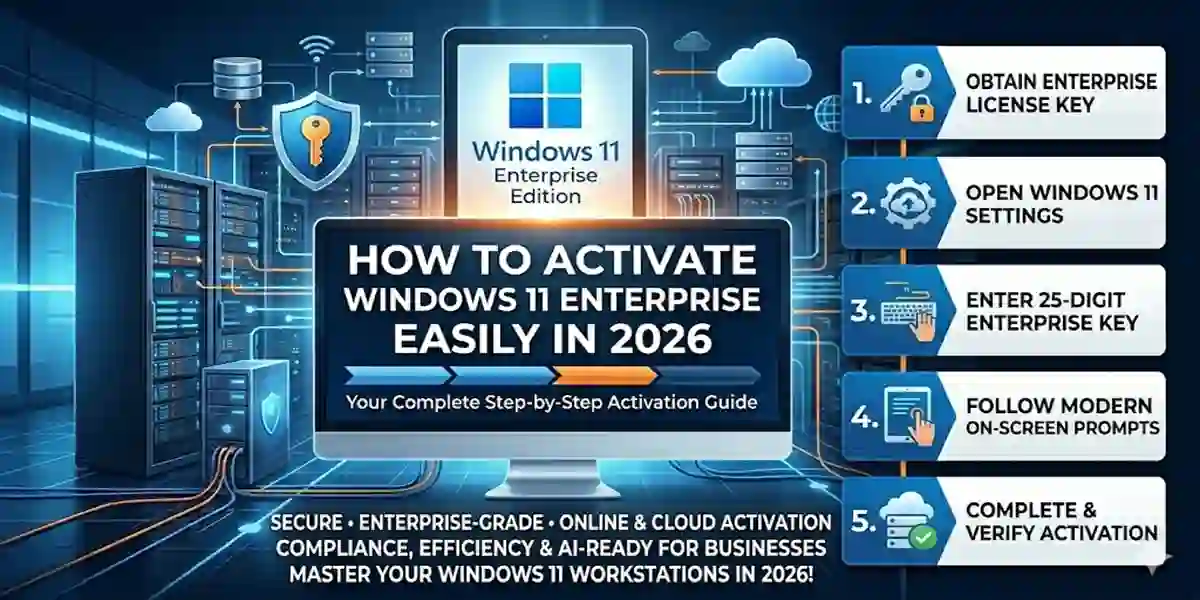
Introduction
Windows 11 Enterprise is designed for business and professional environments where security, reliability, and scalability are critical. It combines a sleek new interface with enterprise-focused features that improve productivity, protect sensitive data, and simplify device management.
Key Advantages of Windows 11 Enterprise
- Enhanced security with BitLocker encryption, Windows Defender, and Credential Guard
- Advanced device management using Group Policy and Microsoft Endpoint Manager
- Virtualization support through Hyper-V for multiple OS testing and deployment
- Long-Term Servicing Channel (LTSC) for mission-critical systems that require stable updates
- Cloud integration with Microsoft 365 and Azure
Proper activation ensures all features are unlocked, the system is genuine, and users can receive security updates and Microsoft support. Without activation, some features may be restricted, and access to updates can be limited.
Features of Windows 11 Enterprise
Windows 11 Enterprise offers a variety of advanced features that cater to business needs. Here’s a detailed overview:
1. Advanced Security
Windows 11 Enterprise protects sensitive business data using BitLocker encryption, Device Guard, Windows Defender Advanced Threat Protection, and Credential Guard. These tools prevent unauthorized access and malware attacks.
2. Centralized Device Management
IT administrators can manage devices, apps, and updates efficiently through Group Policy, Microsoft Endpoint Manager, and Intune, simplifying IT workflows.
3. Hyper-V Virtualization
Hyper-V allows organizations to create multiple virtual machines on one physical system, enabling safe testing, development, and legacy software usage without affecting the main system.
4. Windows To Go
Portable Windows installations allow employees to work securely from anywhere using USB drives, ideal for remote work.
5. Long-Term Servicing Channel (LTSC)
Enterprise users receive long-term support with minimal feature updates, ensuring stability for mission-critical systems.
6. AppLocker
AppLocker restricts which applications and files can run, reducing malware risk and ensuring compliance with organizational policies.
7. Enterprise State Roaming
Syncs user settings and preferences across devices for a consistent experience across workstations.
8. Enhanced Productivity Tools
Includes Microsoft Teams integration, Snap Layouts, virtual desktops, and widgets for improved workflow, collaboration, and multitasking.
9. Cloud Integration
Seamless integration with Microsoft 365 and Azure allows secure cloud storage and access to cloud-based tools.
10. Advanced Threat Protection
Built-in tools monitor, detect, and respond to potential security threats in real-time, helping businesses stay secure from evolving cyber threats.
Methods to Activate Windows 11 Enterprise
There are three primary activation methods, depending on your license type and organization setup.
1. Using a Product Key
A 25-character product key purchased from Microsoft or authorized resellers.
Steps:
- Press Win + I → Settings → Update & Security → Activation
- Click Change Product Key
- Enter the 25-character key and click Next
- Wait for verification
- Your Windows 11 Enterprise is now activated
2. Using a Digital License
A digital license is linked to your Microsoft account and eliminates the need for a product key.
Steps:
- Sign in with the Microsoft account associated with your license
- Go to Settings → Update & Security → Activation
- Click Activate Windows if prompted
- Activation will occur automatically online
3. Using KMS Activation (Volume Licensing)
KMS is suitable for organizations with multiple Windows installations.
Steps:
- Open Command Prompt as Administrator
- Type:
slmgr /ipk YOUR-KMS-KEY→ Enter - Type:
slmgr /skms yourKMSserver.domain.com→ Enter - Type:
slmgr /ato→ Enter - Verify activation with:
slmgr /dlv
Common Errors While Activating Windows 11 Enterprise and Fixes
Even experienced users may face activation issues. Here are common errors and their solutions:
1. Error 0xC004F074 – KMS Server Unavailable
Cause: System cannot connect to KMS server
Fix: Ensure the computer is connected to the organization network or VPN, then retry activation.
2. Error 0xC004C003 – Invalid Product Key
Cause: Product key is incorrect or blocked
Fix: Verify the key for typos or contact Microsoft support for a valid key.
3. Error 0x803F7001 – No Valid License
Cause: Windows cannot detect a valid license
Fix: Sign in with the Microsoft account linked to your digital license.
4. General Fixes
- Run the Windows Activation Troubleshooter: Settings → Update & Security → Activation → Troubleshoot
- Verify system date and time are correct
- Temporarily disable firewalls or VPNs blocking activation
Step-by-Step Activation Guide
- Check Activation Status: Settings → Update & Security → Activation
- Prepare License: Ensure your product key or digital license is ready
- Connect to Internet: Required for verification
- Choose Method: Product Key, Digital License, or KMS
- Verify Activation: Confirm “Windows is activated”
- Restart System: Ensures all features are unlocked
Conclusion
Activating Windows 11 Enterprise is crucial for unlocking advanced security, management, and productivity features. Using a product key, digital license, or KMS, users can ensure their system is genuine, fully functional, and compliant with Microsoft licensing. Activation also guarantees access to security updates and support, making it ideal for businesses, IT professionals, and organizations seeking secure, stable, and scalable computing solutions. Windows 11 Enterprise offers unmatched control, efficiency, and reliability for enterprise environments.
Frequently Asked Questions (FAQs)
Q1: Can I use a Windows 11 Home key to activate Enterprise?
A: No, only Enterprise keys or digital licenses are valid for activation.
Q2: How do I check my activation status?
A: Go to Settings → Update & Security → Activation.
Q3: Is activation permanent?
A: Yes, unless Windows is reinstalled or hardware changes significantly.
Q4: Can I activate Windows 11 Enterprise offline?
A: Only KMS supports limited offline activation for volume licenses.
Q5: What should I do if I lose my product key?
A: Contact Microsoft support or check your purchase confirmation email.