

Blog
How to Activate Microsoft Project Professional 2021 | Step-By-Step Guide

Introduction
Microsoft Project Professional 2021 is a powerful project management software designed for businesses, teams, and professional project managers. It provides robust tools for planning, executing, and tracking projects, making it easier to manage tasks, resources, budgets, and timelines.
To unlock the full potential of Project Professional 2021, you need a genuine product key. Activating the software ensures all features are available, the license is compliant with Microsoft policies, and your project data is secure.
Features of Microsoft Project Professional 2021
Activating your product key unlocks a wide range of features for efficient project management:
-
Gantt Charts & Timelines – Visualize tasks, milestones, and dependencies for effective project planning.
-
Resource Management – Allocate resources efficiently and monitor workloads to prevent overuse.
-
Task Scheduling – Automate scheduling, track progress, and manage deadlines.
-
Collaboration Tools – Integrates with Microsoft Teams and Microsoft 365 apps for real-time collaboration.
-
Reporting & Analytics – Generate custom reports and dashboards to monitor project performance.
-
Project Templates – Prebuilt templates for various industries and project types.
-
Budget & Cost Tracking – Monitor project expenses, forecasts, and budget allocations.
-
Risk Management – Identify potential risks and plan mitigation strategies.
-
Customizable Dashboards – Tailor dashboards to highlight key project metrics.
-
Secure Activation & Compliance – Genuine product key ensures Microsoft licensing compliance.
Common Errors and Fixes
Even with a genuine key, you may encounter some issues during activation. Here are the most common problems and how to fix them:
Error 1: Product Key Invalid
Cause: Typo in the key or using a key from a different version.
Fix: Double-check the product key and ensure it matches the version you are installing.
Error 2: Installation Fails
Cause: Conflicts with previous Microsoft Project versions or missing updates.
Fix: Uninstall older Project versions, run Windows Update, and restart your PC before reinstalling.
Error 3: Activation Loop
Cause: Firewall, antivirus, or network issues.
Fix: Temporarily disable firewalls or antivirus software, connect to a stable internet network, and retry activation.
Error 4: Missing Dependencies
Cause: Required software like .NET Framework 4.8 or Visual C++ Redistributables not installed.
Fix: Download and install these dependencies from the official Microsoft website.
Error 5: Volume License Conflicts
Cause: Attempting to use a single-user key with a volume license deployment.
Fix: Use the correct key type for your deployment. Enterprises should use the Volume Activation Management Tool (VAMT).
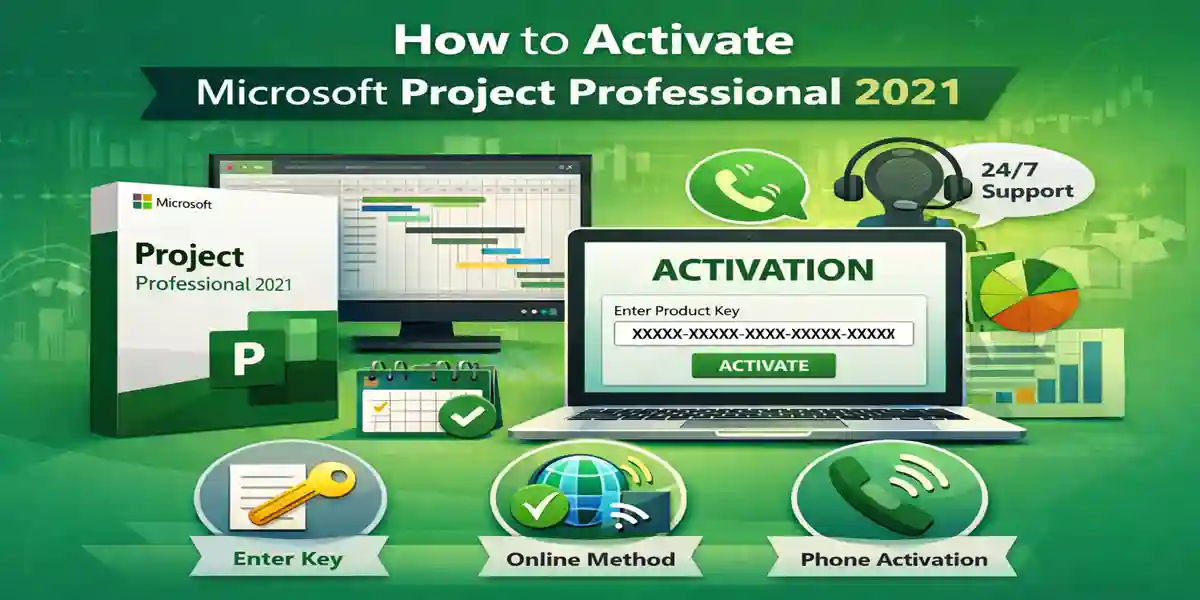
Methods to Activate Microsoft Project Professional 2021 Product Key
1. Online Activation
-
Open Project Professional 2021.
-
Go to File → Account → Activate Product.
-
Enter your 25-character product key.
-
Follow the on-screen instructions to complete activation.
2. Phone Activation
If online activation fails:
-
Open Project Professional 2021.
-
Select Phone Activation.
-
Call the Microsoft support number displayed.
-
Provide the installation ID to receive a confirmation ID.
-
Enter the confirmation ID to complete activation.
3. Volume Licensing Activation (Enterprise)
For organizations using multiple licenses:
-
Use the Volume Activation Management Tool (VAMT) to manage keys across multiple devices.
-
Add product keys and monitor activation status centrally.
Licensing and Formulas
Proper licensing ensures compliance and audit readiness. Here’s how to calculate what you need:
-
Total Licenses Needed: Number of devices or users accessing Microsoft Project 2021.
-
Additional Licenses: New users/devices – Existing licenses.
Example:
-
50 employees require Project Professional 2021 → 50 licenses needed.
-
Expanding to 70 employees → purchase 20 additional licenses.
Comparison Table: Microsoft Project Professional 2021 vs Previous Versions
| Feature | Project Professional 2021 | Project Professional 2019 | Project Standard 2021 |
|---|---|---|---|
| Applications Included | Project Pro 2021 | Project Pro 2019 | Project Standard 2021 |
| Gantt Charts & Timelines | Advanced & Interactive | Standard | Basic |
| Resource Management | Full-featured | Full-featured | Limited |
| Collaboration | Teams & Microsoft 365 Integration | Teams Integration | Limited |
| Reporting & Analytics | Customizable Dashboards & Reports | Standard Reports | Basic Reporting |
| Risk & Budget Tracking | Yes | Limited | No |
| Project Templates | Modern Templates | Older Templates | Limited |
| Target Audience | Project Managers, Enterprises | Businesses & Teams | Small Teams & Individuals |
| Price Point | Premium | Mid-range | Affordable |
This table demonstrates that Project Professional 2021 is ideal for advanced project management in professional and enterprise environments.
Conclusion
The Microsoft Project Professional 2021 Product Key is essential for unlocking the full suite of project management tools. From Gantt charts and resource management to budget tracking and collaboration, activating your product key ensures a smooth installation, Microsoft licensing compliance, and uninterrupted access to all features.
For businesses, teams, and project managers, Project Professional 2021 provides robust tools for planning, executing, and delivering projects on time.
For official product keys and secure activation, visit esoftwarestore Microsoft Project Professional 2021.
FAQ
Q1: Can I install Project Professional 2021 alongside older versions?
A: No, uninstall previous versions to prevent conflicts.
Q2: Can I activate offline?
A: Yes, using the Phone Activation method.
Q3: How do I check if my product key is valid?
A: Use File → Account → Activate Product, or verify via Microsoft Volume Licensing Service Center.
Q4: Can one key be used on multiple devices?
A: Only if you have purchased multiple licenses or are using a volume license.
Q5: Is Project Professional 2021 compatible with Windows 11?
A: Yes, it is fully compatible with Windows 10 (20H2+) and Windows 11.