

Blog
How to Set Up Office 365 A3 for 5 Users with OneDrive

Introduction
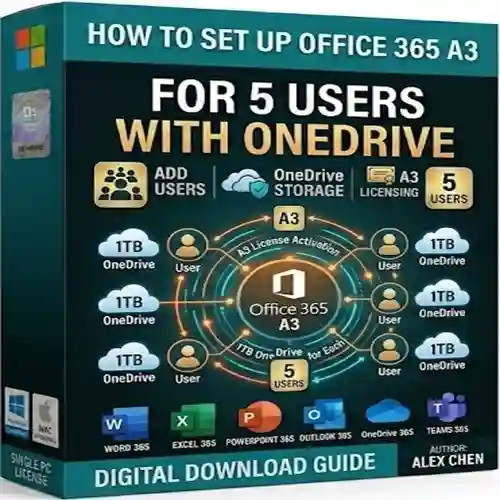
Microsoft Office 365 A3 is one of the most powerful productivity bundles designed for academic institutions and small to medium teams. With full desktop versions of Word, Excel, PowerPoint, Outlook, Teams, and more, Office 365 A3 offers flexibility, collaboration tools, and cloud features unmatched in its category. When you purchase Office 365 A3 for 5 users — which you can get instantly at esoftwarestore — you also get 100 GB of OneDrive storage per user, allowing seamless file access, backup, and sharing.
In this guide, we’ll walk through the entire setup process, explain all core features, explore common errors and solutions, highlight licensing details, and answer popular questions about Office 365 A3 activation. Whether you are installing on PC or Mac, this article will give you everything you need to make setup smooth and successful.
Why Choose Office 365 A3 for Your Team
Office 365 A3 isn’t just software — it’s a complete productivity ecosystem built for collaboration. Here’s what you get:
Top Benefits
✔ Full Microsoft Office Desktop Apps for PC & Mac
✔ Email Hosting with Outlook & Exchange
✔ 100 GB OneDrive Cloud Storage per User
✔ Powerful Collaboration with Microsoft Teams
✔ Regular Updates and New Features
✔ Secure Access and Compliance Tools
Whether you’re a small business, school department, or remote team, these features make Office 365 A3 stand out from standard Office bundles.
Core Features of Office 365 A3
Here’s a breakdown of the most important features you’ll get after setup:
1. Full Desktop Apps
Each of the 5 users can install:
- Word
- Excel
- PowerPoint
- Outlook
- OneNote
- Access (PC only)
- Publisher (PC only)
2. OneDrive Cloud Storage
Each user gets 100GB secure cloud storage — perfect for:
- Team document sync
- Backup important files
- Share with anyone securely
3. Teams Collaboration
Chat, call, and meet online with integrated scheduling and file sharing.
4. Email & Calendar via Outlook
Business‑class email with a customized domain, powerful spam filters, shared calendars, and deep integration across devices.
5. Automatic Updates
Office 365 A3 always stays current with the latest security patches and software improvements — no manual installs needed.
Section 1: Preparing for Setup
To activate Office 365 A3 for 5 users with OneDrive, you need:
✔ Valid Office 365 A3 accounts (purchased & delivered)
✔ Internet connection
✔ Windows PC or Mac (Office can also be installed on mobile devices)
✔ Admin access to Microsoft 365 portal
Section 2: Step‑by‑Step Activation Methods
There are two primary ways to activate Office 365 A3:
Method 1: Activate via Microsoft 365 Portal
- Go to office.
- Enter your admin username and password
- Go to Users → Active Users
- Add each of your 5 users if not already listed
- Assign the Office 365 A3 license to each user
- Select the user → “Licenses and Apps” → Check Office 365 A3
- Save changes
- Users can now sign in and install apps
This method ensures each user’s account is active and licensed with OneDrive storage.
Method 2: Activate Directly from User Account
If you already have user credentials:
- Sign out of any other Microsoft accounts on your device
- Visit https://office.com/setup (External link)
- Enter your Office 365 A3 credentials
- Click Install Office
- Follow on‑screen installation
- Once installed, sign in with the same account
- OneDrive will auto‑configure — or you can launch OneDrive app
Installing OneDrive (Detailed)
After activation:
- Open OneDrive
- Sign in with your Office 365 A3 account
- Choose folders to sync
- Verify 100GB storage quota under Settings
Section 3: Common Errors and Fixes
Even simple setup can sometimes throw unexpected errors. Here’s how to fix the most common ones:
Error 1: “Activation Failed”
➡ Cause: Wrong account credentials or no license assigned
✔ Solution:
- Check your username/password
- Confirm license assignment via admin portal
- Reset password if needed
Error 2: “Office Download Stuck”
➡ Cause: Poor internet or firewall block
✔ Solution:
- Restart the download
- Check internet quality
- Temporarily disable firewall
Error 3: OneDrive Sync Errors
➡ Cause: Path too long or unsupported characters
✔ Solution:
- Shorten file paths
- Change folder names to remove symbols
Error 4: Outlook Not Connecting
➡ Cause: Wrong server settings or corrupted profile
✔ Solution:
- Re‑enter credentials
- Recreate Outlook profile
Error 5: Teams Won’t Sign In
➡ Cause: Cached credentials or outdated app
✔ Solution:
- Clear Teams cache: %appdata%\Microsoft\Teams
- Update Teams app
Section 4: Microsoft Office 365 A3 Licenses Explained
Understanding licensing helps you avoid issues and plan future growth.
What You Get with Office 365 A3
- License for full Office desktop apps
- Cloud storage on OneDrive
- Email hosting
- Teams collaboration tools
- Security & admin controls
Office 365 A3 is designed especially for educational institutions and business users, combining enterprise features with flexible installation.
After setup is complete, here’s what you should do:
✔ Share OneDrive folder training with users
✔ Configure Outlook email signatures
✔ Set Teams channels for collaboration
✔ Schedule regular backups
✔ Set 2‑Factor Authentication for security
Frequently Asked Questions (FAQ)
1. How many devices can each user activate Office 365 A3 on?
Each user can install Office on multiple devices including PCs, Macs, and mobile devices.
2. Do users get 100GB OneDrive storage each?
Yes — every licensed user receives 100GB. You can monitor usage in OneDrive settings.
3. Can I upgrade the plan later?
Yes! Office 365 A3 can be upgraded to higher Microsoft 365 plans if needed.
4. Is this suitable for schools and institutions?
Absolutely — Office 365 A3 is designed for organizations with collaborative tools and admin control.
5. What if installation fails midway?
Restart your device, check your network, and retry. Contact support if issues persist.
6. Does Office 365 A3 auto renew?
Yes — most licenses auto‑renew unless you cancel.
7. Can I share licenses between users?
No — each license is per user and cannot be shared.