

Blog
Master Excel Charts and Dashboards | A Complete Guide to Visualize Data Effectively

Introduction
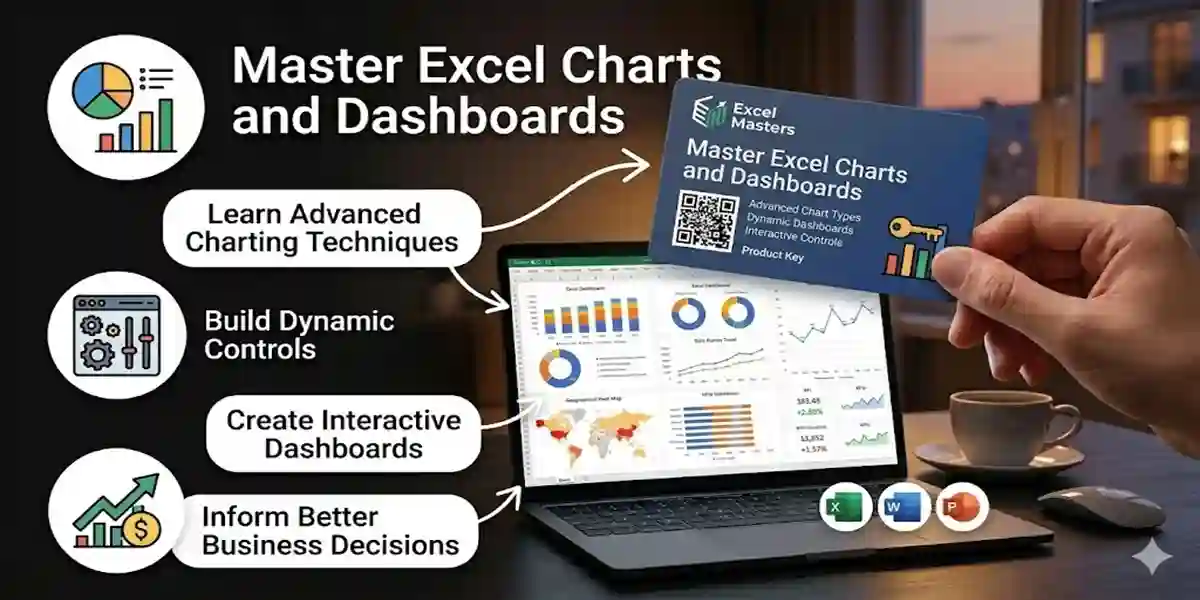
Unlock the power of Excel charts and dashboards to transform raw data into actionable insights. In this guide, you’ll learn how to visualize data effectively, choose the right chart types, build dynamic dashboards, and make your Excel visuals professional and presentation-ready. Perfect for students, business analysts, and professionals looking to enhance data-driven decision-making.
By the end of this article, you’ll be able to turn thousands of spreadsheet rows into clear, interactive, and visually compelling dashboards that impress stakeholders and provide instant insights at a glance.
How to Choose the Right Chart Type in Excel
One common mistake in Excel is picking a chart because it “looks cool” rather than because it fits the data. A wrong chart can mislead your audience. Always start with this question: What am I trying to show?
1. Column or Bar Charts – Best for Comparisons
Use these when comparing categories.
Example: Sales performance by salesperson or revenue by product category.
Pro Tip: Use horizontal bars for long category names, e.g., “North American Industrial Division,” for readability.
2. Line Charts – Best for Trends Over Time
Designed to show changes over continuous periods.
Example: Monthly revenue growth over three years.
Pro Tip: Avoid using line charts for categorical data—it implies progression between unrelated items.
3. Pie Charts – Best for Parts of a Whole
Show percentages or contributions to a total.
Example: Market share or budget distribution.
Pro Tip: Limit slices to five or fewer to avoid a confusing “rainbow mess.”
4. Scatter Plots – Best for Relationships
Ideal for analyzing correlations between two variables.
Example: Advertising spend versus sales increase.
How to Create a Dashboard in Excel (Step-by-Step)
A dashboard is simply a single Excel sheet that compiles multiple charts and metrics for a high-level overview. Dynamic dashboards automatically update as new data is added.
Step 1: Prepare Your Data
Convert your dataset into an Excel Table to enable automatic updates.
Step 2: Insert Charts
Choose charts based on your goal:
- Trend → Line chart
- Comparison → Column chart
Modern Excel versions, like Microsoft Office LTSC 2024 Professional Plus, are optimized for large datasets and high-performance dashboards.
Step 3: Create a Dashboard Sheet
Add a new sheet named “Dashboard” and turn off gridlines for a clean layout.
Step 4: Add Key Metrics (KPIs)
Place essential numbers at the top:
- Total revenue
- Growth rate
- Average order value
Step 5: Arrange Your Layout
Place the most important chart in the top-left corner, as this is where users naturally look first.
Step 6: Add Interactivity with Slicers
Slicers allow instant filtering of dashboard data without adjusting formulas.
How to Use Slicers in Excel Dashboards
Slicers are visual buttons that filter charts dynamically, making dashboards highly interactive.
Example: For a “Total Company Sales” dashboard, managers may want to filter by region. With a Slicer, clicking “West Region” instantly updates all charts.
How to Add a Slicer
- Click a chart linked to a Table or PivotTable
- Go to Insert → Slicer
- Select the field to filter (e.g., Region, Product, Salesperson)
Connect Slicers to Multiple Charts
Right-click → Report Connections → Select all relevant charts
How to Make Excel Charts Look Professional
A basic Excel chart often contains “chart junk” like unnecessary gridlines, legends, or colors. A professional chart should have a high data-to-ink ratio.
Cleanup Checklist:
- Remove gridlines if exact numbers aren’t critical
- Delete unnecessary legends for single data series
- Use direct data labels for clarity
- Apply a consistent color palette, using one primary brand color and subtle grays for backgrounds
Common Chart Mistakes to Avoid
- Choosing charts based on appearance rather than purpose
- Using pie charts with too many slices
- Adding too many colors or effects
- Keeping unnecessary gridlines and labels
- Misaligned charts in dashboards
Example: Monthly Sales Dashboard
Suppose you are preparing a quarterly sales review:
Setup:
- Line Chart: Show total sales trends from Jan–Dec
- Clustered Column Chart: Compare performance across four regions
- Slicer: Filter by Region
Outcome:
Clicking “West Region” updates both charts instantly, turning a static report into a dynamic, real-time dashboard.
Why Data Visualization Matters
Good data visualization:
- Saves time
- Reduces confusion
- Helps stakeholders make faster, better decisions
In professional settings, clarity beats complexity.
Final Thoughts
Data visualization bridges the gap between “Crunching Numbers” and Making Decisions. A well-designed chart answers questions at a glance. By selecting the right chart, cleaning the design, and adding interactivity with Slicers, you give your audience the clarity they need to act.
Pro Tip: Study professional infographics and try to recreate them in Excel—you’ll be amazed at what you can do with standard tools.
In Part 8, we will dive into PivotTables, one of Excel’s most powerful analytical tools, to summarize thousands of rows with a few clicks.
Why Choose esoftwarestore
- Verified Keys: Official Microsoft keys at affordable prices
- Instant Delivery: Get your keys immediately
- Live Support: 24/7 assistance
- Trusted Users: Over 1 million keys delivered worldwide
FAQ
Q1: What is the best chart type in Excel?
A: Column/bar charts for comparisons, line charts for trends, pie charts for parts-of-a-whole, and scatter plots for relationships.
Q2: How can I make Excel charts look professional?
A: Remove unnecessary elements, use direct labels, and maintain a consistent color scheme.
Q3: What is an Excel dashboard?
A: A single sheet combining charts and metrics to provide a dynamic overview of key data.
Q4: What are slicers and why use them?
A: Slicers are interactive filters that update charts instantly, making dashboards more user-friendly.
Q5: Why is data visualization important?
A: It converts raw data into insights, helping stakeholders quickly understand trends, comparisons, and key metrics.