

Blog
How to Activate Windows Server 2016 RDS Device CAL Key – Step by Step Guide

Introduction
In today’s fast-paced business environment, providing secure, reliable, and multi-user access to server resources is essential. The Windows Server 2016 Remote Desktop Services (RDS) Device CAL Key allows multiple users to connect to a single licensed device, making it ideal for shared workstations, labs, classrooms, or enterprise environments.
Unlike User CALs, which are tied to individual users, Device CALs are assigned per device, allowing any user on that device to access Remote Desktop Services without needing separate licenses. This solution ensures compliance with Microsoft licensing policies, simplifies IT management, and improves overall productivity.
Activating your Device CAL correctly is crucial for business continuity, security, and compliance. This guide will cover everything you need to know about activating Windows Server 2016 RDS Device CAL Key, including features, methods, common errors and fixes, licensing formulas, and best practices.
For detailed guides, templates, and software licenses, visit esoftwarestore Windows Server 2016 RDS Device CAL.
Features of Windows Server 2016 RDS Device CAL Key
Windows Server 2016 RDS Device CALs are designed to maximize productivity, security, and flexibility for IT-managed environments. Some of the key features include:
-
Device-Based Licensing
-
Device CALs are tied to a specific device rather than individual users.
-
Multiple users can access the server from the same device without additional licenses.
-
Ideal for shared workstations and labs.
-
-
Secure Remote Access
-
Built-in encryption protocols and authentication ensure that server connections remain secure.
-
Protects sensitive business, financial, or educational data during remote sessions.
-
-
Centralized Management
-
IT administrators can manage all devices, licenses, and sessions from a single console.
-
Simplifies tracking and compliance reporting.
-
-
RemoteApp Support
-
Allows applications to be streamed to devices without installing them locally.
-
Reduces hardware requirements and simplifies software updates.
-
-
Business Continuity
-
Ensures access to server resources even during office closures, maintenance, or network interruptions.
-
Supports remote work and distributed teams efficiently.
-
-
High Performance
-
Optimized to handle multiple simultaneous connections per device.
-
Provides low-latency, smooth remote desktop experiences for all users.
-
-
Scalable Licensing
-
Organizations can add more Device CALs as their device pool grows.
-
Cost-effective for expanding offices, labs, or classrooms.
-
-
Seamless Windows Integration
-
Fully compatible with Windows Server 2016 ecosystem.
-
Works with Microsoft Teams, SharePoint, and other business applications.
-
-
Audit-Ready Compliance
-
Track device connections and licensing easily to ensure compliance.
-
Helps organizations avoid over- or under-licensing penalties.
-
Common Errors and Fixes
Even experienced administrators can encounter activation errors with Device CALs. Below are common issues and their solutions:
-
Activation Failed
-
Cause: Invalid, expired, or mistyped license key.
-
Fix: Double-check the key, re-enter it carefully, or contact Microsoft support for verification.
-
-
License Not Found
-
Cause: The server does not recognize the Device CAL.
-
Fix: Verify the Remote Desktop Licensing role is installed, restart the server, and retry activation.
-
-
Device Limit Exceeded
-
Cause: More devices attempting to connect than the number of purchased CALs.
-
Fix: Add additional Device CALs or disconnect inactive devices.
-
-
Connection Denied
-
Cause: Firewall or network issues.
-
Fix: Ensure RDS ports are open, and verify firewall rules for device connectivity.
-
-
RemoteApp Not Available
-
Cause: Application not published properly.
-
Fix: Use RD Session Host or RemoteApp Manager to publish applications correctly.
-
Methods of Activation
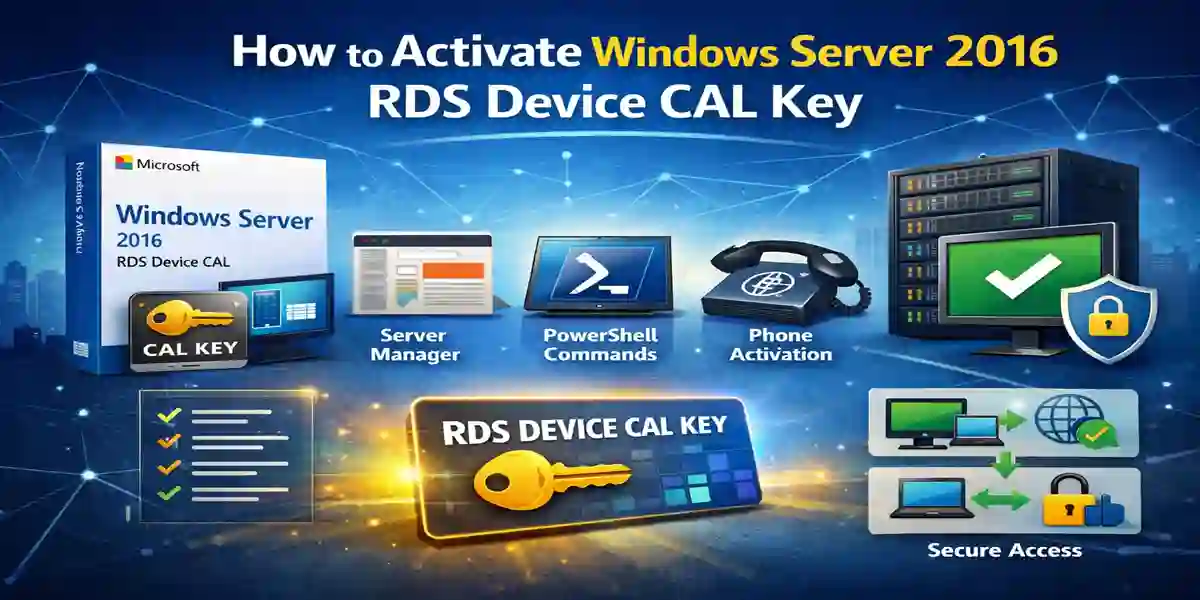
Activating Windows Server 2016 RDS Device CAL Key can be done using multiple methods:
1. Using Server Manager
-
Open Server Manager → Remote Desktop Services → RD Licensing Manager.
-
Right-click the license server and select Activate Server.
-
Enter your Device CAL Key and confirm.
-
Verify that the license appears in the RD Licensing Manager.
2. Using PowerShell
-
Open PowerShell as Administrator.
-
To add a Device CAL:
-
Verify installation:
-
Connect the server to Microsoft online licensing service.
-
Enter the Device CAL Key and confirm activation.
4. Phone Activation
-
If online activation fails, call Microsoft support.
-
Provide the installation ID and enter the confirmation ID provided.
Licensing and Formulas
Proper planning is essential to determine how many Device CALs your organization needs:
-
Total Devices = Number of physical devices requiring RDS access.
-
Device CAL Requirement = Total devices connecting simultaneously.
Expansion Formula:
Example:
-
Organization has 50 shared devices → requires 50 Device CALs.
-
Adding 20 devices → purchase 20 additional Device CALs.
Conclusion
The Windows Server 2016 RDS Device CAL Key is essential for businesses, schools, and IT environments requiring multi-user access from shared devices. With secure device-based licensing, centralized management, RemoteApp support, and high performance, Device CALs ensure smooth, compliant, and cost-effective access to server resources.
By following proper activation methods, using troubleshooting techniques, and planning CAL requirements, administrators can maximize productivity and maintain licensing compliance.
FAQ
Q1: Can multiple users share one Device CAL?
-
Yes, multiple users can access the licensed device without purchasing additional CALs.
Q2: How do I check installed Device CALs?
-
Use RD Licensing Manager or PowerShell:
Get-RDLicenseConfiguration.
Q3: Can Device CALs be transferred?
-
Yes, but the original device must be deactivated first.
Q4: What if online activation fails?
-
Use phone activation or verify network/firewall settings.
Q5: How many Device CALs do I need?
-
Count the total devices that will connect simultaneously to RDS.
Q6: Can Device CALs work with Windows Server 2019 or 2022?
-
No, Device CALs are version-specific. For newer versions, purchase the corresponding CAL.