

Blog
How to Activate Windows 10 Home OEM Key: Step-by-Step Guide for Easy Activation

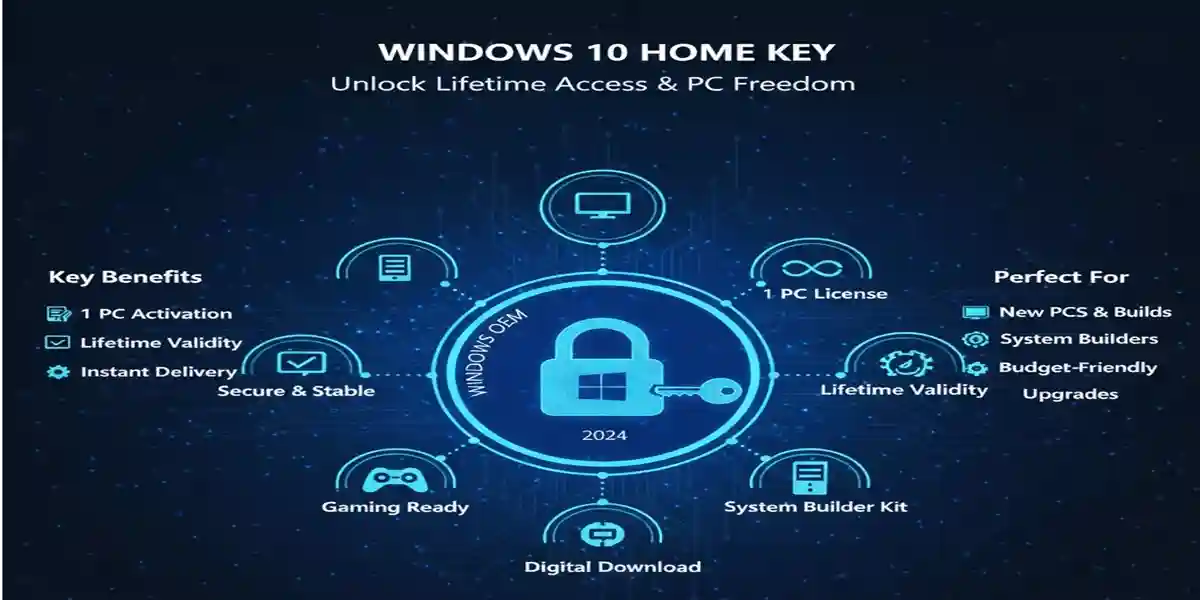
Introduction to Activating Windows 10 Home OEM Key
Activating your Windows 10 Home OEM Key is the first step in getting your new operating system up and running. Whether you purchased a new device or upgraded your existing one, activation is essential to unlock the full potential of Windows 10 Home. OEM keys (Original Equipment Manufacturer keys) are designed for individual use, and activating them is typically a quick and easy process. However, there are times when users face issues during activation, which can be frustrating.
In this guide, we’ll cover the methods to activate your Windows 10 Home OEM Key, discuss common errors that may arise, and provide simple fixes to resolve them. By the end of this guide, you’ll have all the knowledge you need to activate Windows 10 without hassle.
Key Features of Windows 10 Home OEM Key
-
User-Friendly Interface:
-
The new, modern interface makes navigation easy and efficient, with a more streamlined and visually appealing Start Menu, improved Taskbar, and faster Cortana integration.
-
-
Performance and Speed:
-
Windows 10 Home offers faster boot times, improved responsiveness, and optimized performance. Whether you’re working, gaming, or browsing, it ensures a smooth experience.
-
-
Enhanced Security:
-
With Windows Defender Antivirus, BitLocker, and Windows Hello, security is top of mind. Protect your personal data from online threats with advanced security features.
-
-
Multitasking Features:
-
Snap Assist and Virtual Desktops allow you to efficiently manage multiple open apps and switch between different workspaces, enhancing your productivity.
-
-
Microsoft Store:
-
Access thousands of apps, games, movies, and more with Microsoft Store integration. Get instant access to the latest updates and apps for your entertainment or work needs.
-
-
Gaming Performance:
-
DirectStorage and Auto HDR provide enhanced gaming experiences, allowing for faster load times and better visuals, even on entry-level hardware.
-
Methods to Activate Windows 10 Home OEM Key
-
Online Activation via Microsoft Account:
-
The easiest way to activate Windows 10 Home OEM is through your Microsoft Account. Simply log in to your Microsoft account and enter the product key when prompted during the installation process.
-
-
Activation via Settings:
-
Go to Settings > Update & Security > Activation.
-
If your system hasn’t been activated yet, click on the Change Product Key option and enter your OEM key. The system will automatically validate and activate your copy.
-
-
Offline Activation:
-
If you don’t have an internet connection, you can activate Windows 10 Home OEM offline by generating an activation request file, sending it to Microsoft for validation, and receiving an activation code.
-
Common Activation Errors and Fixes
-
“Activation Failed” Error:
-
Cause: This error typically occurs if the activation servers are down, or the key is invalid.
-
Fix: Double-check your product key, and ensure you are using the correct Windows 10 Home version. If the error persists, check the activation server status on Microsoft’s website.
-
-
“This Product Key Is Already In Use” Error:
-
Cause: This happens when the key has already been activated on another device.
-
Fix: If you previously activated Windows on another device, deactivate it first and then attempt reactivation. Contact Microsoft support if needed.
-
-
“Windows Is Not Genuine” Error:
-
Cause: This error can occur if you’re using an incorrect or counterfeit product key.
-
Fix: Ensure your OEM key is legitimate. If unsure, contact Microsoft support to verify the authenticity of your key.
-
-
“The Product Key You Entered Didn’t Work” Error:
-
Cause: If the key entered is invalid or incorrect for the Windows version.
-
Fix: Confirm you are entering the correct OEM product key for Windows 10 Home. Also, ensure the key matches the Windows version and edition you are installing.
-
Comparison of Windows 10 Home OEM vs. Other Versions
| Feature | Windows 10 Home OEM | Windows 10 Pro | Windows 10 Enterprise |
|---|---|---|---|
| License Type | OEM (One Device) | Retail (Multiple Devices) | Volume License (Multiple Devices) |
| Security Features | Windows Defender, BitLocker | Windows Defender, BitLocker, Group Policy | Windows Defender, BitLocker, Group Policy |
| Remote Desktop | No | Yes | Yes |
| Hyper-V Support | No | Yes | Yes |
| Enterprise Management | No | Yes | Yes |
| Cortana | Yes | Yes | Yes |
| Windows Store Access | Yes | Yes | Yes |
| Gaming Features (DirectStorage) | Yes | Yes | Yes |
Conclusion
Windows 10 Home OEM Key is the perfect solution for home users who want a reliable, secure, and cost-effective operating system. With easy activation methods, enhanced security features, and improved performance, it offers everything you need for personal computing. Whether you’re upgrading an old PC or building a new one, Windows 10 Home OEM delivers the tools, features, and efficiency required to get the most out of your system.
By following this guide, you can activate your Windows 10 Home OEM Key hassle-free. If you encounter any issues, use the troubleshooting tips and methods we’ve outlined to resolve them quickly.
FAQ
Q1: How do I activate my Windows 10 Home OEM key?
A1: To activate your Windows 10 Home OEM key, simply go to Settings > Update & Security > Activation, enter your product key, and follow the on-screen instructions.
Q2: Can I use a Windows 10 Home OEM key on multiple devices?
A2: No, OEM keys are typically tied to one device only. For multiple device installations, you should consider a retail version of Windows.
Q3: What should I do if my Windows 10 Home OEM key doesn’t work?
A3: Double-check the product key to ensure it’s correct. If issues persist, contact Microsoft support for assistance.
Q4: Can I upgrade from Windows 10 Home OEM to Windows 10 Pro?
A4: Yes, you can upgrade to Windows 10 Pro by purchasing an upgrade license from Microsoft and following the upgrade process through Settings > Update & Security.