

Blog
How to Activate Microsoft Project 2024: A Step-by-Step Guide

Introduction
Microsoft Project 2024 is a powerful project management tool designed for businesses, project managers, and teams of all sizes to plan, execute, and monitor projects with efficiency and accuracy. This software offers a comprehensive set of tools for creating project plans, managing schedules, allocating resources, and tracking progress, making it indispensable for organizations focused on delivering successful projects on time and within budget.
However, before using Microsoft Project 2024, users must activate it. Activation is a crucial step that links your software to your Microsoft account and ensures you’re using a legitimate version of the software. Whether you’re new to Microsoft Project or upgrading from an earlier version, understanding the activation process can help you avoid potential errors and delays.
In this article, we will walk you through how to activate Microsoft Project 2024, including the different activation methods, troubleshooting tips for common errors, helpful commands, and frequently asked questions. Whether you’re activating Microsoft Project for the first time or looking to resolve activation issues, this guide will provide all the information you need.
Features of Microsoft Project 2024
Microsoft Project 2024 comes equipped with a wide range of features designed to improve project management capabilities. Here’s an overview of its key features:
1. Enhanced Task Management
Task management is the heart of any project. Microsoft Project 2024 simplifies task creation, assignment, and tracking, allowing you to break down large projects into smaller, manageable tasks. The software lets you create custom task views, assign dependencies, set deadlines, and monitor progress effectively.
-
Key Features:
-
Task dependency management.
-
Custom task views for different team members.
-
Task prioritization and deadline setting.
-
2. Gantt Charts and Timelines
The Gantt chart is one of the most powerful tools for project management. It provides a visual timeline of your project, helping you keep track of tasks, milestones, and overall project progress. In Microsoft Project 2024, Gantt charts are more intuitive, offering features like automatic task scheduling and the ability to highlight critical paths.
-
Key Features:
-
Interactive Gantt charts for project planning.
-
Critical path visualization for efficient task prioritization.
-
Real-time updates on project progress.
-
3. Resource Management
Effective resource allocation is crucial for any project. Microsoft Project 2024 offers detailed resource management features to help you assign tasks to team members, allocate resources based on availability, and track their workload. The tool automatically updates resource assignments as the project progresses.
-
Key Features:
-
Resource leveling to prevent overallocation.
-
Team workload management and task assignment.
-
Real-time updates on resource availability.
-
4. Integration with Microsoft 365
Microsoft Project integrates seamlessly with other Microsoft 365 tools such as Teams, Excel, and SharePoint. This integration allows for better collaboration, data sharing, and project updates across the organization. You can easily export project data to Excel, share documents via SharePoint, or hold meetings via Teams.
-
Key Features:
-
Microsoft Teams integration for project collaboration.
-
Excel export for detailed reporting and analysis.
-
SharePoint integration for document sharing.
-
5. Customizable Reporting
Reporting is a vital component of project management. Microsoft Project 2024 enables you to create custom reports that reflect the exact data you need. Whether it’s tracking task progress, resource allocation, or project costs, you can generate detailed reports that offer valuable insights.
-
Key Features:
-
Custom project reports.
-
Visual progress tracking through charts and graphs.
-
Cost management and budget tracking reports.
-
6. Advanced Scheduling and Planning Tools
For complex projects, Microsoft Project 2024 offers advanced scheduling tools that help you break down tasks into smaller sub-tasks, set dependencies, and create detailed timelines. The software automatically updates schedules as tasks are completed or delayed.
-
Key Features:
-
Automated scheduling based on task dependencies.
-
Work breakdown structure (WBS) for detailed planning.
-
Timeline and milestone tracking.
-
How to Activate Microsoft Project 2024
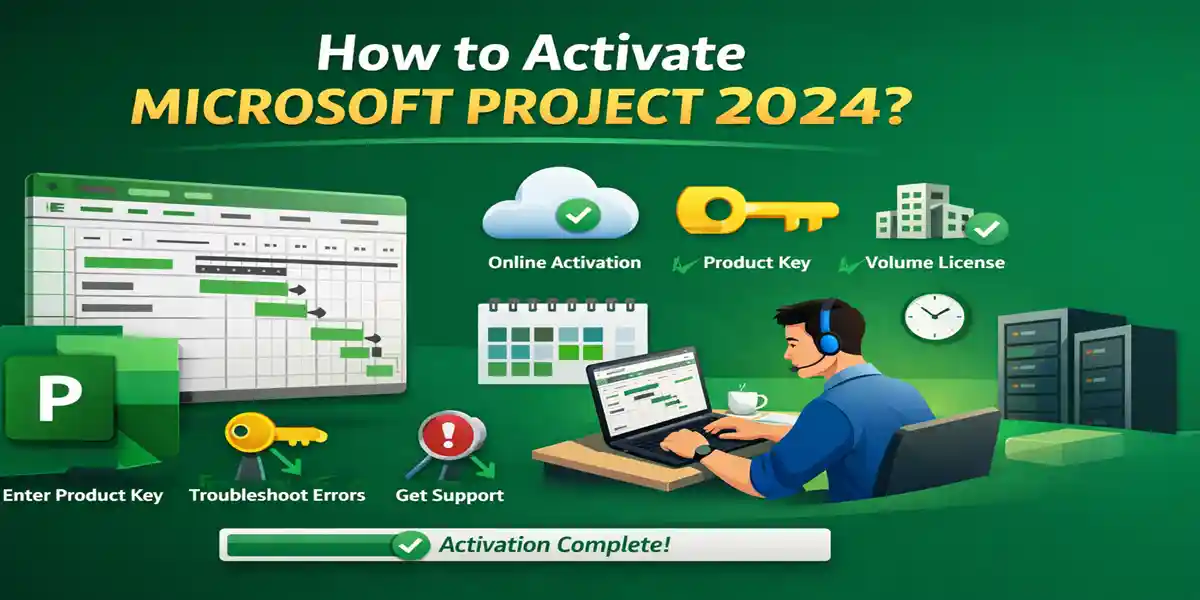
The activation process for Microsoft Project 2024 can vary depending on the method of purchase. Below are the different methods for activating Microsoft Project 2024:
1. Activation via Microsoft Account (Online Activation)
Online activation is the most common and easiest method for activating Microsoft Project 2024. Here’s how you can activate it through your Microsoft account:
Steps:
-
Install Microsoft Project 2024: After purchasing Microsoft Project, download it from the Microsoft Store or Microsoft Account portal.
-
Launch Microsoft Project: Open Microsoft Project 2024 after installation.
-
Sign in with Your Microsoft Account: When prompted, sign in with your Microsoft account that was used to purchase or subscribe to Microsoft Project 2024.
-
Follow the On-Screen Instructions: The software will verify your account and automatically activate Microsoft Project 2024.
-
Confirmation: Once activation is complete, a confirmation message will appear, indicating that the software is ready to use.
2. Activation via Product Key (Offline Activation)
If you don’t have access to the internet, you can activate Microsoft Project 2024 offline by using a product key that comes with your purchase. Here’s how to do it:
Steps:
-
Start the Activation Process: Open Microsoft Project 2024 and select Activate when prompted.
-
Select Offline Activation: Choose the Activate Manually (Offline) option.
-
Enter Product Key: Input the product key provided with your software purchase. The product key can be found on your purchase confirmation email or product packaging.
-
Generate Request Code: A Request Code will be generated for offline activation. Write this code down.
-
Generate Response Code: Visit the Microsoft Activation Page on another device, enter the Request Code, and receive a Response Code.
-
Enter Response Code: Enter the Response Code back into the activation window on your Microsoft Project software.
3. Activation via Volume Licensing (Enterprise)
For organizations or businesses using Microsoft Project 2024 under a Volume Licensing agreement, activation is typically handled through the Volume Activation Services (VAS).
Steps:
-
Install Microsoft Project: Download and install Microsoft Project 2024 from your company’s volume license portal.
-
Activate Using Volume License Key: During installation, enter the Volume License Key provided by your organization.
-
Validate License: The software will validate the license against Microsoft’s activation servers and confirm activation.
-
Confirmation: Once the activation is successful, the software will be ready for use.
Common Errors and Fixes During Activation
While activating Microsoft Project 2024, you may encounter some issues. Below are some common activation errors and their fixes:
1. Activation Code Invalid
-
Error: You receive an error that your activation code is invalid or expired.
-
Fix: Double-check the code for typos, extra spaces, or incorrect characters. Ensure that the code matches the version of Microsoft Project 2024 you purchased. If issues persist, contact Microsoft Support for a new code or assistance.
2. Unable to Connect to Microsoft Servers
-
Error: The activation process fails because the software cannot connect to Microsoft’s activation servers.
-
Fix: Ensure that your internet connection is stable. If using a firewall or VPN, ensure that the necessary ports are open. You may also try restarting your router or using a different network.
3. License Not Found
-
Error: Microsoft Project cannot locate or verify your license.
-
Fix: Reinstall Microsoft Project 2024 and ensure the license file is correctly downloaded from your Microsoft account. Try logging into your Microsoft account to verify the license.
4. Insufficient System Resources
-
Error: The software fails to activate due to insufficient system resources like RAM or hard disk space.
-
Fix: Check if your system meets the minimum requirements for Microsoft Project 2024. Free up space on your hard drive or upgrade your system’s RAM.
Commands for Microsoft Project 2024 Activation
If you encounter problems during activation or need to check your activation status, these commands can be helpful:
1. Command to Check Activation Status:
Open Command Prompt or PowerShell and use this command to check whether Microsoft Project 2024 is activated:
2. Command to Manually Trigger Activation:
In case the standard activation method fails, you can use this command to trigger the Microsoft Project Activation Wizard:
Replace “XX” with the appropriate version number for Microsoft Project 2024.
3. Command to Reset Activation:
If you need to reset Microsoft Project 2024 activation:
This command will reset the license and allow you to activate the software again.
Conclusion
Activating Microsoft Project 2024 is an essential step for unlocking its full potential for project planning, task management, and collaboration. Whether you are using online activation, offline activation, or volume licensing, the process is simple and can be completed in just a few steps. By following this guide, you can ensure a smooth activation process and quickly begin using Microsoft Project 2024.
If you encounter any activation errors, refer to the troubleshooting tips and commands provided to resolve issues efficiently. With Microsoft Project 2024, you can better manage your projects, allocate resources, and track progress, leading to more successful and timely project completions.
FAQ
1. How do I activate Microsoft Project 2024?
You can activate Microsoft Project 2024 by logging in to your Microsoft account or using a product key. You can also use offline activation if you’re unable to connect to the internet.
2. What should I do if my activation code is invalid?
Check for any typographical errors or extra spaces. If the problem persists, contact Microsoft Support for assistance or a new code.
3. Can I activate Microsoft Project 2024 offline?
Yes, if you don’t have an internet connection, you can activate Microsoft Project 2024 using the offline activation method by generating a Request Code and entering the Response Code.
4. How do I troubleshoot activation errors?
Use the commands provided in this article to check activation status, trigger the activation wizard, or reset the activation process.
5. Can I use Microsoft Project 2024 on multiple devices?
Yes, Microsoft Project 2024 allows activation on multiple devices depending on your subscription type (e.g., Microsoft 365). Ensure that your subscription plan covers multiple installations.