

Blog
How to Activate Windows 11 Pro OEM Key: Complete Guide for 2026

Introduction to Windows 11 Pro OEM Key
Windows 11 Pro is the latest version of the Windows operating system, packed with features designed for both individual users and businesses. The OEM (Original Equipment Manufacturer) version is a more cost-effective option than the retail version and is typically used by PC manufacturers or system builders. However, anyone can purchase an OEM license and use it to activate Windows 11 Pro on their devices.
One of the most significant advantages of Windows 11 Pro is its focus on security, business-oriented tools, and advanced functionalities. These include BitLocker encryption, Remote Desktop, Group Policy management, and much more. The OEM version of Windows 11 Pro offers the same robust features as the retail version but comes at a more affordable price point.
Key Features of Windows 11 Pro
Windows 11 Pro is designed for users who require higher security and more customization options. Some of its standout features include:
-
Improved Security
-
BitLocker encryption helps safeguard data in case of theft or loss.
-
Windows Defender Antivirus offers real-time protection against malware and cyber threats.
-
Secure Boot ensures that only trusted software is loaded during system startup.
-
-
Business-Oriented Features
-
Group Policy Management allows for centralized control of user settings and device configurations.
-
Remote Desktop enables users to connect to their computers from anywhere, making it easier for businesses with remote teams to collaborate effectively.
-
Assigned Access restricts users to a specific application, ideal for kiosks or public computers.
-
-
Virtualization Support
-
Hyper-V enables virtualization, allowing users to run multiple operating systems or sandbox environments for testing or development purposes.
-
-
Enhanced Productivity Features
-
Snap Layouts and Snap Groups make it easier to manage and organize multiple windows, improving multitasking and efficiency.
-
Teams Integration makes video conferencing and collaboration effortless directly within the operating system.
-
-
Gaming Features
-
Auto HDR and DirectStorage improve gaming experiences by enhancing graphics and speeding up game load times.
-
Xbox Game Pass integration allows for seamless access to thousands of games.
-
How to Activate Windows 11 Pro OEM Key
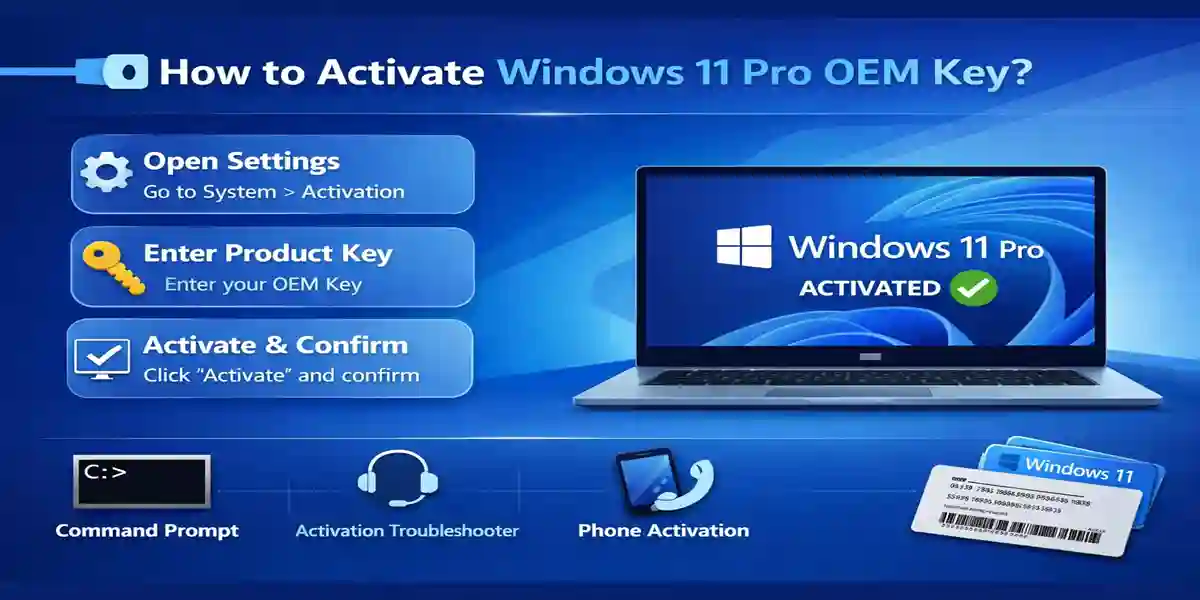
There are a few methods to activate Windows 11 Pro using your OEM key. Here’s a step-by-step guide to help you complete the process:
Method 1: Activate Windows 11 Pro Online via the Settings App
-
Open Settings
Press the Windows key and I simultaneously to open the Settings menu. -
Go to Activation Settings
In the Settings menu, select System > Activation. -
Enter the Product Key
Under the Activation section, click on Change Product Key. Enter the 25-character OEM key you received during your purchase. -
Complete Activation
After entering the key, click Next, and then follow the prompts to complete the activation. Windows will check the key online and activate your system if everything is valid.
Method 2: Activate Windows 11 Pro via Command Prompt
-
Open Command Prompt as Administrator
Press Windows key + X and select Command Prompt (Admin) from the menu. -
Enter the Product Key Using slmgr Command
In the Command Prompt window, type the following command to enter the product key:Replace
<your-product-key>with your Windows 11 Pro OEM key. -
Activate the License
Next, type the following command to activate Windows: -
Confirm Activation
After completing the process, type the following command to verify that Windows 11 Pro is activated:
Method 3: Use the Windows Activation Troubleshooter
If you’re having trouble activating your Windows 11 Pro OEM key, you can use the built-in Activation Troubleshooter:
-
Open Settings
Press the Windows key + I to open Settings. -
Go to Activation
In Settings, navigate to System > Activation. -
Run the Troubleshooter
If your system isn’t activated, you’ll see a message stating that activation is pending. Click on Troubleshoot to run the Windows Activation Troubleshooter, which will automatically attempt to fix any issues related to activation.
Common Errors and Fixes
Here are some common errors that users face while activating Windows 11 Pro OEM Key, along with their fixes:
Error 1: “Product Key Invalid”
-
Cause: This error occurs when the key entered doesn’t match the system or is invalid.
-
Fix: Double-check the product key for accuracy. Make sure that you’re using an OEM key for Windows 11 Pro. If it’s still invalid, contact the retailer or OEM for assistance.
Error 2: “Windows Activation Error 0xC004C003”
-
Cause: This error occurs when the product key cannot be activated due to network or server issues.
-
Fix: Ensure your internet connection is stable. If the issue persists, try activating via phone (using the phone activation method) or contact Microsoft Support for further assistance.
Error 3: “License Already in Use”
-
Cause: This error arises when the OEM key is already in use on another device.
-
Fix: Deactivate the key on the previous device, if possible, or contact Microsoft for support to reset the activation limit.
Commands for Managing Windows Activation
Here are some useful commands for managing Windows 11 Pro activation:
-
Check Activation Status
-
Command:
-
This will show whether your Windows 11 Pro license is permanent or has an expiration date.
-
-
Display License Information
-
Command:
-
This will provide information about your activation status, including the license type.
-
-
Rearm Activation (for Trials)
-
Command:
-
This command can be used to reset the trial period for Windows 11 Pro, although this can only be done a few times.
-
Conclusion
Activating Windows 11 Pro OEM Key is a simple process that can be completed using several methods, including through the Settings app, Command Prompt, or Activation Troubleshooter. Whether you’re upgrading from a previous version or setting up a new machine, the activation process will ensure you can use all the advanced features Windows 11 Pro offers.
If you encounter any activation issues, the troubleshooting tips provided above should help you resolve common errors. Additionally, understanding your license type (OEM, retail, volume, etc.) will allow you to follow the appropriate activation steps.
FAQ
Q1: Can I use the same OEM key on multiple devices?
Answer: No, OEM keys are tied to the first device they are activated on. If you need to use Windows on a new device, you will need to purchase a new OEM or retail key.
Q2: How can I change my product key after activation?
Answer: Go to Settings > System > Activation, click on Change Product Key, and enter your new key.
Q3: What should I do if my Windows 11 Pro activation fails after upgrading hardware?
Answer: If you’ve upgraded major hardware components, such as the motherboard, you may need to reactivate Windows. You can use the Activation Troubleshooter or contact Microsoft Support.
Q4: Can I activate Windows 11 Pro without an internet connection?
Answer: Yes, you can use the offline activation method via the phone activation process.
Q5: How do I know if my Windows 11 Pro key is OEM or retail?
Answer: OEM keys are often purchased at a lower price and come with pre-built computers. Retail keys are purchased separately and are more flexible, as they can be transferred to other devices.