

Blog
How to Activate Windows 11 Pro Education OEM: Complete Step-by-Step Guide

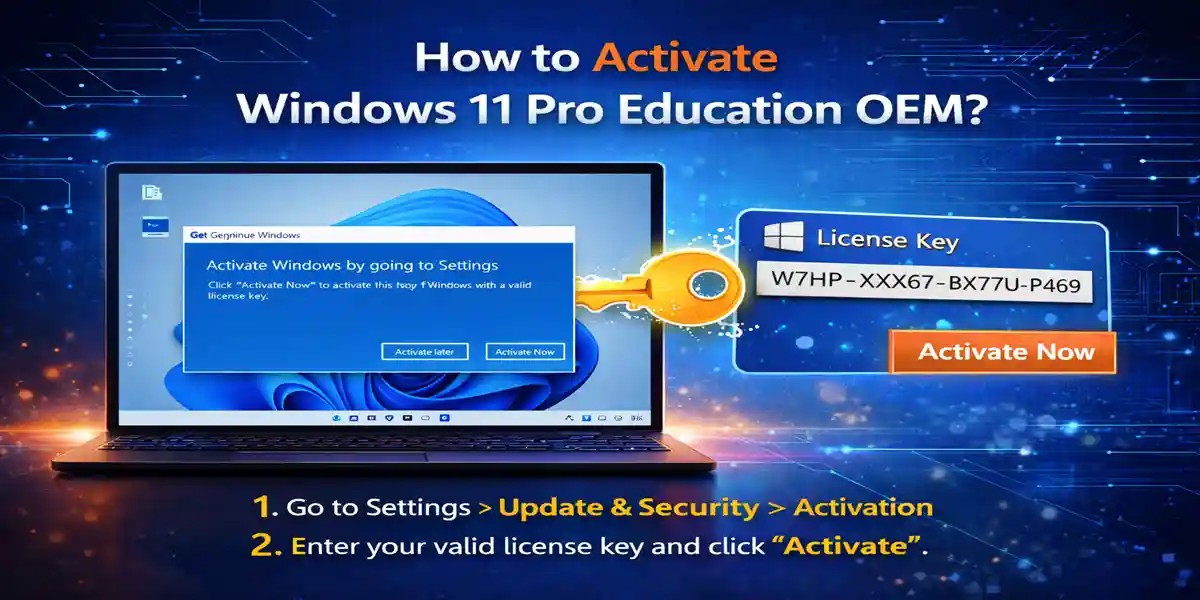
Introduction:
Windows 11 Pro Education OEM is designed specifically for educational institutions and students, offering all the powerful features of Windows 11 Pro with additional tools and functionalities geared toward learning environments. This version of Windows is optimized for students, educators, and academic administrators who require secure access to learning tools and resources.
However, before you can enjoy all the benefits of Windows 11 Pro Education OEM, it needs to be activated. In this article, we will walk you through the step-by-step process to activate Windows 11 Pro Education OEM, explain various activation methods, troubleshoot common activation issues, and guide you on how to manage licenses for educational institutions.
Key Features of Windows 11 Pro Education OEM:
-
Enhanced Security Features
-
BitLocker encryption and Windows Defender Antivirus ensure that sensitive educational data remains secure. Secure Boot also protects against malware and unauthorized access.
-
-
Virtualization Support (Hyper-V)
-
Hyper-V allows students and educators to create virtual machines for different learning environments. This is particularly useful for software testing, simulations, or creating isolated lab environments.
-
-
Cloud Integration
-
Seamlessly integrate with OneDrive for cloud storage, enabling access to documents and work from anywhere, even during remote learning.
-
-
Group Policy Management
-
Ideal for educational institutions, Group Policy Management allows administrators to control user access, security protocols, and software settings across multiple devices.
-
-
Assigned Access
-
With Assigned Access, schools can lock down devices for specific tasks, such as online exams or digital learning stations, ensuring students only have access to necessary applications.
-
-
Microsoft Store for Education
-
Windows 11 Pro Education OEM includes access to Microsoft Store for Education, where students and educators can download educational apps and resources.
-
-
Multi-Language Support
-
Multi-language support makes Windows 11 Pro Education OEM ideal for international students and educational institutions, providing an inclusive environment for learners around the world.
-
Errors and Fixes: Common Activation Issues
Despite the streamlined process, you might encounter some activation errors while setting up Windows 11 Pro Education OEM. Below are some common issues and their solutions:
1. “Activation Failed” Error
-
Cause: The system may not be able to connect to the activation server due to network issues or server downtime.
-
Fix: Ensure your internet connection is stable. Try restarting your device or check for any Windows updates. If the issue persists, consider using the offline activation method or check for known service outages on Microsoft’s website.
2. “Invalid Product Key” Error
-
Cause: The product key entered may be incorrect, expired, or not linked to Windows 11 Pro Education OEM.
-
Fix: Double-check the product key you received from your institution or Microsoft. If you obtained your key from a third-party source, ensure it is genuine. You can also retrieve your product key from your Microsoft account if needed.
3. “Too Many Activations” Error
-
Cause: This occurs when you’ve exceeded the number of activations allowed for the given license.
-
Fix: Log into your Microsoft account and check the list of devices activated with your product key. Deactivate an older device to free up space for the new activation.
Methods of Activating Windows 11 Pro Education OEM
There are several methods to activate Windows 11 Pro Education OEM. The process is straightforward, but it’s important to follow the correct steps depending on your situation. Here are the most common methods:
1. Online Activation Method
Step 1: Install Windows 11 Pro Education OEM
Download and install Windows 11 Pro Education OEM from your educational institution or Microsoft’s official website.
Step 2: Launch the Activation Window
Once installed, the activation window should appear automatically.
Step 3: Enter Product Key
Enter the product key you received from your institution or Microsoft.
Step 4: Sign in to Your Microsoft Account
Sign in using your Microsoft account linked to your educational license.
Step 5: Complete the Activation
Click “Activate” to finalize the process. If the product key is valid and all details are correct, Windows 11 Pro Education OEM will be activated and ready to use.
2. Offline Activation Method
If you are unable to connect to the internet, offline activation is a viable alternative.
Step 1: Launch Windows 11 Pro Education OEM
Select the Activate Offline option when prompted.
Step 2: Generate Request Code
Follow the prompts to generate a request code.
Step 3: Submit the Request Code
Go to the Microsoft Activation Website and submit the request code along with your product key.
Step 4: Receive Activation Code
Microsoft will send an activation code via email. Enter this code into the activation window to complete the process.
3. Network License Activation
For institutions with multiple devices, network license activation is the most efficient method.
Step 1: Install Network License Manager
Install the Network License Manager (NLM) on your institution’s server.
Step 2: Configure the License Server
In the Windows 11 Pro Education OEM setup, input the server name and port number for the license server.
Step 3: Activate via Network License
Once connected, Windows 11 Pro Education OEM will activate using the network license.
Conclusion:
Windows 11 Pro Education OEM offers a powerful solution for educational institutions, students, and educators looking for an affordable, secure, and productive operating system. With features like BitLocker encryption, Hyper-V, and Microsoft Store for Education, it is optimized for the needs of academic environments. The activation process is simple and can be completed either online or offline, depending on your connectivity.
By following the steps in this guide, you can easily activate your Windows 11 Pro Education OEM and start using all the advanced features it has to offer. Whether you’re in a classroom, lab, or remote learning environment, Windows 11 Pro Education OEM ensures that you have the tools necessary to succeed.
FAQ About Activating Windows 11 Pro Education OEM
1. How can I get Windows 11 Pro Education OEM?
You can get Windows 11 Pro Education OEM through educational institutions or directly from Microsoft.
2. Can I upgrade from Windows 10 Education to Windows 11 Pro Education?
Yes, you can upgrade to Windows 11 Pro Education by purchasing a product key and following the upgrade instructions.
3. Is Windows 11 Pro Education available for Mac?
No, Windows 11 Pro Education is available only for PCs. However, you can use Parallels Desktop to run it on a Mac.
4. How do I resolve “Activation Failed” errors?
Ensure your internet connection is stable, and your product key is correct. If problems persist, use offline activation.
5. Can I use Windows 11 Pro Education offline?
Yes, after activation, Windows 11 Pro Education can be used offline. However, it requires an internet connection for updates and activation.