

Blog
How to Easily Activate Windows 10 Pro Retail Key: A Step-by-Step Guide

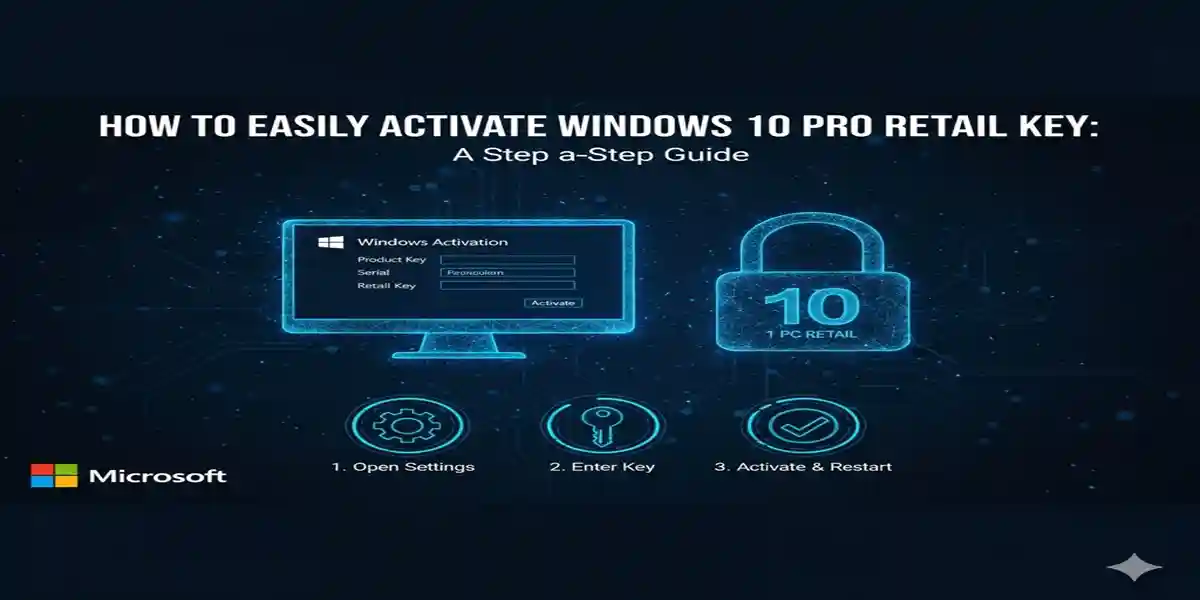
Introduction
Windows 10 Pro is designed for users who require more than what Windows 10 Pro can offer. From advanced security features like BitLocker encryption to business-focused tools such as Remote Desktop and Group Policy Management, Windows 10 Pro is built to meet the needs of small and medium-sized businesses, IT professionals, and advanced home users. The Windows 10 Pro Retail Key is a one-time purchase that provides a permanent license for the operating system, offering flexibility and the ability to transfer it between compatible devices.
When activating Windows 10 Pro, it’s important to ensure you’re using a legitimate retail key and that you follow the correct steps to activate it successfully. This guide will provide you with a clear understanding of the activation process, its features, common issues, and how to resolve them.
Key Features of Windows 10 Pro
Windows 10 Pro provides several advanced features over the Home edition, making it perfect for professional environments or users who require enhanced functionality. Here are some of the key features of Windows 10 Pro:
1. BitLocker Encryption
-
BitLocker is a disk encryption feature that ensures the data on your device remains secure. This feature protects sensitive information by encrypting the entire drive, making it difficult for unauthorized users to access your files, even if the device is lost or stolen.
2. Remote Desktop
-
Remote Desktop allows you to connect to your PC from a remote location, making it easy to work from anywhere. This feature is essential for businesses that need employees to access company networks and systems remotely.
3. Group Policy Management
-
Group Policy Management allows administrators to control and configure operating system settings for multiple devices within an organization. It’s an essential tool for IT teams that manage large networks of computers.
4. Virtualization with Hyper-V
-
Hyper-V is a hardware virtualization feature that lets you create and manage virtual machines on your computer. This is especially useful for developers and IT professionals who need to test software in multiple environments.
5. Assigned Access
-
Assigned Access is a feature that allows you to lock your computer into a single application, making it ideal for kiosks or specialized workstations.
6. Domain Join
-
With Domain Join, you can connect your PC to a corporate network, enabling IT administrators to manage and control multiple devices in the network.
7. Windows Sandbox
-
Windows Sandbox is a lightweight desktop environment that allows you to run applications in isolation. This feature is particularly useful for testing untrusted software without risking harm to your primary system.
8. Windows Update for Business
-
Windows Update for Business gives businesses control over when and how updates are deployed to their systems. It ensures that IT administrators can test updates before pushing them to all devices within an organization.
9. Enterprise-Level Security
-
Windows 10 Pro provides Windows Defender Antivirus and Windows Defender Firewall, both of which help protect your system from malware, ransomware, and other security threats.
10. Microsoft Store for Business
-
The Microsoft Store for Business allows businesses to access and distribute apps to employees directly. This is particularly useful for companies that rely on custom applications or need centralized app management.
Methods to Activate Windows 10 Pro Retail Key
To activate Windows 10 Pro using a retail key, there are two primary methods: online activation and offline activation. Below, we’ll walk you through both processes.
Method 1: Online Activation
Online activation is the most common method for users with an internet connection. Here’s how you can activate Windows 10 Pro:
-
Install Windows 10 Pro:
-
If you haven’t installed Windows 10 Pro yet, start by downloading the installation tool from the official Microsoft website. Once downloaded, create a bootable USB drive or use the media creation tool to install the OS on your device.
-
-
Launch Windows 10 Pro:
-
After installation, turn on your device and complete the initial setup steps (language, region, network setup, etc.).
-
-
Sign in to Your Microsoft Account:
-
During the setup process, you’ll be prompted to sign in with your Microsoft account. If you don’t have one, you can create one or skip this step.
-
-
Enter Your Retail Key:
-
Once you reach the activation page, select “I don’t have a product key.” Then enter your Windows 10 Pro Retail Key when prompted.
-
If you have an internet connection, Windows will connect to Microsoft’s activation servers and verify your key.
-
-
Activate Windows:
-
After entering your product key, Windows 10 Pro will activate automatically, and you’ll be ready to use all the advanced features.
-
-
Verify Activation:
-
To confirm activation, go to Settings > Update & Security > Activation. If everything is set up correctly, it should say “Windows is activated with a digital license linked to your Microsoft account.”
-
Method 2: Offline Activation (For Devices without Internet Access)
If you don’t have access to the internet, you can still activate Windows 10 Pro via offline activation.
-
Install Windows 10 Pro:
-
Use the same process as above to install Windows 10 Pro on your device.
-
-
Launch Windows 10 Pro:
-
Complete the installation and setup steps.
-
-
Activate Using the Phone:
-
If you’re offline, Windows will ask you to activate via phone. Click Activate by phone to get a Confirmation ID.
-
-
Call Microsoft Activation Center:
-
Dial the activation number provided by Microsoft. You’ll be asked to provide the Installation ID that appears on your screen.
-
-
Enter Confirmation ID:
-
After speaking with a Microsoft representative, they will give you a Confirmation ID. Enter this ID into the activation window.
-
-
Finish Activation:
-
Once entered, your Windows 10 Pro installation will be activated.
-
Common Errors and Fixes
During the activation process, you might encounter some errors. Below are some common activation issues and how to fix them:
Error 1: “We can’t activate Windows on this device”
-
Cause: This error usually appears when your product key is invalid or has already been used on another device.
-
Fix: Double-check that you’ve entered the correct product key. If the key was used on another device, you may need to deactivate it from the previous machine before activating it on the new one.
Error 2: “The product key you entered didn’t work”
-
Cause: This could be due to entering an incorrect or mistyped key.
-
Fix: Carefully re-enter the key or use the slmgr.vbs command in the Command Prompt to enter your product key manually.
Error 3: “Activation Error 0xC004F074”
-
Cause: This error typically appears when the device is unable to connect to the activation servers.
-
Fix: Make sure your internet connection is stable. If the issue persists, try using the offline activation method.
Comparison Table: Windows 10 Pro Retail Key vs. Other Versions
| Feature | Windows 10 Pro Retail Key | Windows 10 Home | Windows 10 Enterprise |
|---|---|---|---|
| BitLocker Encryption | Yes | No | Yes |
| Remote Desktop | Yes | No | Yes |
| Hyper-V Virtualization | Yes | No | Yes |
| Assigned Access | Yes | No | Yes |
| Group Policy Management | Yes | No | Yes |
| Domain Join | Yes | No | Yes |
| Microsoft Store for Business | Yes | No | Yes |
| Price | Higher than Home, Lower than Enterprise | Most affordable | Most expensive |
Conclusion
Activating Windows 10 Pro with a Retail Key is a simple and essential step in unlocking the full range of features that Windows 10 Pro has to offer. From enhanced security features like BitLocker to powerful tools like Remote Desktop and Group Policy Management, Windows 10 Pro provides everything you need for both personal and professional use.
By following the outlined activation steps and addressing any potential activation errors, you can quickly get your system up and running with all the benefits of Windows 10 Pro. Whether you’re upgrading from Windows 10 Home or setting up a new machine, using a Windows 10 Pro Retail Key ensures that you have the latest and most secure version of Windows at your disposal.
Frequently Asked Questions (FAQ)
Q1: Can I transfer my Windows 10 Pro Retail Key to another device?
Yes, Windows 10 Pro Retail Key can be transferred to a new device as long as it’s removed from the previous one.
Q2: Can I upgrade from Windows 10 Home to Windows 10 Pro using a Retail Key?
Yes, you can use a Windows 10 Pro Retail Key to upgrade from Windows 10 Home to Windows 10 Pro. Just enter the key in Settings > Update & Security > Activation.
Q3: What should I do if my Windows 10 Pro Retail Key doesn’t work?
Double-check that the key is entered correctly. If it’s still not working, make sure it hasn’t been used on another device, and contact Microsoft support if needed.
Q4: How can I verify my Windows 10 Pro activation?
Go to Settings > Update & Security > Activation to verify if your Windows 10 Pro has been successfully activated.