

Blog
How to Activate Microsoft Visual Studio Enterprise 2022 | Step-by-Step Guide

Introduction
In the modern software development world, professional developers and enterprise teams require a powerful Integrated Development Environment (IDE) to handle large-scale applications, multiple programming languages, and collaborative workflows. Microsoft Visual Studio Enterprise 2022 is one of the most robust IDEs available, offering advanced debugging, automated testing, cloud integration, and AI-assisted development.
Activating Visual Studio Enterprise 2022 with a genuine product key is essential to unlock its premium features. Without activation, key functionalities like DevOps integration, AI coding suggestions, and enterprise-grade testing tools remain restricted, limiting productivity and workflow efficiency.
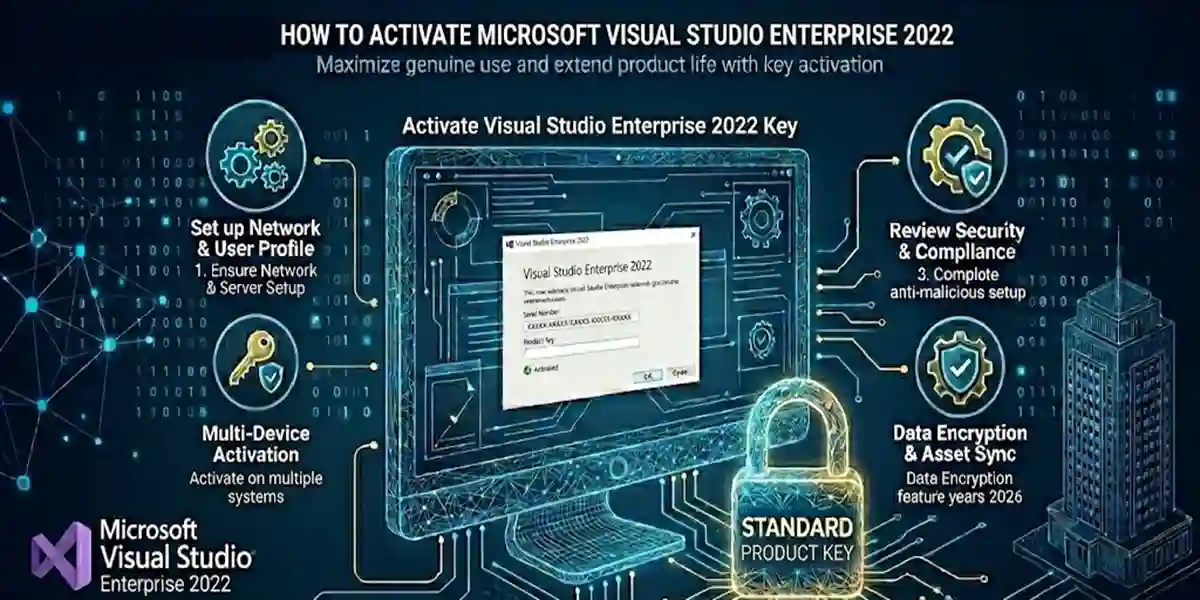
This guide provides a step-by-step roadmap to activate Microsoft Visual Studio Enterprise 2022 safely. It also covers features, common activation errors and fixes, activation methods, productivity formulas, license types, FAQs, and actionable tips to optimize your development workflow.
By following this guide, developers and IT teams can ensure uninterrupted access to all enterprise development tools, improving both collaboration and project delivery timelines.
Key Features of Microsoft Visual Studio Enterprise 2022
Visual Studio Enterprise 2022 offers a wide range of features designed for enterprise-level software development. Below is a detailed breakdown of its key functionalities:
1. Advanced Debugging and Diagnostics
- Identify and resolve complex bugs using IntelliTrace, Snapshot Debugger, and Live Unit Testing.
- Provides deep insights into runtime errors, memory usage, and performance bottlenecks.
2. Enterprise-Grade Testing Tools
- Create automated tests, unit tests, and load testing workflows.
- Integration with test frameworks allows teams to maintain code quality across large projects.
3. Collaboration and DevOps Integration
- Seamless integration with Azure DevOps, GitHub, and Microsoft Teams.
- Real-time collaboration and version control help teams coordinate efficiently.
4. AI-Assisted Development
- IntelliCode provides AI-powered code suggestions and refactoring recommendations.
- Accelerates development by predicting likely code completions based on project context.
5. Support for Multiple Languages and Frameworks
- Supports C#, .NET, Python, JavaScript, TypeScript, and more.
- Enables developers to work across multiple technologies in a single IDE.
6. Cloud Development and Deployment
- Build, test, and deploy applications directly to Azure or other cloud platforms.
- Simplifies cloud integration and infrastructure management for developers.
7. Security and Compliance Tools
- Identify security vulnerabilities and maintain compliance standards.
- Provides static code analysis, security recommendations, and policy enforcement.
8. Productivity Enhancements
- Features like IntelliSense, code navigation, live code analysis, and shortcuts increase developer efficiency.
- Customizable tool windows and layouts improve workflow organization.
9. Customizable IDE
- Personalize themes, layouts, and tool panels according to user preference.
- Supports multiple monitors, docking, and workspaces for large projects.
10. Enterprise Support and Updates
- Access to premium Microsoft support, security patches, and performance updates.
- Ensures enterprise teams maintain uninterrupted productivity.
Common Activation Errors and How to Fix Them
Even with a genuine key, developers may face activation issues. Below are the most common errors and troubleshooting solutions:
1. Invalid Product Key
- Cause: Typo or counterfeit key.
- Fix: Verify the key; purchase from trusted sources like esoftwarestore.
2. Activation Limit Reached
- Cause: Keys allow a limited number of activations.
- Fix: Deactivate old devices or uninstall previous installations.
3. Network Connection Issues
- Cause: Online activation requires stable internet.
- Fix: Check your connection, disable VPN/firewall temporarily, and retry.
4. Microsoft Account Mismatch
- Cause: Key is tied to a different account.
- Fix: Sign in using the account associated with the key.
5. Activation Server Unavailable
- Cause: Microsoft servers temporarily down.
- Fix: Retry after some time or use phone activation.
6. Error Codes
- 0xC004F074 – Activation server unavailable
- 0xC004F210 – License mismatch
- 0xC004F200 – Key invalid
Fix: Follow Microsoft troubleshooting guides or contact support.
Methods to Activate Microsoft Visual Studio Enterprise 2022
1. Online Activation via Microsoft Account
- Open Visual Studio Enterprise 2022.
- Go to File → Account → Activate Product.
- Enter your 25-character product key.
- Sign in with your Microsoft account.
- Follow on-screen prompts to complete activation.
2. Phone Activation
- Select Activate by Phone.
- Choose your country/region.
- Call Microsoft and provide the installation ID.
- Enter the confirmation ID received.
3. Volume Licensing (Enterprise Teams)
- Large organizations can use Volume Licensing Keys (VLK).
- Admins can deploy Visual Studio 2022 across multiple machines using the Volume Activation Management Tool (VAMT).
Formulas and Productivity Tips in Visual Studio Enterprise 2022
While VS is primarily an IDE, developers can leverage productivity “formulas” and shortcuts:
1. Automated Code Templates
- Use snippets like
propfor properties orcwforConsole.WriteLine. - Example:
prop→ generates a property block for a class.
2. AI-Powered IntelliCode
- Suggests method calls or refactorings based on existing project patterns.
- Saves time when coding repetitive patterns.
3. Keyboard Shortcuts
Ctrl + K + D→ Format DocumentCtrl + Shift + B→ Build SolutionF12→ Go to DefinitionShift + F12→ Find All References
4. Debugging Formulas
- Use Watch, Immediate Window, and Conditional Breakpoints to inspect variables dynamically.
- Example: Watch expression:
myVariable > 10 ? "High" : "Low"
5. Productivity Tips
- Split windows for multi-file editing
- Use Live Unit Testing to test changes instantly
- Pin frequently used tools or dashboards
License Types for Microsoft Visual Studio Enterprise 2022
- Retail License – Single device, perpetual license for professional users.
- Volume License – Multi-device license for enterprise teams.
- Subscription License – Monthly/yearly plan with cloud features and updates.
- OEM License – Pre-installed, usually non-transferable.
Comparison Table – Visual Studio 2022 Versions
| Feature / Version | Enterprise 2022 | Professional 2022 | Community 2022 |
|---|---|---|---|
| Advanced Debugging & Diagnostics | ✅ Full | ✅ Limited | ❌ No |
| Automated & Load Testing | ✅ Full | ✅ Limited | ❌ No |
| AI-Assisted Coding (IntelliCode) | ✅ Yes | ✅ Yes | ✅ Limited |
| DevOps & Cloud Integration | ✅ Full | ✅ Partial | ❌ No |
| Collaboration Tools | ✅ Full | ✅ Limited | ❌ No |
| Multi-Language Support | ✅ Comprehensive | ✅ Moderate | ✅ Limited |
| Security & Compliance | ✅ Full | ✅ Partial | ❌ No |
| Productivity Enhancements | ✅ Full | ✅ Moderate | ✅ Limited |
| License Type | Retail / Volume / Subscription | Retail / Volume / Subscription | Free |
| Customer Support & Updates | ✅ Premium | ✅ Standard | ❌ Community |
Key Takeaway: Enterprise edition is the most feature-rich and ideal for teams, while Professional or Community editions are suited for smaller teams or individual developers.
Conclusion
Activating Microsoft Visual Studio Enterprise 2022 with a genuine key ensures access to all premium features, including advanced debugging, AI-assisted coding, enterprise DevOps integration, automated testing, and cloud deployment.
Enterprise teams benefit from collaboration, code analysis, security, and productivity enhancements, making it the ideal solution for large-scale, professional development projects.
A genuine key ensures secure activation, uninterrupted updates, and premium support, helping organizations maintain productivity and high-quality software delivery.
Frequently Asked Questions (FAQ)
Q1: Can I use the same key on multiple devices?
- Retail: 1 device, Volume: multiple devices
Q2: What if my product key is invalid?
- Verify or contact esoftwarestore
Q3: Is internet required for activation?
- Online: Yes, Phone activation: No
Q4: Can I reinstall after activation?
- Yes, on the licensed machine
Q5: How long does activation take?
- Online: Instant, Phone: 5–10 minutes
Q6: Can I switch Microsoft accounts after activation?
- No, key is tied to the original account