

Blog
How to Activate Microsoft 365 Business Standard Key for One Year: Step-by-Step Guide

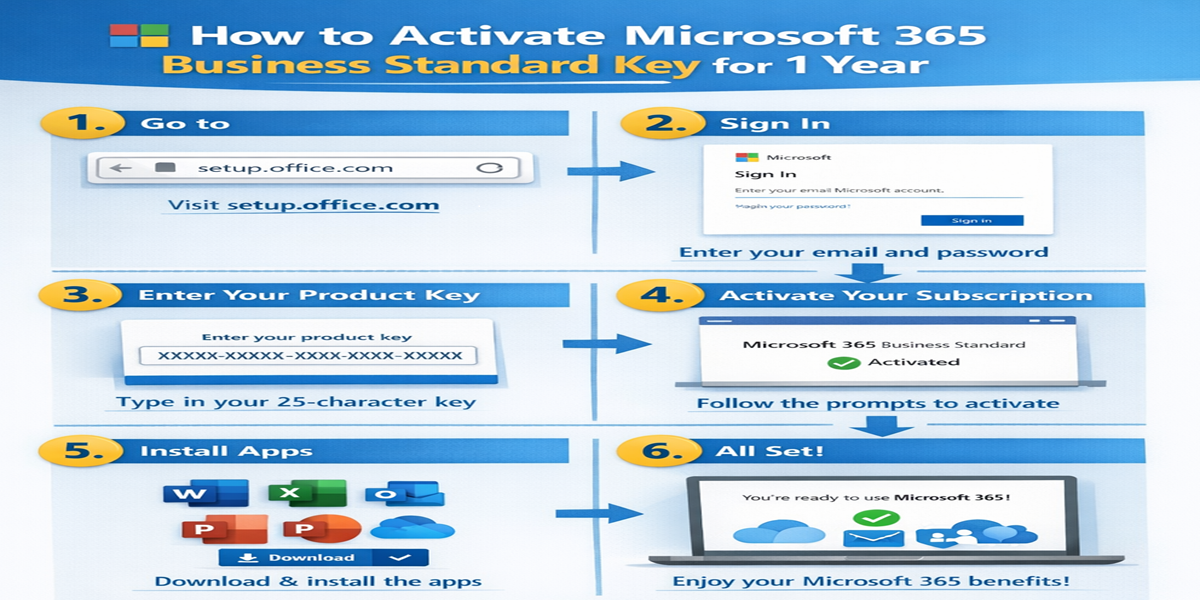
Introduction
Activating your Microsoft 365 Business Standard key for one year is a crucial step to get full access to the suite of applications and services that come with your subscription. Whether you’re using it for work, personal productivity, or managing a team, Microsoft 365 Business Standard offers powerful tools like Word, Excel, PowerPoint, Outlook, and Teams.
However, even though activation is generally straightforward, you might encounter activation issues due to common errors like incorrect product keys, network problems, or account misconfigurations. In this guide, we’ll walk you through the activation process for Microsoft 365 Business Standard, covering key features, common errors, fixes, and the best methods for successful activation.
By the end of this article, you’ll know exactly how to activate your Microsoft 365 Business Standard key and troubleshoot any problems that arise during the process.
Features of Microsoft 365 Business Standard
Before diving into activation methods, let’s take a look at what Microsoft 365 Business Standard offers:
1. Full Access to Office Apps
Microsoft 365 Business Standard includes access to the latest versions of the Microsoft Office apps such as Word, Excel, PowerPoint, Outlook, and OneNote. You can use these apps on both PC and Mac.
2. Cloud Storage with OneDrive
You get 1 TB of cloud storage with OneDrive for Business, allowing you to securely store, access, and share your files from anywhere.
3. Collaboration with Teams
Microsoft Teams is included in your plan, enabling efficient team communication, instant messaging, video calls, and document sharing.
4. Business-Class Email with Exchange
With Exchange Online, you can manage your professional emails and calendar, with a 50 GB mailbox per user, and a custom email domain address.
5. Regular Updates
As part of your subscription, you’ll receive automatic updates to the latest features and security patches for all Office apps and services.
Common Errors and Fixes
Even with a simple activation process, issues can arise. Below are some common errors users face during the activation process and how to fix them.
1. Error: “Invalid Product Key”
Cause: This typically occurs when the product key you’ve entered is incorrect or invalid.
Fix: Double-check the key for any typos or errors. If you purchased your key from a third-party reseller, ensure that it’s genuine and has not been used before. If the problem persists, contact Microsoft support for a replacement key.
2. Error: “Activation Failed“
Cause: This error often appears when your device cannot communicate with Microsoft’s activation servers.
Fix: Make sure you have an active internet connection. Restart your computer, and try the activation process again. If this doesn’t work, try disabling any firewall or antivirus software temporarily, as it may be blocking the activation.
3. Error: “Your Account is Not Licensed”
Cause: This error can occur if the Microsoft account you’re using doesn’t have the correct license assigned.
Fix: Sign in to the Microsoft 365 Admin Center and verify that your account has been assigned the correct Microsoft 365 Business Standard license. If you’re not an admin, contact your IT administrator to ensure the correct license has been assigned to your account.
4. Error: “License Expired”
Cause: Your subscription may have expired or the license renewal failed.
Fix: Go to the Microsoft Subscription Center and renew your subscription. Once renewed, sign in again to activate your account.
Methods to Activate Microsoft 365 Business Standard
There are several ways to activate your Microsoft 365 Business Standard key. Let’s explore the steps:
Method 1: Activate Using Microsoft Account
-
Sign in: Go to the Microsoft 365 sign-in page and sign in with the Microsoft account linked to your subscription.
-
Enter Product Key: After signing in, you’ll be prompted to enter your product key.
-
Follow the Instructions: Follow the on-screen instructions to complete the activation process. After activation, you’ll be able to access all features.
Method 2: Activate Through the Microsoft 365 Admin Center (For Admins)
-
Log in to Admin Center: Sign in to the Microsoft 365 Admin Center using your admin account.
-
Assign Licenses: Navigate to Billing > Licenses and assign the Microsoft 365 Business Standard license to the user accounts that need access.
-
Activate Subscription: Once the license is assigned, the users can sign in and start using the software immediately.
Method 3: Activate via Office Apps
-
Open an Office App: Open Word, Excel, or any Office app.
-
Sign In: If prompted, sign in with the Microsoft account associated with your Microsoft 365 Business Standard subscription.
-
Enter Product Key: If necessary, enter the product key provided during the purchase.
Method 4: Offline Activation (For Devices Without Internet)
-
Open Command Prompt: Open Command Prompt as an administrator.
-
Run Activation Command: Use the following command to activate Office offline:
cscript ospp.vbs /sethst:activation_server_nameReplace “activation_server_name” with the server provided by Microsoft support for offline activation.
Conclusion
Activating Microsoft 365 Business Standard ensures that you can unlock the full suite of productivity tools, from Office apps to Teams and OneDrive. While activation is usually straightforward, errors like invalid product keys, network problems, or license mismatches can sometimes occur.
By following the activation methods outlined above, you can easily resolve common issues and get your Microsoft 365 subscription up and running. Whether you’re using the software for personal use or managing a business, Microsoft 365 Business Standard offers powerful tools for improved collaboration, communication, and productivity.
If you encounter any persistent issues, Microsoft’s customer support is always available to help you troubleshoot and resolve your activation problems.
FAQ
1. How do I activate Microsoft 365 Business Standard for the first time?
Simply sign in with your Microsoft account, enter the product key when prompted, and follow the instructions to activate your subscription.
2. What should I do if I get an “Invalid Product Key” error?
Double-check your product key for any typos, and ensure it has not been used before. If you purchased it from a third-party, verify its authenticity. Contact Microsoft support if the issue persists.
3. How can I renew my Microsoft 365 Business Standard subscription?
Go to the Microsoft Subscription Center, sign in, and follow the instructions to renew your subscription.
4. Can I activate Microsoft 365 on multiple devices?
Yes, Microsoft 365 Business Standard allows installation on up to 5 devices per user, including PCs, Macs, tablets, and smartphones.
5. How do I assign licenses to users in Microsoft 365 Admin Center?
Log in to the Microsoft 365 Admin Center, go to Billing > Licenses, and assign the Business Standard license to the users you want to activate.