

Blog
How to Activate CorelDRAW Graphics Suite 2026 | Step by Step Guide

Introduction
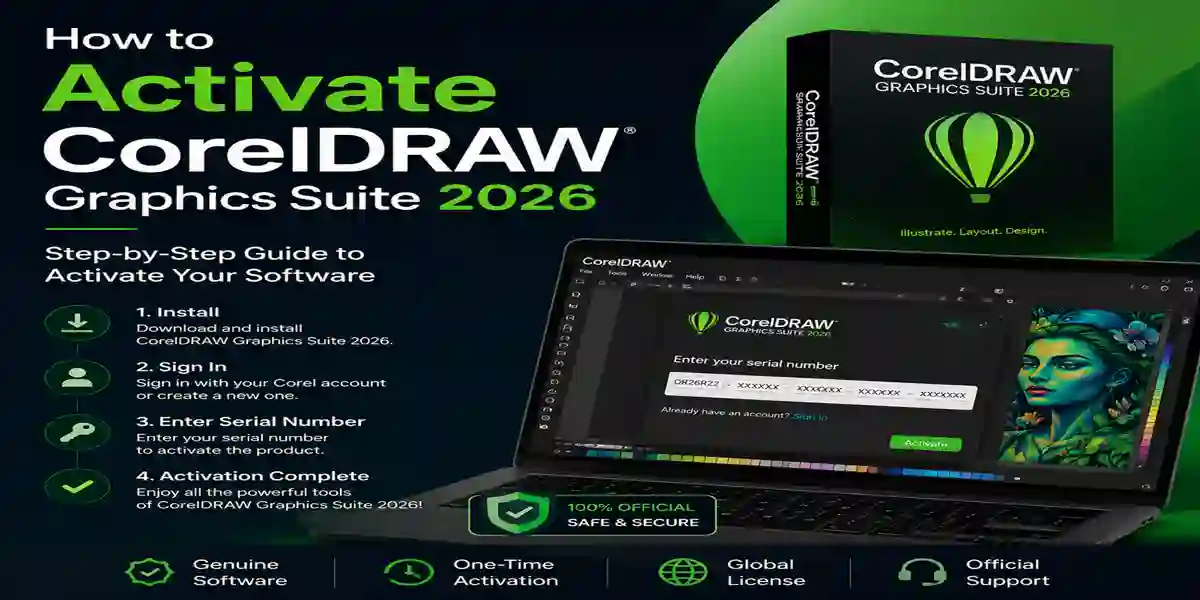
CorelDRAW Graphics Suite 2026 is one of the most advanced and versatile graphic design software packages available today. From professional vector illustration to layout design, typography, and AI-powered photo editing, CorelDRAW 2026 offers a complete creative toolkit for designers, illustrators, and digital artists. Activation is essential to unlock its full potential, access updates, and legally use the software. In this comprehensive guide, we will walk you through the steps to activate CorelDRAW Graphics Suite 2026 safely, highlight common errors and solutions, and provide detailed methods for activation.
Key Features of CorelDRAW Graphics Suite 2026
- Vector Illustration Tools: Create scalable vector art with precision and professional quality.
- Photo Editing with PHOTO-PAINT: Advanced photo editing features integrated for seamless workflow.
- Layout & Typography Tools: Design brochures, flyers, and marketing materials with ease.
- AI-Powered Tools: Enhance your designs with AI image upscaling, effects, and color correction.
- Customizable Interface: Tailor your workspace to maximize productivity.
- Multi-Device Support: Use CorelDRAW across Windows, Mac, and cloud platforms.
- File Compatibility: Supports over 40 file formats including PDF, AI, PSD, PNG, JPG, and SVG.
- Learning Resources & Templates: Built-in tutorials and templates help beginners and professionals.
Methods to Activate CorelDRAW Graphics Suite 2026
1. Online Activation (Recommended)
- Launch CorelDRAW 2026 after installation.
- Sign in to your Corel account or create a new account.
- Enter your 25-character license key.
- Click Activate Now and wait for confirmation.
2. Offline Activation
- Launch CorelDRAW and select Activate Offline.
- Generate a request code.
- Use another device to visit the Corel activation page and obtain the activation code.
- Enter the code in CorelDRAW 2026 to complete activation.
3. Trial Activation
- Download the trial version from CorelDRAW official site.
- Run the software in trial mode for 15-30 days.
- Upgrade to the full version by entering a valid license key.
4. Activation via eSoftwareStore
- Purchase CorelDRAW 2026 from eSoftwareStore.
- Follow their instructions to receive the official license key and activate your software.
Common Activation Errors and Fixes
| Error | Cause | Solution |
|---|---|---|
| Invalid License Key | Typing mistake or expired key | Double-check the key; contact Corel support if needed |
| Cannot Connect to Server | Internet issues or firewall restrictions | Check your network; temporarily disable firewall |
| Trial Expired | Trial period exceeded | Enter a valid license key |
| Activation Limit Reached | Key used on multiple devices | Deactivate old devices via Corel account |
| Offline Activation Error | Incorrect request/activation code | Generate new request code and retry |
Conclusion
Activating CorelDRAW Graphics Suite 2026 is simple when you follow the correct methods. Proper activation unlocks all features, ensures legal usage, and allows access to updates and cloud collaboration tools. By following this guide, you can avoid common errors, activate securely online or offline, and start creating stunning graphics efficiently. Purchase through eSoftwareStore for a safe, hassle-free activation experience.
FAQs
Q1: Can I use CorelDRAW 2026 without activation?
A: Yes, but only in limited trial mode. Full features require activation.
Q2: Can I transfer my license to another computer?
A: Yes, deactivate on the original device and reactivate on the new device.
Q3: What if I lose my license key?
A: Retrieve it through your Corel account or contact Corel support.
Q4: Does CorelDRAW 2026 require internet for activation?
A: Online activation requires internet, but offline activation is possible with a request code.
Q5: How do I know if activation is successful?
A: You will receive a confirmation message and all features will be fully accessible.