

Blog
How to Activate Office 365 A3 for 5 Users – PC/Mac with Customized Name

Introduction
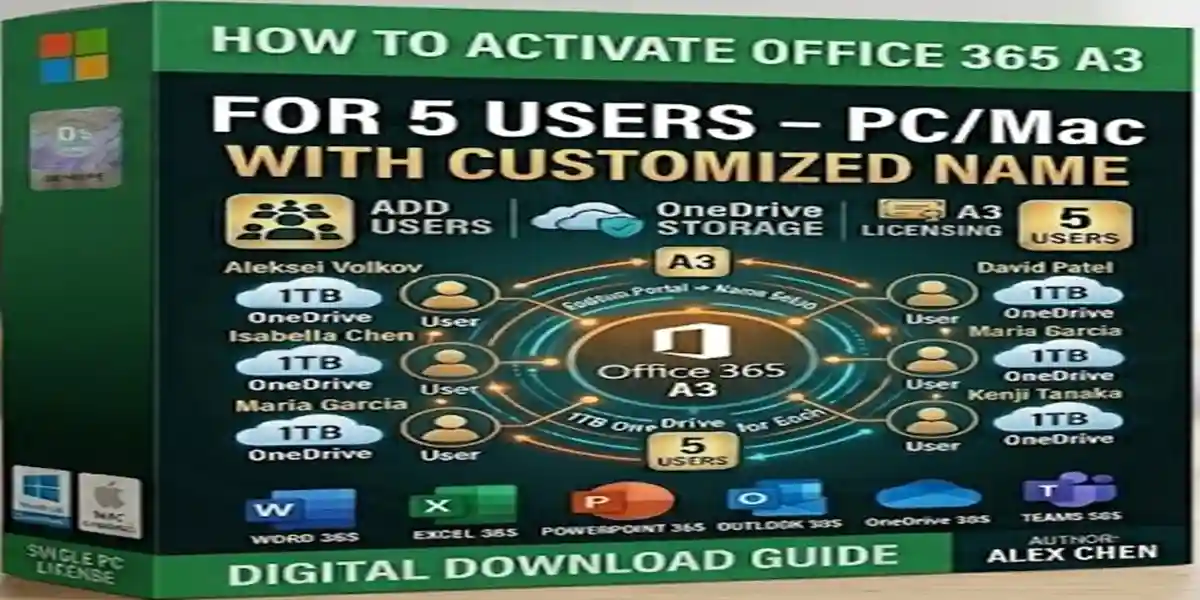
Microsoft Office 365 A3 is a premium productivity suite designed for small teams, educational institutions, and businesses. With full desktop apps, secure accounts with customized names, and 100GB OneDrive per user, it simplifies collaboration and file management. Activating Office 365 A3 for 5 users on PC or Mac ensures your team can start working instantly, with access to Word, Excel, PowerPoint, Outlook, Teams, and more. In this guide, we will cover features, common errors and fixes, step-by-step activation methods, licenses, and frequently asked questions.
Features of Office 365 A3 for 5 Users
- Full Desktop Apps: Word, Excel, PowerPoint, Outlook, OneNote, Teams, Publisher (PC only)
- Customized Accounts: Each user receives a personalized account and password
- Cross-Device Compatibility: PC, Mac, and mobile devices
- 100GB OneDrive Storage per User: Cloud storage for secure file sharing and backup
- Real-Time Collaboration: Co-author documents and communicate via Teams
- Automatic Updates: Always get the latest features and security updates
- Admin Control: Easily manage and assign licenses to all users
Common Errors & Fixes
Error 1: Activation Failed
- Cause: Incorrect account credentials or license not assigned
- Fix: Verify username/password, check license assignment in Microsoft 365 admin portal, reset password if needed
Error 2: Office Download Stuck
- Cause: Slow internet or firewall restrictions
- Fix: Restart download, check internet, temporarily disable firewall
Error 3: OneDrive Sync Errors
- Cause: Long file paths or unsupported characters
- Fix: Shorten folder/file names, remove special characters
Error 4: Outlook Not Connecting
- Cause: Incorrect server settings or corrupted profile
- Fix: Re-enter credentials, recreate Outlook profile
Error 5: Teams Won’t Sign In
- Cause: Cached credentials or outdated app
- Fix: Clear Teams cache (%appdata%\Microsoft\Teams), update Teams
Methods to Activate Office 365 A3
Method 1: Activate via Microsoft 365 Portal
- Go to portal.office.com
- Sign in with admin account
- Navigate to Users → Active Users
- Assign Office 365 A3 license to each user
- Users can now sign in and install apps
Method 2: Activate Directly from User Account
- Go to office.com/setup
- Enter customized account credentials
- Click Install Office
- Sign in to apps after installation
- OneDrive will auto-configure for cloud storage
Licenses Explained
Office 365 A3 includes:
- License per user: Full desktop apps
- Cloud storage: 100GB OneDrive per user
- Teams & Email: Collaboration and scheduling
- Security & Admin Controls: Manage users and devices
Activating Office 365 A3 for 5 users is straightforward when following the right steps. With customized accounts, full desktop apps, and 100GB OneDrive per user, your team can collaborate efficiently and securely. Quick setup, easy license management, and real-time collaboration make Office 365 A3 a top choice for small teams and educational institutions.
Frequently Asked Questions (FAQ)
Q1: Can I install Office 365 A3 on multiple devices?
A1: Yes, each user can install on PC, Mac, and mobile devices.
Q2: How much OneDrive storage does each user get?
A2: 100GB per user.
Q3: Can I upgrade my license later?
A3: Yes, you can upgrade to higher Microsoft 365 plans.
Q4: Is Office 365 A3 suitable for schools?
A4: Absolutely — designed for collaborative environments.
Q5: How do I fix activation errors?
A5: Follow our troubleshooting section above or contact support.