

Blog
Top CCleaner Tips to Enhance Windows PC Performance

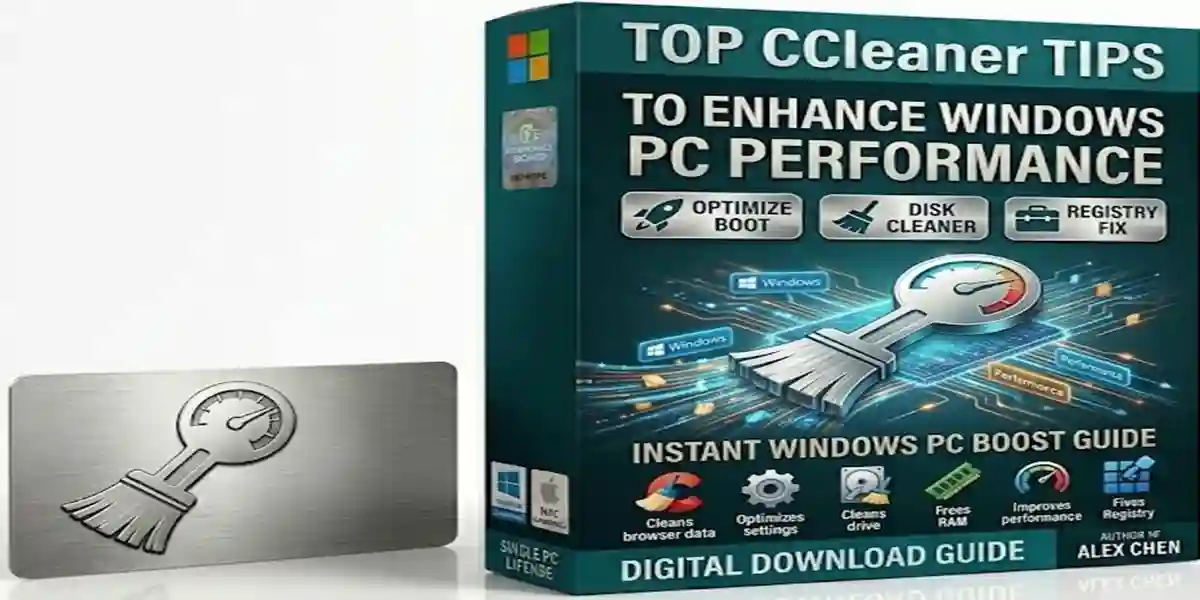
Introduction
CCleaner is a lightweight, user-friendly software designed for Windows and macOS that removes unnecessary files, cleans system caches, and repairs registry entries. By doing so, it frees up disk space, speeds up your computer, and enhances stability.
With a few clicks, CCleaner helps users:
- Eliminate temporary internet files
- Clean system junk
- Manage startup programs
- Remove redundant registry entries
Regular maintenance with CCleaner reduces system slowdowns, prevents crashes, and helps your PC remain in peak condition.
Key Features of CCleaner
1. Cleaner
The Cleaner scans your system for junk files and removes them to free up disk space. It targets:
- Temporary files
- System caches
- Browser history and cookies
- Old log files
This helps prevent clutter buildup that can degrade system performance over time.
2. Registry Cleaner
The Registry Cleaner identifies and fixes broken or redundant registry entries, reducing the risk of software errors and system instability. Maintaining a clean registry ensures smoother program performance.
3. Startup Manager
Many applications automatically start with Windows, increasing boot time. The Startup Manager allows you to:
- Disable non-essential programs
- Streamline boot sequences
- Improve overall startup speed
4. Uninstall Tool
Easily remove unwanted applications consuming space or system resources. Regularly decluttering unused software keeps your PC optimized.
5. Browser Plugin Manager
Manage and disable unnecessary browser plugins to enhance web browsing speed and protect privacy.
6. Health Check
Provides an overview of your system’s performance and highlights areas that require optimization, acting as a personal PC health advisor.
Common Errors and Fixes
Even efficient tools like CCleaner can encounter issues. Here’s how to troubleshoot them:
CCleaner Not Opening
- Cause: Corrupted installation or outdated version.
- Fix:
- Update to the latest version.
- Reinstall CCleaner if issues persist.
Cleaning Not Effective
- Cause: Incorrect settings or software conflicts.
- Fix:
- Ensure proper files and areas are selected for cleaning.
- Temporarily disable antivirus that may block CCleaner.
Registry Cleaner Fails
- Cause: Registry entries may be locked by other processes.
- Fix: Run CCleaner as Administrator and ensure no other programs are using the registry.
Methods of Activation
1. Free Version Activation
- Download the free CCleaner from the official website.
- Install and launch without a product key.
- Offers basic cleaning and optimization features.
2. CCleaner Professional Activation
- Purchase a CCleaner Professional Key from a verified source.
- Enter the key in the software to unlock advanced features such as:
- Scheduled automatic cleaning
- Real-time system monitoring
- Priority support
3. Online Activation Steps
- Open CCleaner → Go to Options → About
- Click Enter Key
- Enter your purchased product key
- Click Activate
Licenses
CCleaner offers several license options:
| License Type | Features | Devices |
|---|---|---|
| Free | Basic cleaning, limited features | 1 PC |
| Professional | Scheduled cleaning, real-time monitoring, priority support | 1 PC |
| Professional Plus | Additional tools for multiple PCs, software updates | Multiple PCs |
Tip: Always use verified licenses to avoid counterfeit software that could harm your PC.
Conclusion
Using CCleaner regularly can significantly enhance your PC’s speed, efficiency, and stability. By cleaning junk files, managing startup programs, repairing registry issues, and monitoring system health, you ensure a smooth, secure, and responsive computing experience.
Investing in CCleaner Professional or Professional Plus unlocks advanced features like automatic cleaning, real-time monitoring, and multi-PC support, making it an ideal tool for both casual users and professionals.
Maintain a fast, reliable, and secure computer with these tips and best practices, and let CCleaner handle the optimization effortlessly.
FAQ
Q1: Is CCleaner safe to use regularly?
A: Yes, when downloaded from the official website and used correctly, it safely removes junk files without affecting system stability.
Q2: Can CCleaner improve my PC speed?
A: Yes, cleaning temporary files, optimizing startup, and managing the registry improves boot times and overall performance.
Q3: Does CCleaner delete important files?
A: No, CCleaner targets non-essential files, but always review selected items before cleaning.
Q4: How often should I use CCleaner?
A: Weekly or bi-weekly usage is ideal for maintaining peak performance.
Q5: What is the difference between free and professional versions?
A: Professional versions offer scheduled cleaning, real-time monitoring, priority support, and advanced optimization features.