

Blog
How to Easily Activate Microsoft 365 Business Premium: A Step-by-Step Guide

Introduction
Microsoft 365 Business Premium is an all-in-one productivity and security solution designed for small and medium-sized businesses. This robust platform combines powerful Microsoft Office apps with advanced security features, cloud storage, and collaboration tools that make it easier for businesses to enhance productivity while ensuring data protection. The suite includes Word, Excel, PowerPoint, Teams, Exchange, and more, along with enterprise-level security features such as Advanced Threat Protection, Mobile Device Management, and Data Loss Prevention.
Setting up and activating Microsoft 365 Business Premium is a straightforward process, but for first-time users, it can seem like a challenge. Fortunately, this guide will walk you through the steps to activate your subscription, along with solutions to common activation errors, and provide valuable insights to help you make the most of your new Microsoft 365 subscription.
Key Features of Microsoft 365 Business Premium
Before diving into the activation process, let’s explore some key features of Microsoft 365 Business Premium:
-
Microsoft Office Applications:
Microsoft 365 Business Premium includes all essential Office apps like Word, Excel, PowerPoint, Outlook, and OneNote. These apps are available both online and offline, providing flexibility to work from anywhere. -
Microsoft Teams:
Teams is an all-in-one communication and collaboration hub for your team. It allows for chat, video calls, file sharing, and project collaboration all in one platform, keeping your team connected regardless of their location. -
OneDrive for Business:
Each user gets 1TB of cloud storage with OneDrive for Business. This enables your team to store, access, and share documents securely across multiple devices. -
Exchange Online:
With Microsoft 365 Business Premium, you gain access to Exchange Online, which provides a professional, secure, and ad-free business email service. You can manage contacts, calendars, and tasks efficiently with custom domains. -
Security and Compliance:
Microsoft 365 Business Premium includes advanced security features like Advanced Threat Protection (ATP), Mobile Device Management (MDM), and Data Loss Prevention (DLP). These features protect sensitive business data from cyber threats, leaks, and unauthorized access. -
Windows Virtual Desktop (Optional Add-On):
For businesses with remote workers, Windows Virtual Desktop enables you to deliver a complete virtual desktop experience that can be accessed from any device. -
Business Analytics with Power BI:
Power BI enables businesses to create visual reports and dashboards, making it easier to analyze and interpret business data for better decision-making.
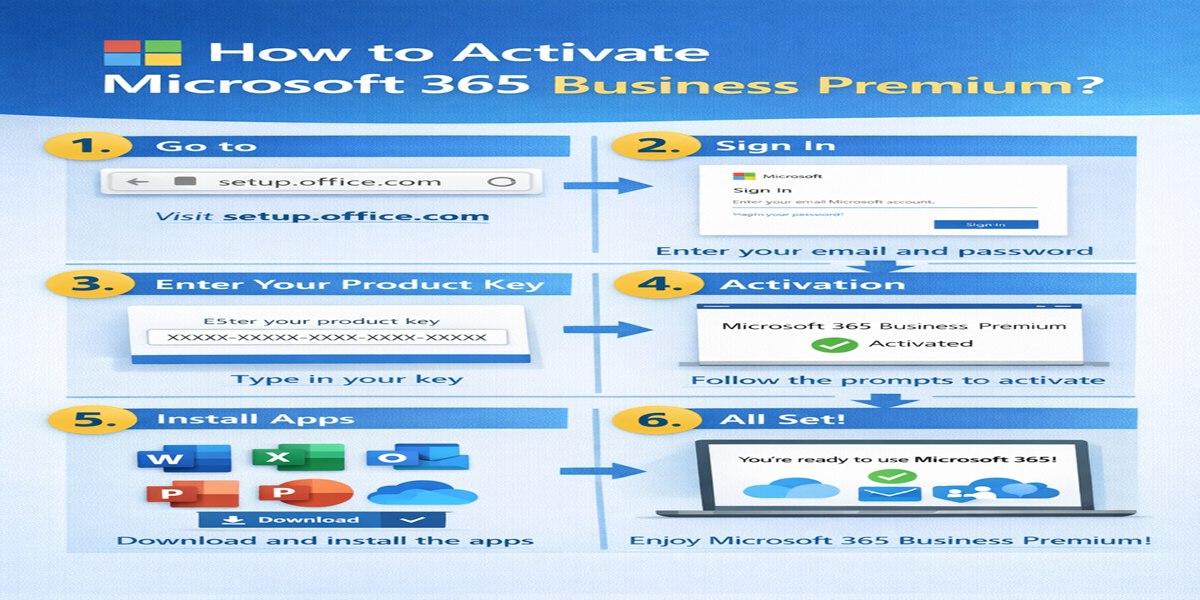
How to Activate Microsoft 365 Business Premium: Step-by-Step Guide
Activating Microsoft 365 Business Premium is a simple process, but it’s essential to follow the steps correctly to avoid common activation issues. Below is a detailed, step-by-step guide on how to activate your Microsoft 365 Business Premium subscription.
Step 1: Purchase Your Subscription
Before you can activate Microsoft 365 Business Premium, you need to have a valid subscription. You can purchase Microsoft 365 Business Premium through various methods:
-
Microsoft Store: You can purchase a subscription directly from Microsoft’s website.
-
Third-Party Vendors: You can also buy Microsoft 365 Business Premium from authorized resellers like eSoftwareStore or other trusted vendors.
After your purchase, you will receive a product key or a link to activate your subscription.
Step 2: Sign In to Your Microsoft Account
-
Open your browser and go to Microsoft 365 Setup.
-
Sign in with the Microsoft account associated with your business. This could be a personal Microsoft account (e.g., @outlook.com) or a work account (e.g., @yourcompany.com).
-
If you don’t have a Microsoft account, create one by following the instructions provided on the sign-in page.
Step 3: Enter Your Product Key
If you purchased Microsoft 365 Business Premium through a physical retailer or have a product key:
-
On the Microsoft 365 Setup page, enter the 25-character product key you received upon purchase.
-
Click Next to proceed with your activation.
-
If prompted, sign in to your Microsoft account.
For digital purchases, you may not need to enter a product key as your purchase is linked to your account. In that case, simply sign in and proceed to the next steps.
Step 4: Select Your Domain and User Information
If you purchased Microsoft 365 Business Premium for your organization, you will need to set up a custom domain (e.g., yourcompany.com) and add users to your account.
-
Follow the prompts to add your domain name to Microsoft 365.
-
Add new users and assign them licenses based on your subscription.
Step 5: Install Microsoft Office Apps
-
After activation, you can start installing the Office apps on your devices.
-
Go to Office.com and sign in with your Microsoft account.
-
Click Install Office and follow the instructions to download and install the apps like Word, Excel, PowerPoint, etc.
Common Activation Errors and Fixes
While activating Microsoft 365 Business Premium, users may face some common activation issues. Here are a few problems and their solutions:
1. Error: “We couldn’t verify your account”
This error typically occurs when the Microsoft account you’re using is not properly linked to the Microsoft 365 subscription.
Fix:
-
Ensure that you are using the correct account.
-
Go to Account.microsoft.com to check if your Microsoft 365 subscription is linked to your account.
-
If needed, sign out and sign back in using the correct credentials.
2. Error: “Invalid Product Key”
This error happens if the product key entered is invalid, already used, or mismatched.
Fix:
-
Verify that the product key is entered correctly (including all hyphens).
-
Ensure the key you are using matches the version of Microsoft 365 Business Premium you purchased.
-
If the problem persists, contact Microsoft support for a replacement key.
3. Error: “Subscription Expired”
This error occurs when your Microsoft 365 subscription expires, and you’re unable to activate the product.
Fix:
-
Go to Microsoft’s Subscription Management page.
-
Check the status of your subscription and renew if necessary.
-
Once renewed, you should be able to activate the product again.
4. Error: “Office Installation Error”
Sometimes, the Office apps fail to install properly during the activation process.
Fix:
-
Run the Microsoft Support and Recovery Assistant (SaRA) tool to diagnose and fix installation issues.
-
Alternatively, manually uninstall any previous versions of Office and reinstall the latest version.
5. Error: “Cannot Add User”
This error appears when you are unable to add new users to your organization during the activation process.
Fix:
-
Check if your Microsoft 365 subscription supports the number of users you’re trying to add.
-
Verify that you’re signed in as an administrator and not a regular user.
-
If the problem persists, contact Microsoft Support.
Methods to Activate Microsoft 365 Business Premium Using Commands
For advanced users, Microsoft 365 can also be activated using commands through Command Prompt or PowerShell. This method is useful for bulk activation in larger organizations.
Activate Using Command Prompt (for Volume License Editions)
-
Open Command Prompt as an administrator.
-
Navigate to the folder where the Office Deployment Tool is installed.
-
Run the following command:
cscript ospp.vbs /actThis command activates Office and validates the license.
Activate Using PowerShell (for Office 365 Subscription)
-
Open PowerShell as an administrator.
-
Run the following command to connect to Microsoft Online Services:
Connect-MsolService -
After entering your credentials, run the following command to activate:
Set-MsolUserLicense –UserPrincipalName <UserPrincipalName> –AddLicenses “Microsoft 365 Business Premium”
This method can be used to activate Microsoft 365 Business Premium on multiple devices or accounts in bulk.
Conclusion
Activating Microsoft 365 Business Premium is a simple process that can be completed in just a few steps. Whether you are a new user or a business administrator, the activation process allows you to quickly set up your subscription, install Office apps, and enjoy the benefits of enhanced security, collaboration tools, and productivity features. By following the steps outlined above and troubleshooting common issues, you can ensure that your business runs smoothly and securely with Microsoft 365.
FAQs
-
How long does it take to activate Microsoft 365 Business Premium?
-
The activation process typically takes about 10-15 minutes, depending on the speed of your internet connection and the device you’re using.
-
-
Can I use Microsoft 365 Business Premium on multiple devices?
-
Yes, you can use Microsoft 365 Business Premium on up to five devices per user.
-
-
Can I upgrade from Microsoft 365 Business Standard to Business Premium?
-
Yes, you can upgrade by purchasing the Microsoft 365 Business Premium subscription and following the prompts to switch your plan.
-
-
What happens if my Microsoft 365 Business Premium subscription expires?
-
If your subscription expires, you will lose access to Office apps and other services, including Teams and OneDrive. You can renew your subscription to regain access.
-