

Blog
How to Activate and Log Into Office 365 E3 Account | Password | Easy Steps

Introduction
Office 365 E3 is one of the most powerful business productivity suites, offering a wide range of features designed to streamline workplace efficiency, collaboration, and communication. The Office 365 E3 plan includes advanced features such as access to Microsoft Teams, OneDrive, Exchange Online, and more, ensuring your team stays connected, productive, and secure.
This article will guide you through the simple steps to activate your Office 365 E3 account and troubleshoot any common issues. Whether you’re a first-time user or an IT administrator looking to help others get set up, we’ve got you covered.
Features of Office 365 E3
Before we dive into the activation process, let’s take a look at some key features of the Office 365 E3 plan:
-
Microsoft Office Apps: Full access to Office desktop apps (Word, Excel, PowerPoint, Outlook, etc.) for both PC and Mac.
-
Exchange Online: Enterprise-level email service with 50 GB of mailbox storage and custom email domain addresses.
-
Microsoft Teams: A collaboration hub that integrates all your communication and file sharing.
-
OneDrive for Business: 1 TB of cloud storage per user for file storage and sharing.
-
Advanced Security and Compliance: Features like data loss prevention, advanced threat protection, and enterprise-level security.
-
SharePoint Online: Allows for collaborative document management and content sharing across teams.
-
Skype for Business: Instant messaging and video conferencing capabilities.
Step-by-Step Guide: How to Activate Office 365 E3 Account
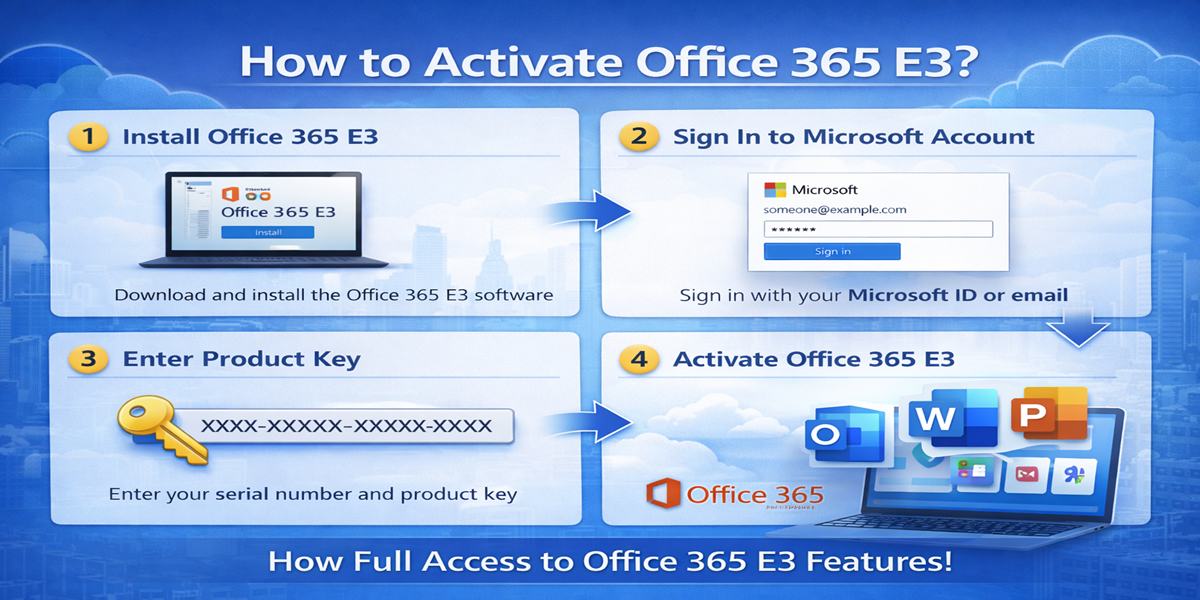
Step 1: Purchase Office 365 E3 Plan
Before activation, ensure you’ve purchased the Office 365 E3 plan from an authorized provider like Microsoft or a third-party retailer. Once you have the plan, you will receive an email with your Office 365 credentials.
Step 2: Sign Up for Microsoft Account
If you don’t already have a Microsoft account, you’ll need to create one.
-
Go to https://signup.live.com.
-
Fill out the required fields, including email, password, and security questions.
-
Once your account is created, verify your email address.
Step 3: Sign in to Office 365 Portal
-
Open your browser and go to the official Microsoft Office Portal.
-
Log in with your Microsoft credentials (the ones you used to sign up for your Office 365 E3 plan).
Step 4: Enter Activation Key
If you purchased your subscription directly from Microsoft or a reseller, you should receive an activation key. Here’s how to enter it:
-
Navigate to the Office setup page at https://setup.office.com.
-
Enter the activation key you received.
-
Click “Activate.”
-
Follow the on-screen instructions to finish the setup process.
Step 5: Download Office Apps
Once activated, you can download the Office apps for Windows, Mac, or mobile devices:
-
Go to the “Apps” section in your Office 365 portal.
-
Select the apps you wish to install (Word, Excel, PowerPoint, etc.).
-
Click “Install,” and the apps will download and install on your device.
Step 6: Set Up Email with Exchange Online
-
Open Outlook (or any other email client) and go to “Settings.”
-
Add a new account and choose “Exchange” as the type.
-
Enter your Office 365 email credentials to set up your account.
Common Activation Errors and Fixes
During the activation process, you might encounter a few issues. Here are some of the most common errors and how to fix them:
1. Error: “Invalid Product Key”
Fix:
-
Double-check the key for any typing errors. Make sure there are no extra spaces or characters.
-
Verify that you are using the correct key for the Office 365 E3 plan.
-
If the issue persists, contact your provider or Microsoft support.
2. Error: “Your Account is Not Licensed”
Fix:
-
Ensure that your Office 365 E3 license is active and has been assigned to your account.
-
Go to the Microsoft admin center (admin.microsoft.com) and check if the correct license has been assigned to your user.
-
Contact your admin or Microsoft support if you’re unable to assign the license.
3. Error: “Activation Failed”
Fix:
-
Check your internet connection to ensure it’s stable.
-
Try restarting your device and logging in again.
-
If the issue continues, use the Office Repair Tool, or uninstall and reinstall the apps.
Methods to Activate Office 365 E3 Licenses
There are different ways to activate your Office 365 E3 licenses, depending on the environment (individual user or enterprise).
1. Single User Activation
-
Manual Activation: Follow the steps mentioned earlier to manually activate using the provided key.
2. Admin-Assigned Licenses (For Enterprise)
If you’re an administrator setting up Office 365 E3 for multiple users, you’ll need to assign licenses through the Microsoft Admin Center:
-
Go to the Admin Center.
-
In the left-hand menu, select “Users,” then “Active Users.”
-
Choose the user you want to assign a license to.
-
Under “Licenses and Apps,” assign the Office 365 E3 license.
-
Save the changes, and the user will have access to Office 365 E3 services.
3. Bulk License Assignment
For organizations with many users, you can assign licenses in bulk using a CSV file. This can be done through PowerShell scripts for more efficiency.
This command adds the Office 365 E3 license to the user.
Useful Commands for Managing Office 365 E3 Account
Here are a few useful PowerShell commands that can help administrators manage their Office 365 E3 accounts:
-
To view all licenses available in your tenant:
Get-MsolAccountSku -
To assign a license to a user:
Set-MsolUserLicense –UserPrincipalName user@domain.com –AddLicenses “domain:O365_E3” -
To remove a license from a user:
Set-MsolUserLicense –UserPrincipalName user@domain.com –RemoveLicenses “domain:O365_E3” -
To check license status for a user:
Get-MsolUserLicense –UserPrincipalName user@domain.com
Conclusion
Activating and logging into your Office 365 E3 account is a straightforward process, whether you’re a first-time user or an admin handling a bulk setup. By following the steps outlined in this article, you can easily get started with your Office 365 services. If you encounter any issues during the activation process, the troubleshooting tips provided should help you resolve most common errors.
Remember that the Office 365 E3 plan offers a suite of powerful tools, from Office apps to enterprise-grade security and compliance. By leveraging these features, your organization can optimize its productivity, collaboration, and data security.
FAQ:
1. Can I use Office 365 E3 on multiple devices?
Yes, the Office 365 E3 plan allows you to install Office apps on up to 5 devices per user, including PCs, Macs, and mobile devices.
2. How do I reset my Office 365 password?
To reset your password, go to the Microsoft Password Reset page and follow the instructions.
3. What happens if my Office 365 E3 license expires?
If your Office 365 E3 license expires, you will lose access to the services and apps. However, Microsoft provides a grace period during which you can renew your license.
4. Can I upgrade from Office 365 E3 to Office 365 E5?
Yes, you can upgrade from Office 365 E3 to Office 365 E5. Simply contact Microsoft support or use the Microsoft admin portal to initiate the upgrade.
5. How do I contact Microsoft support for activation issues?
You can contact Microsoft support through the Microsoft Support website. They offer both chat and phone support options.