

Blog
How to Activate Windows 10 Workstation: Complete Guide for Power Users

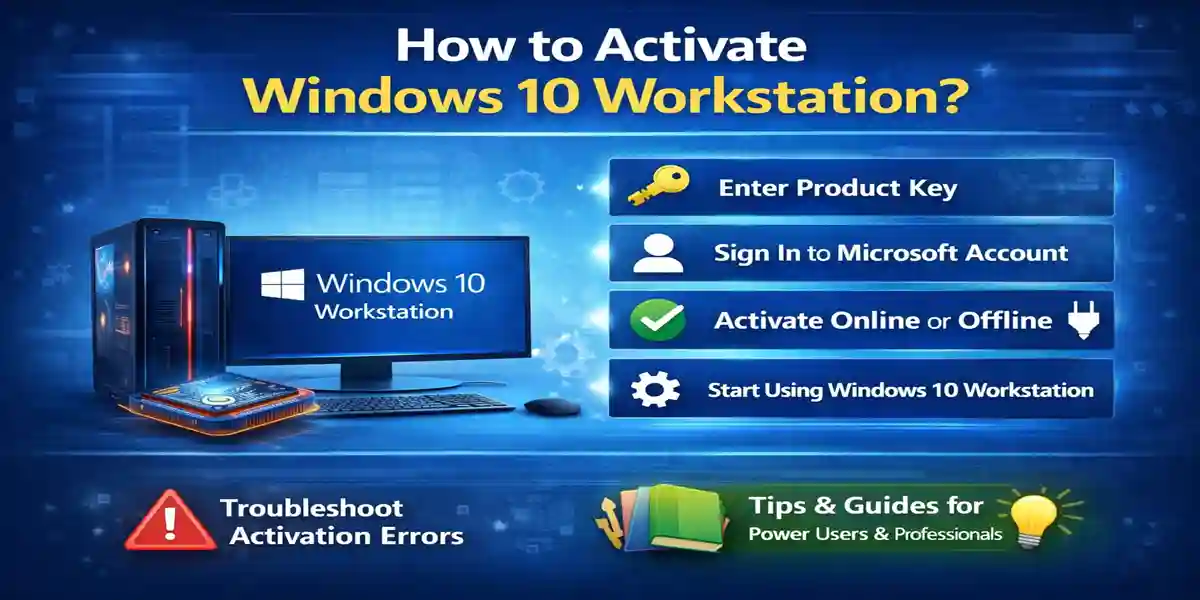
Introduction:
Windows 10 Workstation is a powerful version of Windows 10 designed specifically for professionals and businesses that require advanced computing capabilities. Whether you’re running resource-intensive applications, managing large datasets, or utilizing virtualization tools, Windows 10 Workstation is built to handle demanding tasks with ease.
Activating Windows 10 Workstation ensures you have full access to all these features. While the process is straightforward, some users might encounter errors or face activation challenges. This guide will provide clear instructions on how to activate Windows 10 Workstation using different methods, troubleshoot common errors, and optimize your system for high-performance tasks.
Features of Windows 10 Workstation:
-
Enhanced Security
-
Windows 10 Workstation includes BitLocker encryption and Windows Defender to protect your data and system from potential threats. These advanced security measures are essential for professionals handling sensitive information.
-
-
Support for High-End Hardware
-
Windows 10 Workstation supports up to 6TB of RAM and multi-processor systems, providing the performance necessary for demanding applications like 3D rendering and data analysis.
-
-
Hyper-V Virtualization
-
Hyper-V enables users to run virtual machines, which is critical for software developers, testers, and IT professionals who need to run multiple operating systems or simulate different environments.
-
-
ReFS (Resilient File System) Support
-
ReFS enhances data integrity and improves performance, especially when dealing with large datasets, making it perfect for users who need reliability and efficiency.
-
-
Remote Desktop and Access
-
The Remote Desktop feature allows users to access their Windows 10 Workstation system from any location, making it ideal for remote work and IT professionals.
-
-
Optimized for High-Performance Applications
-
Windows 10 Workstation is designed to run professional software, such as AutoCAD, Adobe Creative Cloud, and Microsoft Office, without compromising speed or reliability.
-
Common Errors and Fixes:
1. “Activation Failed” Error
-
Cause: This error typically happens when there’s an issue with the internet connection or if the activation server is down.
-
Fix: Ensure you have a stable internet connection. Restart your computer and try the activation again. If this doesn’t work, you may need to use offline activation or contact Microsoft support for assistance.
-
For more details on troubleshooting, visit Microsoft Activation Troubleshooter.
-
2. “Invalid Product Key” Error
-
Cause: This issue arises when the product key entered is incorrect or has expired.
-
Fix: Double-check the product key and make sure it is entered correctly. If needed, refer to your Microsoft account to find your correct product key.
-
If you need help retrieving your key, check out How to Find Your Windows 10 Key.
-
3. “Too Many Activations” Error
-
Cause: This error occurs if you’ve already reached the maximum activation limit for Windows 10 Workstation.
-
Fix: Log into your Microsoft account, navigate to the device management section, and deactivate an old device to free up space for a new activation.
-
Learn more about managing activations at Microsoft Device Management.
-
Methods of Activating Windows 10 Workstation:
1. Online Activation Method:
Step 1: Install Windows 10 Workstation
Download and install Windows 10 Workstation from the official Microsoft website or from a verified source.
Step 2: Launch the Activation Window
Open the operating system, and the activation window should automatically appear.
Step 3: Enter the Product Key
Enter the product key provided with your Windows 10 Workstation purchase.
Step 4: Sign In to Your Microsoft Account
Sign in to your Microsoft account linked to your license.
Step 5: Complete the Activation
Click “Activate” to finalize the process. If everything is entered correctly, Windows 10 Workstation will activate successfully.
2. Offline Activation Method:
Step 1: Launch Windows 10 Workstation
Select the “Activate Offline” option when prompted.
Step 2: Generate Request Code
Follow the prompts to generate a request code.
Step 3: Submit the Request Code
Go to the Microsoft Activation Website and enter the request code along with your product key.
Step 4: Receive Activation Code
Microsoft will send you an activation code via email. Enter it into the activation window to complete the process.
3. Network License Activation:
For businesses and IT professionals, Windows 10 Workstation can be activated using a network license.
Step 1: Install Network License Manager
Install the Network License Manager (NLM) on your server.
Step 2: Connect to the License Server
Enter the server name and port number in the installation configuration.
Step 3: Activate the License
Once connected to the server, the Windows 10 Workstation license will be activated.
Conclusion: Is Windows 10 Workstation Worth It?
Windows 10 Workstation is ideal for professionals and businesses that require high-performance computing. Its features like Hyper-V virtualization, BitLocker encryption, and ReFS support make it a top choice for users handling resource-heavy tasks. Whether you’re managing complex datasets, running virtual machines, or ensuring top-tier security, Windows 10 Workstation provides the tools you need to succeed.
Activating Windows 10 Workstation is simple with either the online or offline method. If you encounter any errors, the troubleshooting steps in this guide will help resolve common activation issues quickly and effectively.
FAQ About Activating Windows 10 Workstation
1. Can I use Windows 10 Workstation on multiple devices?
Yes, but each device requires a separate license or a network license.
2. What should I do if I get the “Invalid Product Key” error?
Ensure that the product key is entered correctly and is for the correct edition of Windows 10 Workstation.
3. How can I upgrade from Windows 10 Pro to Windows 10 Workstation?
You will need to purchase a Windows 10 Workstation license and follow the activation steps outlined in this guide.
4. Is there a trial version of Windows 10 Workstation?
Microsoft does not offer a trial version of Windows 10 Workstation, but you can purchase it directly from Microsoft or authorized vendors.
5. Can Windows 10 Workstation be activated offline?
Yes, you can activate Windows 10 Workstation offline by using the offline activation method outlined in this guide.