

Blog
How to Activate Windows 10 Education: A Complete Guide for Students and Educators

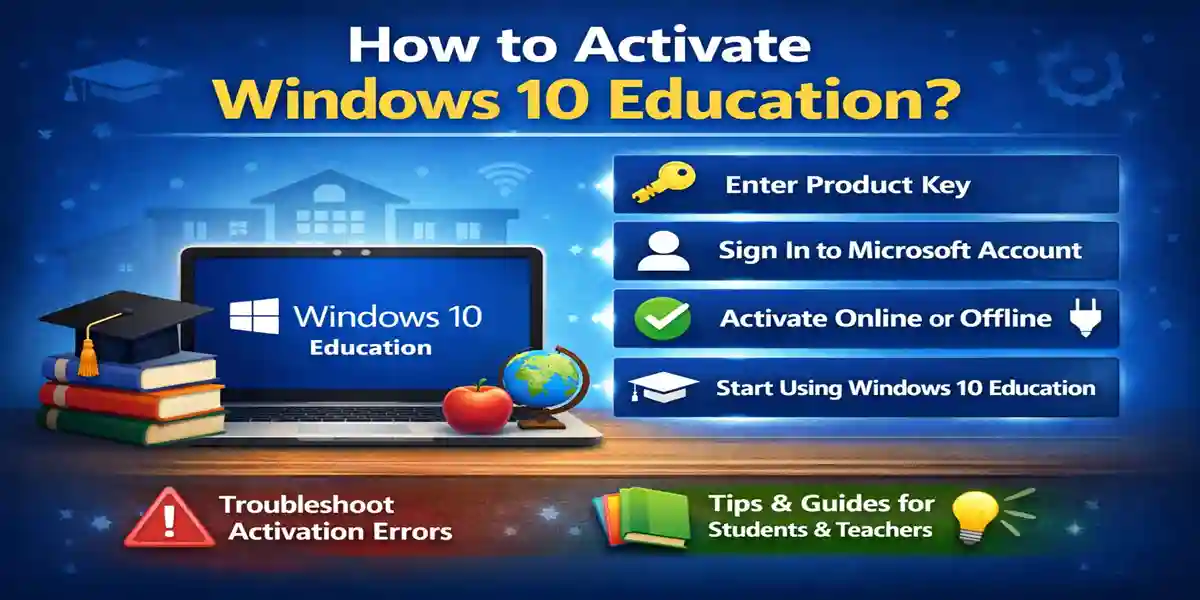
Introduction:
Windows 10 Education is a powerful operating system designed specifically for the needs of students, educators, and academic institutions. Packed with all the features of Windows 10 Pro, it also offers additional tools tailored to enhance the educational experience. To unlock its full potential, Windows 10 Education must be activated properly. Whether you’re a student using it for assignments or a teacher managing classroom resources, activation is the first step to ensuring your system is set up correctly. In this comprehensive guide, we’ll walk you through the step-by-step process of activating Windows 10 Education, troubleshooting common issues, and providing solutions to ensure a smooth setup.
Features of Windows 10 Education:
-
All Features of Windows 10 Pro
Windows 10 Education includes all the essential tools and functionalities of Windows 10 Pro, such as BitLocker encryption, Remote Desktop, and Group Policy Management. -
Education-Specific Features
Windows 10 Education is tailored for academic use and integrates seamlessly with educational tools like Microsoft Office, OneDrive, and Microsoft Teams for collaboration. -
Advanced Security
With features like Windows Defender, Windows Firewall, and BitLocker, Windows 10 Education ensures that sensitive student and school data are protected against threats. -
Support for Virtualization
Windows 10 Education supports Hyper-V, allowing students and educators to run virtual machines and experiment with various operating systems in a secure environment. -
Affordable Licensing for Schools
Windows 10 Education is available at a discounted rate for students and educational institutions, making it an affordable option for those in the academic community.
Errors and Fixes: Common Activation Issues
Even though activating Windows 10 Education is straightforward, some users may encounter errors. Here are a few common issues and their solutions:
1. “Activation Failed” Error
-
Cause: This error typically occurs if your internet connection is unstable or if there is an issue with the activation server.
-
Fix: Make sure you are connected to a stable internet network. Restart your computer and try activating again. If the error persists, you may need to use the offline activation method or contact Microsoft support.
2. “Invalid Product Key” Error
-
Cause: If you are using an incorrect or expired product key, activation will fail.
-
Fix: Double-check the product key provided to you by your institution or Microsoft Store. Ensure you’re using the correct edition of Windows 10 Education.
3. Activation Limit Reached
-
Cause: You may encounter this issue if you have activated Windows 10 Education on too many devices.
-
Fix: Log into your Microsoft account and check the number of devices activated under your license. Deactivate an old device to free up space.
Methods of Activating Windows 10 Education:
There are several methods for activating Windows 10 Education. Here are the steps for each method:
1. Online Activation Method:
Step 1: Install Windows 10 Education
Download Windows 10 Education from the official Microsoft website or your institution’s download portal.
Step 2: Launch the Activation Window
Once installed, the activation window should appear automatically.
Step 3: Enter the Product Key
Input the product key provided by your school or Microsoft.
Step 4: Sign in to Your Microsoft Account
Sign in with your Microsoft account linked to your educational license.
Step 5: Complete Activation
Click on the “Activate” button, and Windows 10 Education will be activated, giving you full access to its features.
2. Offline Activation Method:
For users without an internet connection, offline activation is possible.
Step 1: Launch Windows 10 Education
Open Windows 10 Education and select Activate Offline when prompted.
Step 2: Generate a Request Code
Follow the prompts to generate a request code, which will be needed for the next steps.
Step 3: Submit the Request Code
Visit the Microsoft Activation Website and enter your request code, along with the product key.
Step 4: Receive the Activation Code
Microsoft will send an activation code via email. Enter the code into the activation window to complete the process.
3. Activation via Digital License:
If your institution offers Digital License Activation, you can use this method:
Step 1: Check for Digital License
Ensure that your Microsoft account is linked to the Digital License for Windows 10 Education.
Step 2: Sign in and Activate
Simply sign in to your Microsoft account, and Windows 10 Education will automatically activate if a digital license is available.
Conclusion: Is Windows 10 Education Worth It?
Windows 10 Education is a fantastic operating system for students, educators, and academic institutions, offering all the features of Windows 10 Pro with added benefits tailored to the educational environment. With enhanced security, productivity tools, and virtualization support, Windows 10 Education provides everything you need to excel in your academic or professional pursuits.
Activation is a quick and simple process, whether you choose to activate online, offline, or via a digital license. The affordable pricing and powerful features make Windows 10 Education a solid investment for any student or institution.
FAQ About Activating Windows 10 Education
1. How do I get Windows 10 Education?
Windows 10 Education is available through educational institutions. Check with your school or university for discounted or free access.
2. Can I activate Windows 10 Education without a product key?
If your school provides Digital License Activation, you won’t need a traditional product key. Just sign in with your Microsoft account linked to your institution.
3. What should I do if I get the “Activation Failed” error?
Check your internet connection, confirm the product key is correct, or use the offline activation method. If problems persist, contact Microsoft support.
4. How many devices can I activate with one product key?
The number of devices you can activate depends on your institution’s licensing agreement. If you’ve reached the limit, deactivate an old device via your Microsoft account.
5. Can I upgrade from Windows 10 Home to Windows 10 Education?
Yes, you can upgrade to Windows 10 Education by purchasing a license or obtaining one through your educational institution.