

Blog
How to Activate Windows 11 Home ?

Introduction
Windows 11 Home is an ideal solution for families, small businesses, or individuals with multiple devices that require an upgrade to the latest operating system. Whether you’re upgrading from a previous version of Windows or installing Windows 11 Home for the first time, the process is simple, and the benefits are enormous. The version of Windows 11 Home allows you to install and activate the operating system on up to five devices, making it a practical, cost-effective solution for those who need to modernize their computing environment.
In this article, we will walk you through the step-by-step process of activating Windows 11 Home on multiple devices. We’ll discuss the system requirements, the features you’ll enjoy once activated, potential activation errors, and troubleshooting tips. We will also cover different activation methods, including using a product key, digital license, and even activation via Command Prompt. By the end of this guide, you’ll have all the information you need to get Windows 11 Home up and running on all your devices quickly and smoothly.
Key Features of Windows 11 Home
Before we dive into the activation process, it’s important to understand the key features of Windows 11 Home that you will be unlocking once the OS is activated across your devices.
1. Modern User Interface
Windows 11 features a sleek and modern interface with a centered Start menu, rounded corners, and improved animations. The revamped design is optimized for a more intuitive user experience across all devices, including desktops, laptops, and tablets.
2. Snap Layouts and Snap Groups
With Snap Layouts and Snap Groups, Windows 11 makes multitasking more efficient. You can easily organize open windows into predefined layouts, maximizing screen space. Snap Groups allow you to switch between grouped applications, so you can get back to your work seamlessly.
3. Microsoft Teams Integration
Integrated directly into the taskbar, Microsoft Teams enables users to quickly start video calls, voice calls, and chats with anyone on their contact list. This is especially useful for those who work remotely or frequently communicate with others.
4. Virtual Desktops
The Virtual Desktops feature allows you to create and manage multiple desktops for different tasks. For example, you can have one desktop for work, another for gaming, and another for personal tasks. This helps you stay organized and switch between tasks effortlessly.
5. Gaming Enhancements
Windows 11 Home introduces several gaming features like DirectStorage for faster game load times and Auto HDR for more vibrant colors. These features enhance the gaming experience, especially for those using higher-end hardware.
6. Android Apps Support
For the first time, Windows 11 Home supports Android apps through the Microsoft Store. This means you can run your favorite mobile apps directly on your Windows PC, whether it’s a productivity app, social media platform, or mobile game.
7. Enhanced Security Features
Windows 11 Home comes with enhanced security tools, including Windows Hello (for biometric authentication), BitLocker (for encryption), and Secure Boot. These features ensure your data remains safe from unauthorized access and malware.
How to Activate Windows 11 Home on Multiple Devices
Now that you’re familiar with the key features of Windows 11 Home , let’s go over the steps required to activate it on multiple devices.
Step 1: Ensure System Requirements Are Met
Before you activate Windows 11, it’s important to ensure that your devices meet the necessary system requirements. Here are the key specifications:
-
Processor: 1 GHz or faster with at least 2 cores on a compatible 64-bit processor or System on a Chip (SoC).
-
RAM: 4 GB or more.
-
Storage: 64 GB or more.
-
Graphics card: DirectX 12 compatible graphics / WDDM 2.x.
-
Display: 9” or larger display with HD resolution (720p).
-
TPM 2.0: A Trusted Platform Module (TPM) version 2.0 is required for security.
You can check if your system meets these requirements using the PC Health Check tool available on Microsoft’s website.
Step 2: Install Windows 11 Home on Your Devices
Once you’ve ensured your devices meet the system requirements, proceed with installing Windows 11 Home . If you haven’t already installed it, follow these steps:
-
Download the Windows 11 Installation Tool from the official Microsoft website.
-
Create Installation Media: Use the Media Creation Tool to create a bootable USB drive or DVD. Alternatively, you can download the ISO file.
-
Run the Installation Tool: Follow the on-screen prompts to install Windows 11 Home on each device, ensuring you select the correct version (Home) during the installation.
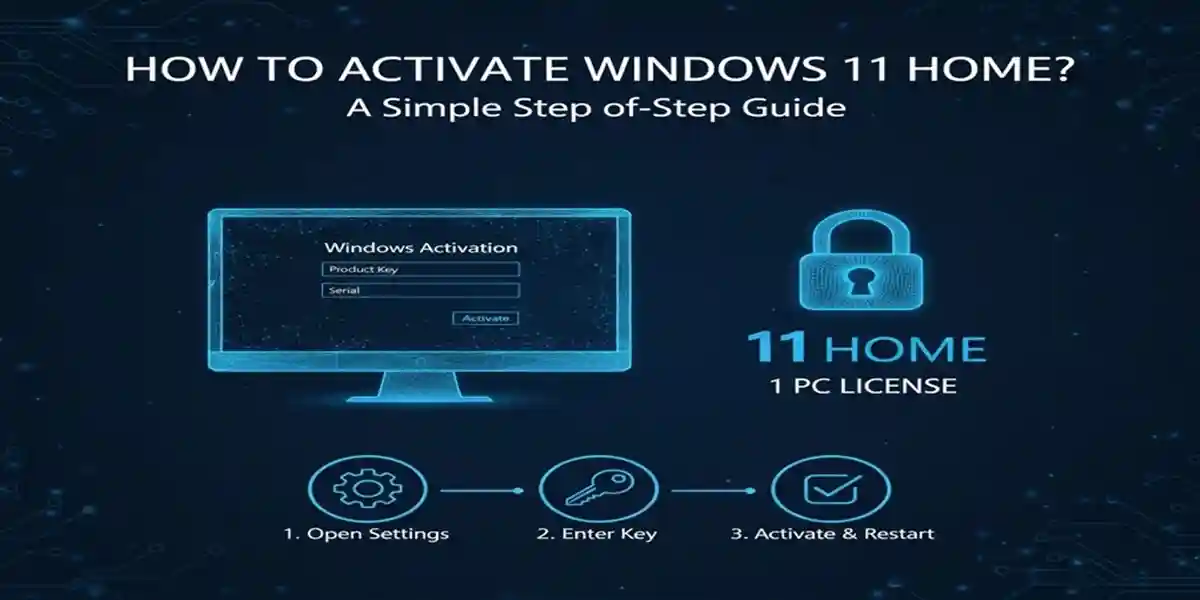
Step 3: Activate Windows 11 Home with a Product Key
If you’ve purchased Windows 11 Home with a product key, you can activate it on each device by following these steps:
-
Open Settings: Click on the Start menu and go to Settings > System > Activation.
-
Enter the Product Key: In the Activation settings, click on Change product key and enter the 25-character product key that came with your purchase.
-
Activate: After entering the product key, click Next, then Activate. Windows will validate the key and activate your OS.
Repeat this process for each device you want to activate.
Step 4: Activation via Digital License
If your device is linked to a digital license, Windows 11 Home will activate automatically once you sign in with the associated Microsoft account.
-
Check Activation Status: Go to Settings > System > Activation to confirm that the activation is successful.
-
If you see the message “Windows is activated with a digital license,” the activation was successful.
Common Activation Errors and Fixes
While activating Windows 11 Home is generally straightforward, you may encounter errors. Below are some common issues and their fixes:
Error 1: “Windows cannot be activated”
Cause: This error usually occurs if your product key is invalid or already used on another device.
Fix:
-
Double-check the product key you entered.
-
Ensure you’re signed in with the correct Microsoft account if you’re using a digital license.
-
If the key has been used on another device, contact Microsoft Support to resolve the issue.
Error 2: “The product key you entered didn’t work”
Cause: This error occurs when the product key is mistyped, expired, or invalid.
Fix:
-
Verify the product key carefully for typos.
-
Ensure you’re using the correct version (Windows 11 Home vs. Pro).
-
If the issue persists, use phone activation to activate Windows.
Error 3: “We can’t activate Windows on this device”
Cause: This can occur if your hardware is incompatible or if you’ve recently changed hardware components like the motherboard or hard drive.
Fix:
-
Make sure your system meets Windows 11’s hardware requirements.
-
If hardware changes have been made, try contacting Microsoft for help with reactivating your device.
Activation via Command Prompt
You can also activate Windows 11 Home using the Command Prompt method. Here’s how:
-
Open Command Prompt as Administrator: Press Win + X, then select Command Prompt (Admin).
-
Enter the Activation Command: Type the following command and press Enter:
Replace
<your-product-key>with your 25-character product key. -
Activate Windows: To activate Windows, use this command:
This will trigger the activation process.
-
Check Activation Status: To confirm the activation was successful, use:
Conclusion
Activating Windows 11 Home across multiple devices is a seamless and straightforward process, whether you’re using a product key or a digital license. By following the steps outlined in this guide, you can ensure that your Windows 11 Home installation is activated correctly on all your devices. Enjoy all the new features of Windows 11, such as enhanced security, improved multitasking, and gaming optimizations, across multiple devices with ease.
If you encounter any activation issues, the troubleshooting tips provided here will help resolve most problems. With its modern interface and advanced features, Windows 11 Home provides an optimal experience for home users and small businesses alike.
FAQs about Activating Windows 11 Home
-
Can I activate Windows 11 Home on more than five devices?
No, Windows 11 Home allows you to activate it on up to five devices. Additional licenses are required for more than five devices. -
What should I do if my product key doesn’t work?
Double-check your product key for accuracy and ensure you’re using the correct version of Windows 11. If the issue contact vendor -
Can I activate Windows 11 Home without a product key?
Yes, if your device is linked to a digital license, Windows will activate automatically when you sign in with the associated Microsoft account. -
How long does it take to activate Windows 11 Home?
The activation process typically takes a few minutes. If there are issues, follow the troubleshooting steps or contact vendor support for further assistance. -
What is the difference between a digital license and a product key?
A digital license is tied to your Microsoft account and your device’s hardware, while a product key is a 25-character code used for manual activation.