

Blog
How to Activate Windows 11 Pro : Fast and Easy Setup

Introduction
Windows 11 Pro is an excellent choice for power users, small businesses, and families who want to upgrade multiple devices to the latest version of Windows. It offers a comprehensive set of features, including enhanced security, productivity tools, and modern performance optimizations that can significantly improve your computing experience. The version of Windows 11 Pro allows you to install and activate the operating system on up to five devices, making it a cost-effective and practical solution for those with multiple computers.
However, even though activating Windows 11 Pro is typically a straightforward process, it’s essential to follow the correct steps to ensure activation goes smoothly. This article will provide a detailed guide on how to activate Windows 11 Pro quickly and easily, covering the necessary features, troubleshooting common activation errors, and offering useful tips for a hassle-free setup.
Key Features
Before diving into the activation process, it’s essential to understand the standout features that make Windows 11 Pro an appealing choice:
1. Advanced Security Features
Windows 11 Pro comes with a host of robust security features, such as BitLocker encryption, Windows Defender, and Windows Hello for biometric login. These tools help protect your personal data and business information from unauthorized access.
2. Snap Layouts and Snap Groups
Multitasking is made easier with Snap Layouts and Snap Groups in Windows 11 Pro. These features allow you to organize your open windows in a grid, enabling you to work on multiple apps at once with ease.
3. Microsoft Teams Integration
With integrated Microsoft Teams, Windows 11 Pro offers a simple, efficient way to communicate and collaborate with colleagues, friends, or family. You can start meetings, video calls, and chats directly from your taskbar.
4. Virtual Desktops
The Virtual Desktops feature allows you to create separate workspaces for different tasks. You can switch between desktops for specific projects, keeping your work organized and efficient.
5. Support for Business Needs
As part of the Windows Pro edition, it includes advanced business features like Group Policy Management, Remote Desktop, and Domain Join, allowing for better control and management in a professional environment.
6. Gaming Enhancements
Windows 11 Pro provides improvements in gaming performance, including DirectStorage (for faster load times) and Auto HDR (for enhanced graphics). Gamers will appreciate these features for a smoother, more immersive experience.
7. Android Apps Support
Windows 11 introduces the ability to run Android apps on your PC, bringing mobile functionality to your desktop or laptop.
How to Activate Windows 11 Pro: Fast and Easy Setup
To activate Windows 11 Pro, follow these simple steps. Whether you have a product key or are activating through a digital license, the process is quick and easy.
Step 1: Check System Requirements
Before proceeding with activation, ensure that your devices meet the system requirements for Windows 11. These include:
-
Processor: 1 GHz or faster with at least 2 cores on a compatible 64-bit processor or System on a Chip (SoC).
-
RAM: 4 GB or more.
-
Storage: 64 GB or more.
-
Graphics card: DirectX 12 compatible graphics / WDDM 2.x.
-
Display: 9” or larger display with HD resolution (720p).
-
TPM 2.0: A Trusted Platform Module (TPM) version 2.0 is required for security purposes.
Ensure your system is ready by checking these specs using the PC Health Check tool available on Microsoft’s website.
Step 2: Install Windows 11 Pro
If you haven’t already installed Windows 11 Pro on your device, follow these steps:
-
Download Windows 11: Go to the official Microsoft website and download the Windows 11 installation tool or media creation tool.
-
Create Installation Media: Use the Media Creation Tool to create a bootable USB drive or DVD, or download an ISO file.
-
Install Windows 11 Pro : Run the installation tool and follow the prompts to install Windows 11 Pro. Choose the correct version (Pro) during installation.
-
Set Up Windows: Once the installation is complete, go through the initial setup process, including region, language, network connection, and user preferences.
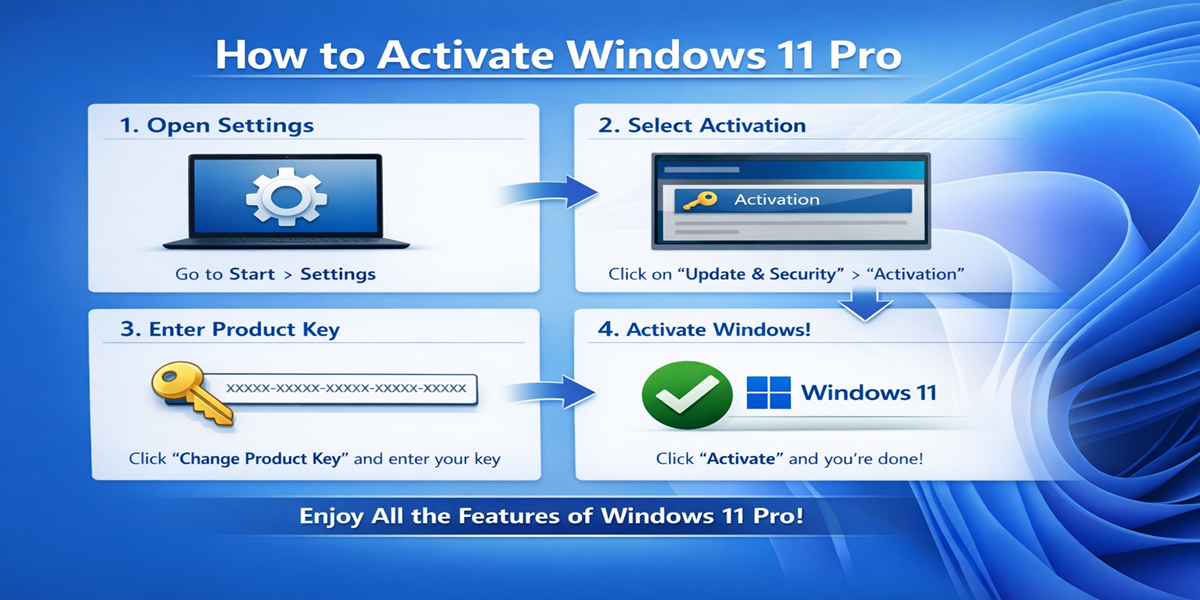
Step 3: Activation with Product Key
If you have purchased Windows 11 Pro as a product key, here’s how to activate it:
-
Open Settings: Click on the Start menu and go to Settings > System > Activation.
-
Enter Product Key: In the Activation settings, click on Change product key and enter the 25-character product key you received with your purchase.
-
Activate: Click Next and then Activate. Windows 11 Pro 5PC will validate your key and activate your OS.
Step 4: Activation via Digital License
If your device already has a digital license (this is common if you upgrade from Windows 10), the activation should happen automatically:
-
Check Activation Status: Go to Settings > System > Activation.
-
If your Windows 11 Pro is digitally activated, you should see the status “Windows is activated with a digital license.”
Common Activation Errors and Fixes
While activating Windows 11 Pro is generally straightforward, you may encounter some errors. Below are some of the most common issues and their fixes:
Error 1: “Windows cannot be activated”
Cause: This can happen if your product key is invalid or already used on another device.
Fix:
-
Double-check the product key you entered.
-
If you’re using a digital license, ensure you’re logged in with the correct Microsoft account linked to the license.
-
If you’ve used the key previously on another device, try contacting vendor support to resolve the issue.
Error 2: “The product key you entered didn’t work”
Cause: This error typically appears if there is an issue with the product key, such as it being expired or mistyped.
Fix:
-
Verify that you typed the product key correctly.
-
Ensure that the key matches the correct version of Windows 11 (e.g., Pro vs. Home).
-
If it’s a valid key and you’re still receiving the error, try using the Phone Activation method by contact vendor support.
Error 3: “Activation error: We can’t activate Windows on this device”
Cause: This error can occur if your hardware isn’t compatible or if there is an issue with your Windows installation.
Fix:
-
Make sure your system meets the minimum hardware requirements for Windows 11.
-
If you’ve recently changed hardware (e.g., motherboard or hard drive), Windows may need to be reactivated.
-
In some cases, you may need to use phone activation or contact Vendor support for assistance.
Activation Methods Using Command Prompt
If you prefer to use Command Prompt for activating Windows 11 Pro , you can follow these steps:
-
Open Command Prompt as Administrator: Press Win + X, then select Command Prompt (Admin).
-
Enter the Activation Command: Type the following command and press Enter:
Replace
<your-product-key>with your 25-character Windows 11 Pro product key. -
Activate Windows: To activate, use this command:
This command will trigger the activation process.
-
Check Activation Status: To verify that activation was successful, use the following command:
Conclusion
Activating Windows 11 Pro is a simple and efficient process, whether you’re using a product key or a digital license. By following the steps outlined above, you can easily activate your copy of Windows 11 Pro and take advantage of its powerful features such as advanced security, enhanced performance, virtual desktops, and more. If you run into any issues during the activation process, the troubleshooting tips provided here should help resolve most problems.
Windows 11 Pro offers an excellent solution for individuals, families, and businesses that need to upgrade multiple devices to the latest OS. With its modern interface, enhanced productivity tools, and improved security, Windows 11 Pro is designed to meet the needs of today’s tech-savvy users.
FAQs about Activating Windows 11 Pro
-
Can I activate Windows 11 Pro on more than five devices?
No, Windows 11 Pro allows you to activate the OS on up to five devices. If you need more, you will need to purchase additional licenses. -
What should I do if my product key doesn’t work?
Double-check the key for accuracy and make sure it’s the correct version for your device. If the issue persists, contact vendor support for assistance. -
Can I activate Windows 11 Pro without a product key?
If you have a digital license linked to your Microsoft account, Windows will activate automatically once you sign in. -
What is the difference between a digital license and a product key?
A digital license is an activation method tied to your Microsoft account and hardware, while a product key is a 25-character code used for manual activation. -
How long does Windows 11 Pro activation take?
The activation process usually takes a few minutes. If you encounter any issues, follow the troubleshooting steps or contact vendor support for help.