

Blog
“How to Get Started with Microsoft Copilot: Activation Process Explained”

Introduction to Microsoft Copilot
In the ever-evolving world of technology, AI-powered solutions are becoming crucial to boosting productivity and efficiency. One such breakthrough tool is Microsoft Copilot, an innovative assistant designed to integrate seamlessly with Microsoft Office apps. Copilot is powered by artificial intelligence and aims to elevate the way professionals engage with their tasks, offering a smarter, faster, and more intuitive way to work. By leveraging the full potential of AI, Microsoft Copilot assists users in automating routine tasks, generating content, analyzing data, and even providing insights that help improve decision-making.
In this article, we will explore the features, benefits, common errors, and fixes related to Microsoft Copilot. Additionally, we will provide guidance on how to activate it and answer some frequently asked questions (FAQ) to ensure you can make the most of this incredible tool.
Key Features of Microsoft Copilot
Microsoft Copilot is built to enhance productivity by integrating AI-driven solutions with Microsoft’s suite of applications such as Word, Excel, PowerPoint, Teams, and more. Below are the key features that make it stand out:
1. Seamless Integration with Microsoft Office Apps
One of the primary strengths of Microsoft Copilot is its integration with core Microsoft Office applications. Whether you’re working on a Word document, PowerPoint presentation, or Excel spreadsheet, Copilot is embedded within these apps to provide real-time assistance, suggesting edits, automating formatting, and offering content generation capabilities.
2. AI-Powered Productivity Assistant
Microsoft Copilot uses cutting-edge AI algorithms to assist with tasks like drafting emails, summarizing documents, and even generating complex reports. For example, in Excel, Copilot can analyze datasets, offer insights, and even generate charts and graphs to visualize your data.
3. Enhanced Collaboration with Teams
Through its integration with Microsoft Teams, Copilot helps teams collaborate more effectively. It can summarize meeting notes, suggest agenda items, and even create follow-up tasks for team members. This reduces the time spent on administrative tasks and helps focus on actionable insights.
4. Natural Language Processing
Copilot allows you to interact with it using natural language, making it intuitive to use. You can ask Copilot to “draft a report,” “summarize an email,” or “analyze the sales data,” and it will generate results based on your command.
5. Automation of Repetitive Tasks
With Copilot, you can automate repetitive tasks like data entry, content formatting, and report generation. For example, Copilot can automatically format your PowerPoint slides according to a professional layout or assist in creating automated workflows in Excel based on your needs.
6. Data-Driven Insights
Copilot’s AI capabilities go beyond basic automation. It can analyze vast amounts of data from multiple sources, providing actionable insights. For instance, it can help predict trends, suggest optimizations for workflows, or even recommend strategic business decisions.
7. Smart Content Generation
One of the standout features of Copilot is its content generation capabilities. Whether you’re drafting emails, creating marketing content, or working on a research report, Copilot can automatically generate relevant content based on keywords or subject matter you provide.
Benefits of Microsoft Copilot
Microsoft Copilot brings several benefits to both individual users and organizations, ranging from time savings to improved decision-making. Here are some of the key advantages:
1. Time-Saving
By automating routine tasks such as formatting, summarizing, and data analysis, Microsoft Copilot significantly reduces the amount of time spent on manual work, allowing employees to focus on more strategic, high-value activities.
2. Increased Productivity
With AI-powered features such as content generation and data analysis, Copilot can streamline workflows, help create content faster, and improve the efficiency of team collaboration.
3. Better Decision-Making
Microsoft Copilot provides data-driven insights that help make informed decisions. With its ability to analyze large datasets and provide actionable insights, it enables professionals to act on critical information faster.
4. Seamless Workflow Integration
Copilot integrates with Microsoft Office apps seamlessly, which means there’s no need to switch between multiple tools to access Copilot’s features. Everything you need is right within your Microsoft Office suite.
5. Personalization and Adaptability
Copilot adapts to the unique needs of its users. It learns from user input, improving its responses over time and personalizing recommendations based on your preferences and work habits.
Comparison table showing the features and availability of Microsoft Copilot across various Microsoft 365 plans (Personal, Family, Business Basic, Business Standard, and Business Premium)
| Feature/Plan | Microsoft 365 Personal | Microsoft 365 Family | Microsoft 365 Business Basic | Microsoft 365 Business Standard | Microsoft 365 Business Premium |
|---|---|---|---|---|---|
| Microsoft Copilot Access | No | No | No | Yes | Yes |
| Available Apps (Word, Excel, PowerPoint, Outlook, Teams) | Yes | Yes | Yes | Yes | Yes |
| AI-Powered Assistance | No | No | No | Yes | Yes |
| Content Generation (Docs, Emails) | No | No | No | Yes | Yes |
| Data Insights and Analysis | No | No | No | Yes | Yes |
| Automated Task Management | No | No | No | Yes | Yes |
| Customizable Workflows | No | No | No | Yes | Yes |
| Seamless Cloud Integration | Yes | Yes | Yes | Yes | Yes |
| Microsoft Teams Collaboration | Yes | Yes | Yes | Yes | Yes |
| License Type | Individual Subscription | Family Subscription | Business Subscription | Business Subscription | Business Subscription |
Common Errors in Microsoft Copilot and Fixes
While Microsoft Copilot is designed to enhance productivity, users may encounter some errors during usage. Below are some common issues and their solutions:
1. Error: Copilot is Not Available in My Region
-
Cause: Microsoft Copilot is only available in specific regions.
-
Fix: Check Microsoft’s official website for the regions that support Copilot. Ensure that your region supports this feature. You may also need to update your Microsoft 365 subscription to include Copilot.
2. Error: Copilot Not Showing in Microsoft Office Apps
-
Cause: Copilot may not be enabled in your apps due to an outdated Office version or missing updates.
-
Fix: Ensure your Microsoft Office suite is up to date. Go to File > Account > Update Options in your Office app and select Update Now. If the issue persists, reinstall Office.
3. Error: Copilot Not Responding to Commands
-
Cause: Sometimes, Copilot may fail to respond due to temporary system glitches or network issues.
-
Fix: Restart your Office app and check your internet connection. Ensure that Copilot is properly integrated and activated in your Microsoft 365 account.
4. Error: Activation Key Invalid
-
Cause: Your Microsoft Copilot activation key might be invalid or incorrectly entered.
-
Fix: Verify that the correct activation key is entered. If the error continues, contact Microsoft support for assistance with your license.
Methods to Activate Microsoft Copilot
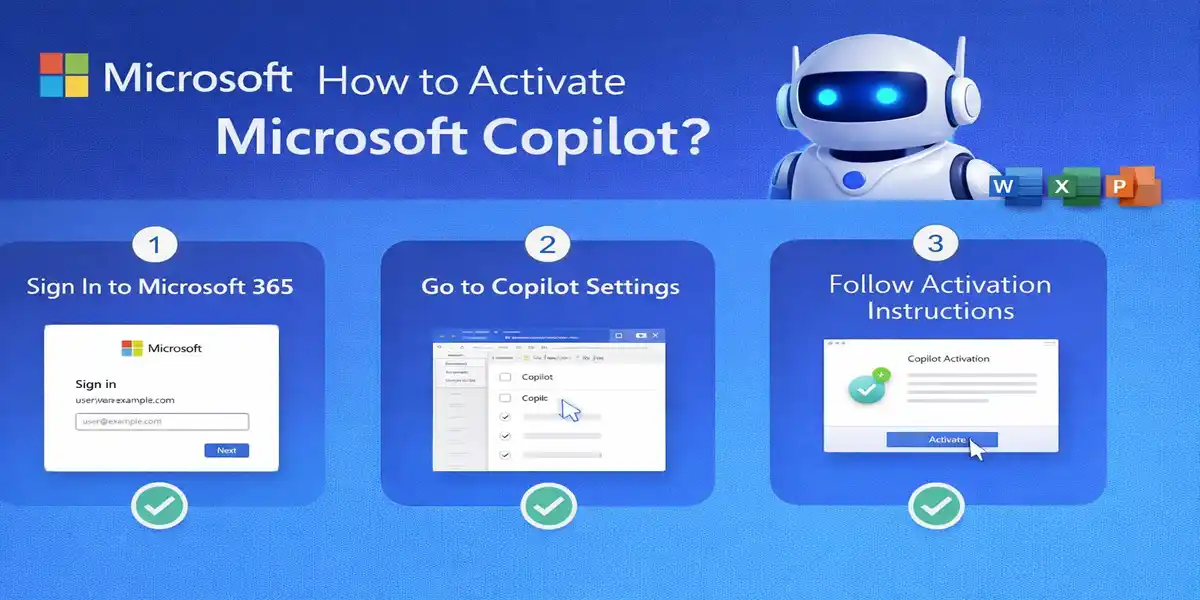
To use Microsoft Copilot, you need to ensure that it is properly activated in your Microsoft 365 account. Here’s how to activate it:
1. Microsoft 365 Subscription
Microsoft Copilot is available to Microsoft 365 subscribers. To activate, follow these steps:
-
Log in to your Microsoft 365 account.
-
Go to Settings and select Copilot Activation.
-
Follow the on-screen instructions to enable Copilot across your Microsoft apps.
-
Ensure that your subscription is valid and up to date.
2. Office App Activation
Once your subscription is active, ensure that Copilot is enabled in your Office apps (Word, Excel, PowerPoint, etc.):
-
Open any Office app.
-
Navigate to File > Options > Add-ins.
-
Verify that Copilot Add-in is listed and enabled.
3. Network License Activation
For organizations using Volume Licensing, Microsoft Copilot can be activated on multiple devices:
-
Set up the license server with the Microsoft Volume Licensing Service Center.
-
Deploy the license across your organization’s network.
Frequently Asked Questions (FAQ) about Microsoft Copilot
1. What is Microsoft Copilot?
Microsoft Copilot is an AI-powered assistant integrated into Microsoft Office apps to help users automate tasks, generate content, analyze data, and improve overall productivity.
2. Which Microsoft Office apps support Copilot?
Microsoft Copilot is integrated with Microsoft Office apps such as Word, Excel, PowerPoint, and Teams.
3. How do I activate Microsoft Copilot?
To activate Microsoft Copilot, ensure you have an active Microsoft 365 subscription, then enable Copilot from the Settings menu in your Office apps.
4. Is Microsoft Copilot available to all users?
No, Microsoft Copilot is currently available for Microsoft 365 subscribers with specific plans. Ensure your subscription includes Copilot features.
5. How does Microsoft Copilot enhance team collaboration?
Microsoft Copilot helps teams by automating administrative tasks, generating meeting summaries, and providing actionable insights for better decision-making in apps like Teams.
6. Can Microsoft Copilot assist with data analysis in Excel?
Yes, Microsoft Copilot can analyze large datasets in Excel, create charts, and offer data-driven insights to improve decision-making.
7. Is there a free trial for Microsoft Copilot?
Microsoft typically offers free trials for Microsoft 365 services, but Microsoft Copilot may require an active paid subscription to access its full features.
8. How secure is Microsoft Copilot?
Microsoft Copilot adheres to the security standards and protocols of Microsoft 365, ensuring that your data is protected with robust security features.
Conclusion
Microsoft Copilot is an innovative tool that uses AI to revolutionize how we work. By integrating seamlessly into Microsoft Office apps, it provides real-time assistance, automates repetitive tasks, and empowers users with data-driven insights to make better decisions. Whether you’re an individual looking to boost your productivity or a business aiming to improve collaboration and efficiency, Microsoft Copilot offers a game-changing solution for smarter workflows.
As AI continues to shape the future of work, Microsoft Copilot stands at the forefront of this transformation, making it a must-have for anyone looking to stay ahead in the fast-paced world of business and technology.